
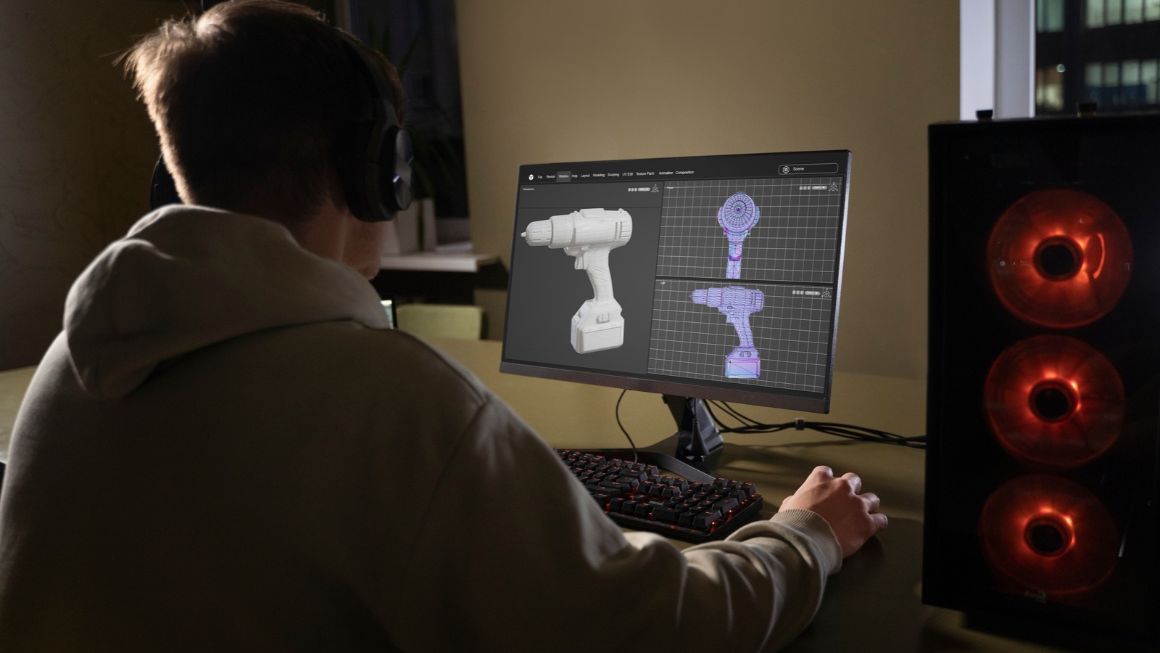
Cleaning a stray wire out of a shot used to mean a compositor, an afternoon and a lot of coffee. Now you can click on a person and get a usable matte in seconds. That’s why AI VFX tools have moved from novelty to daily kit for filmmakers, editors, agencies, YouTubers and solo artists.
But faster isn’t the same as better. These tools trim the time on specific jobs, such as masking, cleanup and first-draft shots. They don’t choose the lens, spot the shadow that’s wrong or decide what a scene should feel like. That part is still yours.
Below are 15 options, from prompt-driven generators to compositing programs studios have trusted for years. Some are AI filmmaking tools built from scratch. Others are older software with AI bolted on.
Table of Contents
What Are AI VFX Tools and How Do They Work?
AI VFX tools are programs that use machine learning to create, change or clean up video, taking over jobs like masking, tracking and object removal that once meant hours of frame-by-frame work. Some generate footage from text or images. Others assist an artist inside a traditional pipeline.
Under the hood, the software studies each frame for edges, depth, motion and familiar things like faces or sky. A matte tool learns what “person” looks like, then follows that shape frame to frame. That’s the core of most AI visual effects software. Generative models go further and predict brand-new pixels, so they can invent a background instead of cutting one out.
Here’s the distinction that matters. AI-generated video starts from a prompt and hands you a clip you never filmed. AI-assisted VFX starts from your footage and speeds up one task. Traditional workflows still count, because layered files give directors exact control.
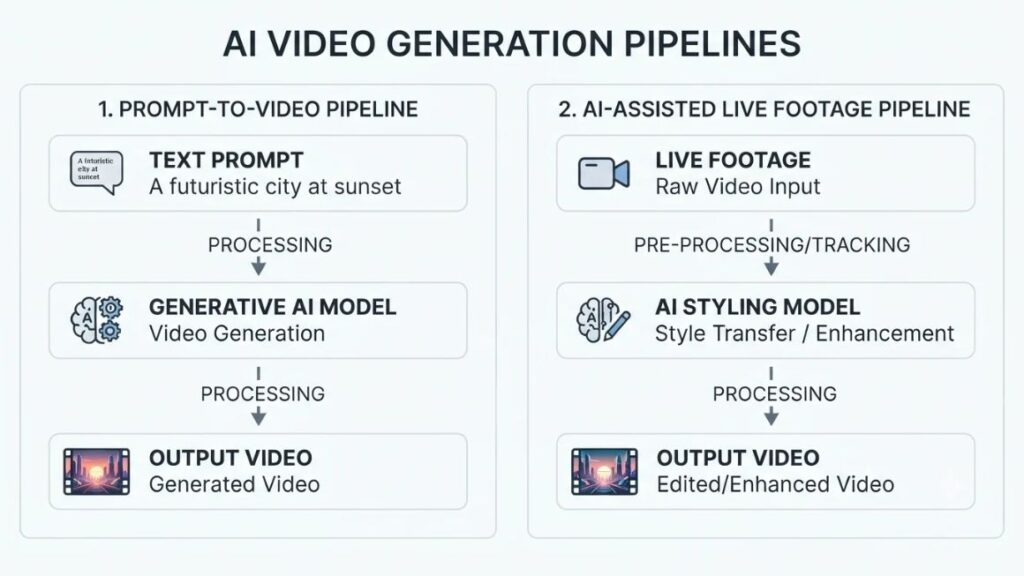
AI-generated effects vs. traditional visual effects
Say you want a fantasy forest. Type a prompt into Google Flow and a finished-looking clip appears in minutes, though nudging one tree three inches left is a pain. Now say you need a CGI creature beside a real actor. Different job. Autodesk Flow Studio tracks the actor, matches the lighting and exports an editable 3D scene. Fast and loose versus slow and precise.
Also Read: Best AI Video Generators in 2026
What tasks can AI automate or simplify?
Nine jobs benefit most right now: object removal, background replacement, masking, rotoscoping, motion capture, scene generation, cleanup, upscaling and relighting. Most save real time. Relighting still needs babysitting.
AI VFX tools use machine learning to automate masking, tracking, cleanup and generation. AI-generated video starts from a prompt, while AI-assisted VFX speeds up work on footage you shot.
15 Best AI VFX Tools in 2026
Prices and credit rules below were checked in November 2026, so confirm on each official page before paying. The list runs from AI video effects built for social clips to compositing programs used on feature films.
| Tool | Best use | Skill level | Pricing |
| Runway | Generative VFX | Beginner to intermediate | Free and paid |
| Autodesk Flow Studio | CG characters, mocap | Intermediate | Free and paid |
| Google Flow | Cinematic AI video | Beginner to intermediate | Plan-dependent |
| Adobe Firefly | Generative creative work | Beginner | Plan-dependent |
| After Effects | Compositing and effects | Intermediate to advanced | Paid |
| Kling AI | Motion-heavy video | Beginner to intermediate | Credit-based |
| Pika | Creative transformations | Beginner | Free and paid |
| Luma AI | Cinematic footage | Beginner to intermediate | Free and paid |
| DaVinci Resolve | Edit, grade, composite | Intermediate | Free and paid |
| Topaz Video AI | Video enhancement | Beginner to intermediate | Paid |
| Mocha Pro | Tracking, masking | Advanced | Paid |
| Silhouette | Roto and paint | Advanced | Paid |
| Blender | 3D and compositing | Intermediate to advanced | Free |
| Nuke | Professional compositing | Advanced | Free and paid |
| Hailuo AI | Cinematic clips | Beginner | Free and paid |
1. Runway: Best for creative video transformation
Best for: Restyling footage and building shots from prompts.
Key features: Gen-4.5 generation, Aleph for editing clips, Act-Two for performance capture.
What you can create: Object swaps, new backgrounds, restyled scenes. An AI VFX generator with an editor attached.
Pros: Generation and editing in one app.
Cons: Credits vanish fast. Runway says Standard’s 625 monthly credits cover about 52 seconds of Gen-4.5.
Pricing: Free plan with one-time credits; paid from about $12 to $15 a month.
Our recommendation: The best first stop for most people. Draft cheaply, spend credits wisely.
2. Autodesk Flow Studio: Best for live-action and CG integration
Best for: Putting CG characters into live-action footage.
Key features: Markerless AI mocap, camera tracking, clean plates and alpha masks, exported to Maya, Blender, Unreal or 3ds Max.
What you can create: A digital character replacing an actor, lit to match.
Pros: Editable exports.
Cons: Autodesk lists 20 credits per second of live action.
Pricing: Free tier plus paid plans; Lite dropped to $10 a month in August 2025.
Our recommendation: If a 3D artist will touch the shot, try this first.
3. Google Flow: Best for cinematic AI-generated shots
Best for: Cinematic shots from text, images or reference frames.
Key features: Veo-powered generation, camera controls, Scenebuilder, insert and remove tools.
What you can create: Establishing shots and ad concepts with sound. Among AI tools for creating cinematic effects, it’s built around scenes, not clips.
Pros: Native audio.
Cons: Needs a Google AI plan, and credits run out.
Pricing: Included with Google AI Plus, Pro or Ultra; Pro lists at $19.99 a month.
Our recommendation: Great for ads and concepts. Frustrating for frame-level control.
4. Adobe Firefly: Best for creative editing and generative workflows
Best for: Creators who want licensed-data models inside Adobe apps.
Key features: Adobe’s own video model, a browser video editor (beta from December 2025), partner models from Runway, Kling and Luma.
What you can create: Generated clips, B-roll, upscaled footage.
Pros: Adobe says its own models are safe for commercial use.
Cons: Video burns credits, and partner outputs are yours to clear.
Pricing: Paid plans start around $9.99 a month.
Our recommendation: The sensible pick when licensing questions come first.
5. Adobe After Effects: Best for compositing and finishing
Best for: Compositing, motion graphics and final polish.
Key features: Object Matte (version 26.2, April 2026) isolates a moving subject with one click. A prompt-driven AI Assistant entered beta in September 2026.
What you can create: Clean mattes, composites, finished comps.
Pros: Deep plug-in support.
Cons: Steep to learn, subscription only.
Pricing: Single-app plan listed at $34.49 a month in April 2026.
Our recommendation: Worth learning if you’ll fix other people’s footage for a living.
6. Kling AI: Best for motion and image-to-video generation
Best for: Motion-heavy clips and image-to-video.
Key features: Kling 3.0 (February 2026) adds multi-shot control, native audio and 15-second clips. Motion Control copies a reference performance onto a character.
What you can create: Animated stills and character performances. A fair pick among AI tools for realistic video generation when movement matters most.
Pros: Reference-driven motion.
Cons: Motion Control costs 9 credits per second on Standard, 12 on Professional.
Pricing: Credit-based. Check the current free allowance.
Our recommendation: Test it beside Runway on the same shot.
7. Pika: Best for fast creative effects
Best for: Fast, social-first effects.
Key features: Pika 2.5 with Pikaffects, Pikaswaps and Pikadditions.
What you can create: Object swaps and stylised clips for Reels or Shorts.
Pros: Low barrier, cheap to experiment.
Cons: Free plan caps at 480p, and reviewers call realism its weak spot.
Pricing: Free with 80 monthly credits; paid from about $8 a month billed annually. Commercial rights vary.
Our recommendation: Brilliant for scroll-stopping gags. Not for hero shots.
8. Luma AI: Best for cinematic experimentation
Best for: Cinematic generation from reference footage and keyframes.
Key features: Ray3 with native 16-bit HDR, and Ray3 Modify, which swaps characters in existing footage while keeping the performance.
What you can create: HDR shots, character swaps, start-to-end-frame transitions.
Pros: HDR suits grading pipelines.
Cons: Free output is watermarked, and features differ between Ray versions.
Pricing: Free tier plus paid plans; commercial use needs a paid one.
Our recommendation: Pick it when the footage is headed to a colourist.
9. DaVinci Resolve: Best for editing and finishing
Best for: Editing, grading and compositing in one program.
Key features: Built-in Fusion compositing. Studio adds the Neural Engine, with Magic Mask, object removal and Speed Warp.
What you can create: Finished edits and masked grades. As AI video editing tools go, it’s one of the few that also grade and composite.
Pros: The free version is properly capable.
Cons: AI features are Studio-only.
Pricing: Free; Studio is a $295 one-time purchase.
Our recommendation: Start free. Buy Studio when Magic Mask saves you more than it costs.
10. Topaz Video AI: Best for improving footage quality
Best for: Rescuing soft, noisy or low-resolution footage.
Key features: Upscaling, denoising, sharpening, frame interpolation and Starlight models.
What you can create: Cleaner archive clips and sharper AI generations. It’s the most direct route to AI video enhancement, within limits.
Pros: Does one job well.
Cons: Can invent detail that was never there, and can’t save truly bad footage.
Pricing: Paid. Topaz moved to subscriptions in late 2025.
Our recommendation: Run it last, not first, and check faces carefully.
11. Mocha Pro: Best for tracking-based effects
Best for: Tracking and masking difficult shots.
Key features: Planar tracking, object removal, stabilisation. Version 2026.5 (June 2026) added Point Track ML, an AI motion tracking mode that copes better with occlusion and lighting changes.
What you can create: Screen replacements, logo inserts, wire removal.
Pros: Plugs into After Effects, Premiere and Nuke.
Cons: Assumes VFX knowledge.
Pricing: Subscription; plug-ins were listed at $325 a year in December 2025.
Our recommendation: If you keep losing tracks on moving surfaces, start here.
12. Silhouette: Best for roto and paint work
Best for: Roto and paint at studio level.
Key features: Silhouette 2026 (May 2026) added Head Track ML and Point Track ML, plus Matte Refine ML and Depth Map ML.
What you can create: Clean mattes, beauty retouching, depth maps.
Pros: Cryptomatte support.
Cons: Pricey for solo creators.
Pricing: From about $545 a year or $103 a month.
Our recommendation: For studios and serious freelancers.
13. Blender: Best free 3D VFX option
Best for: Free 3D animation and compositing.
Key features: Open source. Blender 5.0 (November 2025) added HDR output, ACES colour and a Compositor modifier in the video editor.
What you can create: 3D assets, simulations, composites. Pair it with Flow Studio’s Blender export to bring AI mocap into 3D scenes.
Pros: Free, with a big community.
Cons: Not built around AI generation, and 3D has its own steep curve.
Pricing: Free.
Our recommendation: Learn it if you want to own the 3D side of your shots.
14. Nuke: Best for professional compositing
Best for: Professional compositing.
Key features: Node-based compositing. Nuke 17 (February 2026) added a USD-based 3D system, Gaussian splats and BigCat, which trains neural networks on your own shots.
What you can create: Final composites and plate integration. For AI VFX tools for professional filmmakers, that custom training is hard to beat.
Pros: A studio standard, with a free non-commercial version.
Cons: Heavy, and expensive at commercial rates.
Pricing: Nuke Indie is $499 a year for artists earning under $100,000.
Our recommendation: Not for beginners. Essential for a compositing career.
15. Hailuo AI: Best for experimental AI video creation
Best for: Experimental, cinematic clips on a small budget.
Key features: MiniMax’s Hailuo 2.3 offers text-to-video and image-to-video, with an emphasis on motion and facial expression.
What you can create: Short cinematic clips, character moments.
Pros: Free credits to test.
Cons: Free output is watermarked, and newer MiniMax models exist, so check your version.
Pricing: Free sign-up credits, then paid plans.
Our recommendation: Worth testing against Kling. Don’t build a pipeline around it.

Which AI VFX Tool Is Best for Your Needs?
The best AI VFX tool depends on the job. Runway and Google Flow suit prompt-based effects, Autodesk Flow Studio handles CG characters, After Effects and Nuke finish composites, and Topaz fixes soft footage. Looking for the best AI VFX tools for beginners? Start with Runway or Pika. Both have free plans.
| Your requirement | Start with |
| Effects from prompts | Runway or Google Flow |
| A CGI character in real footage | Autodesk Flow Studio |
| Removing or replacing elements | Runway, or an editing workflow built for it |
| Professional composites | After Effects or Nuke |
| Fixing low-quality footage | Topaz Video AI |
| Creating and animating 3D scenes | Blender |
| Tracking surfaces and objects | Mocha Pro |
| Quick social content | Pika or another generative tool |
| Finishing and grading | DaVinci Resolve |
Capabilities overlap, though. Plenty of AI tools for filmmaking and video editing can do the same job, so the right pick depends on your footage, your budget and how much control you need. A tool that nails a ten-second Reel can fall apart on a feature grade.
How to Create Visual Effects Using AI: A Step-by-Step Workflow
Wondering how to create VFX using AI? Plan, source, generate, refine, composite, check. AI-powered video production starts with a brief, same as any other kind.
Step 1. Plan the effect before opening a tool
Write a one-line brief. Collect references for lighting, lens and camera angle, and decide what must stay untouched. Ten minutes here saves a dozen wasted generations.
Step 2. Choose the right footage or generate a starting scene
Shoot on a locked-off or smoothly moving camera at the highest resolution you can manage. If you’re generating, add a reference image.
Step 3. Generate the effect
Build prompts from seven parts: subject, environment, action, camera movement, lighting, style and what should stay unchanged. For example: “A courier walking toward camera on a rainy street at dusk, slow dolly back, neon reflections, 35mm film look. Keep the jacket and face unchanged.”
Step 4. Refine the result
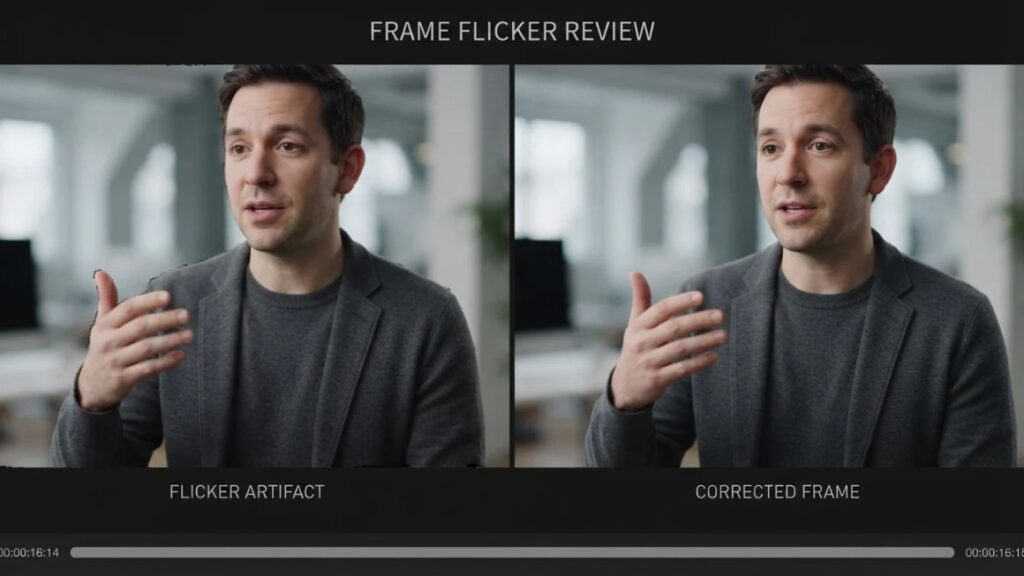
Re-render weak takes, mask trouble spots and correct the motion. AI object removal handles stray items, though you’ll redo a shot or two. Frame-to-frame consistency is where most clips wobble.
Step 5. Composite and finish
Bring generated and real footage into an editor or compositor. Match colour and grain, add sound, finish the grade. AI compositing speeds up mattes and depth passes, but your eye decides whether the shot sits right.
Step 6. Review frame by frame
Scrub slowly. Look for flicker, warping, shadows that disagree, floaty movement, objects that change shape, ragged edges and wrong reflections. Hands and mouths first.
Real-World Applications of AI VFX
Film and independent filmmaking
Netflix co-CEO Ted Sarandos said on a July 2025 earnings call that a building collapse in the Argentine series The Eternaut finished ten times faster with generative AI than with traditional tools. That’s the company’s own figure, so treat it carefully. For indie teams, the practical wins are previs, concept shots and AI rotoscoping that clears hours of mask work.
Advertising and product videos
Pika’s Pikaswaps and Runway’s restyling tools let agencies test product scenes and visual transformations without a full shoot. Firefly suits brand work where licensing comes first.
YouTube and social media
Creators use AI visual effects tools for YouTube videos to add stylised shots and transitions, and AI background removal to drop subjects into new scenes. It’s among the simpler AI tools for changing video backgrounds.
Education and explainer videos
Hard-to-film ideas, like molecules or planetary motion, get easier to show.
Gaming and animation
Developers and solo artists use AI for concept art, animation references and experimental scenes. Flow Studio’s mocap export and Kling’s Motion Control are two AI animation tools that feed normal pipelines.
Also Read: 35+ AI Tools for Content Creation, Chosen by Experts
AI VFX Tools vs. Traditional VFX Software
| Factor | AI-assisted approach | Traditional approach |
| Speed | Often faster for first drafts | Usually more manual |
| Creative control | Can be limited or unpredictable | Greater precision |
| Learning curve | Lower for some tasks | Higher |
| Consistency | Can vary between frames | More controllable |
| Cost | Potentially lower for selected tasks | Can need more time and resources |
| Complex production | May need heavy refinement | Better-established pipelines |
Neither side wins outright. Nuke, After Effects and Silhouette are traditional visual effects software that now ship AI features, while generators like Runway hand their output to compositors for repair. The real question isn’t AI or traditional. It’s which step each one speeds up.
Also Read: Best AI Video Editors in 2026
How to Choose the Right AI VFX Tool?
Choose by the job, not the hype. Six checks cover most decisions:
- Your actual use case: cleanup, generation or compositing?
- Output quality and resolution: some plans cap at 480p.
- Editing control: can you adjust mattes and layers, or only re-roll?
- Cost and credits: count credits per usable second, not per click.
- Export and integration: mattes, mocap and EXR beat a flattened MP4.
- Commercial rights and data policy: read both before uploading client footage.
Before subscribing, test your own footage on the free tier, work out the cost per finished second and confirm commercial use. Free AI VFX tools are fine for testing and risky for deadlines.
Also Read: AI Image Ads Generator: 10 Best Tools to Create High-Converting Ads in 2026
Limitations and Challenges of AI VFX
Generated VFX looks great in a demo reel and falls apart on shot 14. The usual failures are temporal consistency, where details flicker or drift, and continuity, where a jacket changes colour mid-scene. Fine detail, text and logos still warp. Complex physics, precise camera moves, hands, faces and reflections are weak spots too.
Then there’s the paperwork. In January 2025, the US Copyright Office concluded that prompts alone don’t give enough human control to count as authorship, so a purely AI-generated shot may not be protectable. And uploading unreleased or client footage to a cloud tool raises privacy questions, so read the data policy first.
Used carefully, generative visual effects speed up shots. Used carelessly, they create legal problems.
AI VFX still struggles with consistency, text, physics, hands and reflections. The US Copyright Office’s January 2025 report says prompts alone don’t establish human authorship, and rights vary by plan.
AI VFX Trends to Watch in 2026
More control over generated footage
Reference-driven generation is the big shift. Luma’s Ray3 Modify keeps an actor’s performance while swapping the character, Kling’s Motion Control copies movement from a reference clip, and Google Flow adds camera controls. You direct more and gamble less.
AI moving into professional pipelines
Exportable pieces matter more than pretty clips. Autodesk Flow Studio sends mocap, camera tracks, clean plates and alpha masks into Maya, Blender and Unreal, and Nuke 17 adds BigCat for training models across projects.
Real-time and multimodal workflows
Adobe’s Firefly video editor mixes partner models with your own footage, Kling 3.0 generates native audio, and Nuke 17 handles Gaussian splats beside USD scenes.
Smaller teams creating more ambitious projects
A solo creator can now try shots that once needed a specialist department. That doesn’t remove professional roles. Someone still has to direct and sign off, and smart small teams pay for that judgement.
Also Read: AI Tools for Designers: What to Use at Each Stage of Your Workflow (2026 Cheat Sheet)
Conclusion
AI VFX tools have made certain jobs far more reachable, from one-click mattes to prompt-built shots. No single tool fits every production, though, and chasing the most hyped model usually costs more than choosing the right one. The strongest results still come from pairing AI generation with human editing and creative judgement.
If you want to put AI tools to work in your marketing and content, the YUP AI Marketing course is a good next step.
Frequently Asked Questions About AI VFX Tools
What is the best AI VFX tool in 2026?
There isn’t one winner. Runway suits prompt-based effects, Autodesk Flow Studio handles CG characters, After Effects and Nuke finish composites, and DaVinci Resolve covers editing and grading. Match the tool to the job.
Are there free AI VFX tools?
Yes, mostly as free tiers. Runway, Pika, Autodesk Flow Studio and Hailuo offer free credits, Resolve has a capable free edition and Blender is fully free. Expect watermarks and tight limits.
Can beginners create VFX with AI?
Yes. Pika and Runway are the easiest entry points, and Google Flow works if you already pay for a Google AI plan. Basic editing knowledge still helps.
Can AI replace VFX artists?
Not on current evidence. AI automates repetitive jobs like roto and cleanup, but someone still directs the shot, judges quality and fixes failures.
Can AI remove objects from videos?
Often, yes. Resolve Studio, Google Flow and Mocha Pro can all remove objects, and AI tools for removing objects from videos work best on simple backgrounds and steady shots. Fast motion and busy scenes still need manual cleanup.
Can AI create Hollywood-quality visual effects?
For single shots, sometimes. Hollywood work still depends on professional compositing, simulation, rendering and supervision, so AI sits inside pipelines rather than replacing them.
Are AI-generated visual effects safe for commercial use?
It depends on the tool and plan. Adobe says Firefly’s own models are commercially safe, but partner models, free tiers and source assets carry their own terms. Read the licence before you publish.