
The average designer now uses seven AI tools regularly. A year ago it was three, according to the 2026 AI in Design report from Designer Fund and Foundation Capital. That’s a lot of new logins, and plenty of them overlap.
The problem isn’t finding AI tools for designers. It’s knowing which one to open when you’re staring at a brief, a half-finished screen, or a client who wants the logo as an SVG by evening. Pick wrong and you spend an hour fixing output that a different tool would have got right first time.
This cheat sheet sorts AI design tools by job instead of by hype. For each one you’ll see what it does best, roughly what it costs, and where it falls short, plus how the pieces fit into a single workflow. Everything was checked against vendor announcements and recent reviews in October 2026. Versions and pricing move fast, though, so confirm the details before you subscribe.
Table of Contents
Which AI Tools Do Designers Actually Need in 2026?
Most designers need one or two AI tools per job, not one tool for everything. The jobs are image generation, vectors, UI design, marketing layouts, video, design-to-code, and research, and each has a clear front-runner right now.
Adoption isn’t the open question anymore. Figma’s State of the Designer 2026 report, built on a NewtonX survey of 906 designers, found that 72% use generative AI tools and 91% say AI improves their designs. Treat that second number with some suspicion, since Figma sells design software. Still, independent data points the same way: UX Tools’ Spring 2026 survey found 71.1% of designers had added AI to their work or made it central to it in the previous six months.
What’s changed is the sprawl. More tools hasn’t meant better work. It’s meant more tabs.
Here’s the quick-reference version. Prices are entry-level figures as of October 2026 and they change often, so check each vendor before you pay.
| Job | Tool | Best for | Entry price (check before buying) |
| Images | Midjourney | Moodboards, concept art, high-aesthetic imagery | From $10/month, no free tier |
| Images | Adobe Firefly + Photoshop | Rights-conscious generation, layered editing | Adobe plans, generative credits |
| Images with text | Nano Banana Pro, Ideogram | Legible text inside images | Google AI plans; Ideogram has a free tier |
| Vectors | Recraft | Native SVG logos and icons | Paid plans; API about $0.08 per V4 SVG |
| UI/UX | Figma Make | Prompt to prototype inside Figma | Figma plans plus AI credits |
| UI/UX | Google Stitch | Free multi-screen exploration | Free (Google Labs) |
| Marketing visuals | Canva | Social and marketing assets at volume | Free tier, AI limits apply |
| Video | Runway | AI video and motion | From $12/user/month, billed annually |
| Design to code | Claude Design, v0, Lovable | Prototype handoff and working front ends | Claude paid plans; v0 free tier, paid from about $20/month |
| Research | Dovetail | Research synthesis | Per-seat, paid |
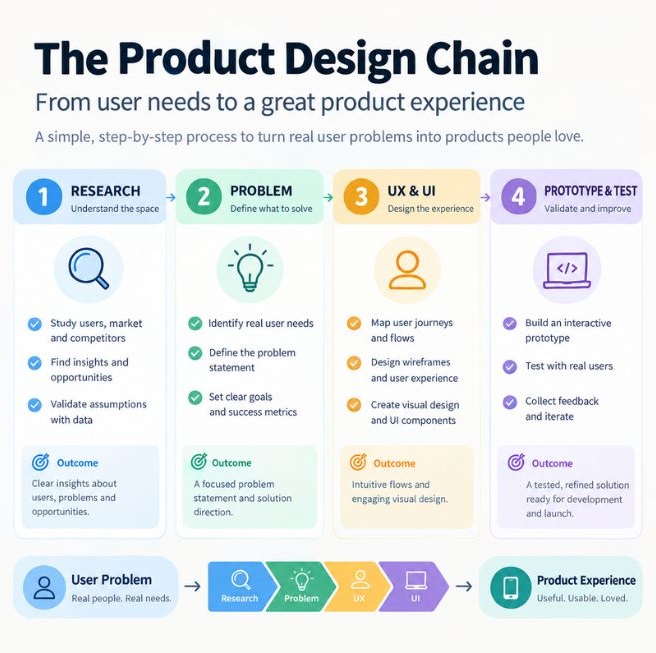
The best AI tools for designers in 2026 are organised by job: Midjourney for aesthetic image generation, Adobe Firefly for rights-conscious generation, Recraft for native SVG vectors, Figma Make and Google Stitch for UI design, Canva for marketing layouts, Runway for video, and Claude Design or v0 for design-to-code. Most designers need only three or four of these, matched to their own bottlenecks.
Which AI Image Generators Are Best for Designers?
Midjourney has the highest aesthetic ceiling, Adobe Firefly is the safer pick when usage rights matter, Nano Banana Pro and Ideogram handle text inside images best, and Recraft is built around native vector output. AI image generators for designers split along those four lines, so the right one depends on where the image ends up.
Midjourney: Best for Visual Exploration
Midjourney is an AI image generator that works from text prompts and reference images, and it’s still the one designers reach for when they want a mood, not a diagram. Recent coverage lists V8.2 as the current default, following V8.1 in April 2026. Versions turn over every few months, so check Midjourney’s site before you quote one to a client.
The pricing is where people get caught. Plans run $10, $30, $60, and $120 a month for Basic, Standard, Pro, and Mega, and you pay for GPU time rather than image counts. There’s no free tier. Relax mode, which queues your jobs at lower priority, is unlimited from Standard upwards.
Here’s the catch for client work. Images are public in Midjourney’s community gallery by default, and Stealth mode, which keeps them private, is limited to Pro and Mega. If you’re working under NDA, the real price is $60 a month, not $10. Text inside images is also still a weak spot, and Midjourney had no official public API as of early 2026.

Adobe Firefly and Photoshop: Best When Rights Matter
The Midjourney vs Adobe Firefly question usually comes down to one thing: who has to defend the image later. Firefly is Adobe’s generative AI line, and it sits inside Photoshop, Illustrator, and Adobe Express, so you generate in the file you’re already editing. Adobe’s own model, Firefly Image Model 5, was introduced at Adobe MAX 2025.
Adobe has also opened its apps to partner models. A dropdown lets you pick Adobe’s model or one from a partner, with Google, OpenAI, and Runway among the names Adobe announced. In Photoshop that powers Generative Fill, which costs 10 to 40 generative credits per use depending on output size, plus Generative Upscale to 4K and Harmonize, which matches light and colour between a pasted object and its background.
One distinction matters. Adobe states that partner models aren’t developed by Adobe, and that user content isn’t used to train generative AI models whichever model you choose. If your client contract hinges on commercially safe generation, use Adobe’s own model and read what the licence covers for that specific model.
Nano Banana Pro and Ideogram: Best for Text Inside Images
Text rendering is where most AI image generators still fall over, and it’s why posters and packaging mockups used to need manual fixes. Nano Banana Pro is Google’s image model built on Gemini 3 Pro, released in November 2025 with a focus on accurate, legible text in multiple languages. It can blend up to 14 input images, keep up to five people consistent across shots, and output at 2K or 4K. You’ll find it in the Gemini app, Google Ads, Workspace, and as a partner model inside Adobe Firefly. Google also ships a faster, cheaper Nano Banana 2 for quick edits.
Ideogram plays in the same lane. Its pitch is typography, it has a free tier plus paid plans, and it produces raster images only, so it can’t hand you SVG files. Test both with your own copy before you promise a client anything, particularly for Indian-language layouts, where a multilingual claim deserves a real check.
Recraft: Best for Logos, Icons, and True Vectors
Recraft is an AI image tool built for design work, and it’s the one to open when the deliverable has to be a vector. A vector is an image built from mathematical paths instead of pixels, so it scales to any size without blurring. Recraft V4, released on 17 February 2026, outputs native SVG, meaning real paths and layers you can edit in Figma or Illustrator rather than a traced raster in an SVG wrapper. V4.1 has since followed, with raster and vector variants.
It also has brand controls, so you can set colours and keep a consistent look across a batch. On the API, V4 Vector listings show about $0.08 per image, and Recraft’s pricing page says paid plans include commercial rights as of August 2026. The limits are honest ones: it’s strongest on vector-friendly subjects such as logos, icons, and flat illustration, and it isn’t the pick for photorealism.
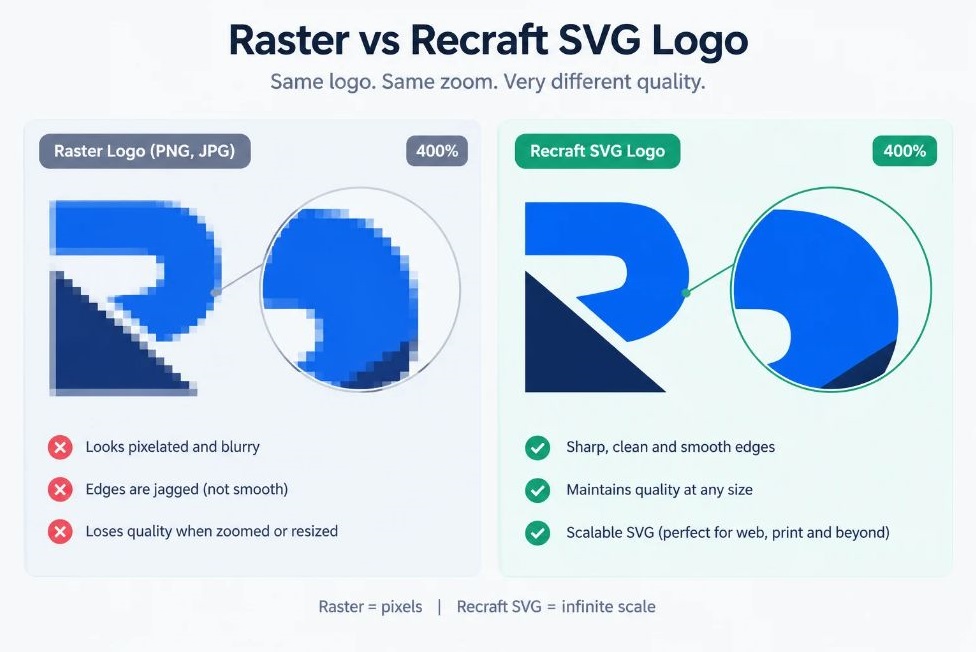
AI image generators for designers split by job. Midjourney leads on aesthetics, Adobe Firefly on usage-rights confidence, Nano Banana Pro and Ideogram on legible text inside images, and Recraft on native SVG output. Choose by where the file ends up, not by which model wins a benchmark.
Which AI Tools Work Best for UI and UX Design?
Figma Make is the default for designers who already live in Figma, Google Stitch is the best free tool for exploring directions fast, and Flowstep, UX Pilot, and Uizard cover wireframing and sketch conversion. If you want the short list of the best AI tools for UI/UX designers, think in three tiers: build inside Figma, explore in Stitch, and fill gaps with a specialist.
Figma Make: Best Inside Your Existing Files
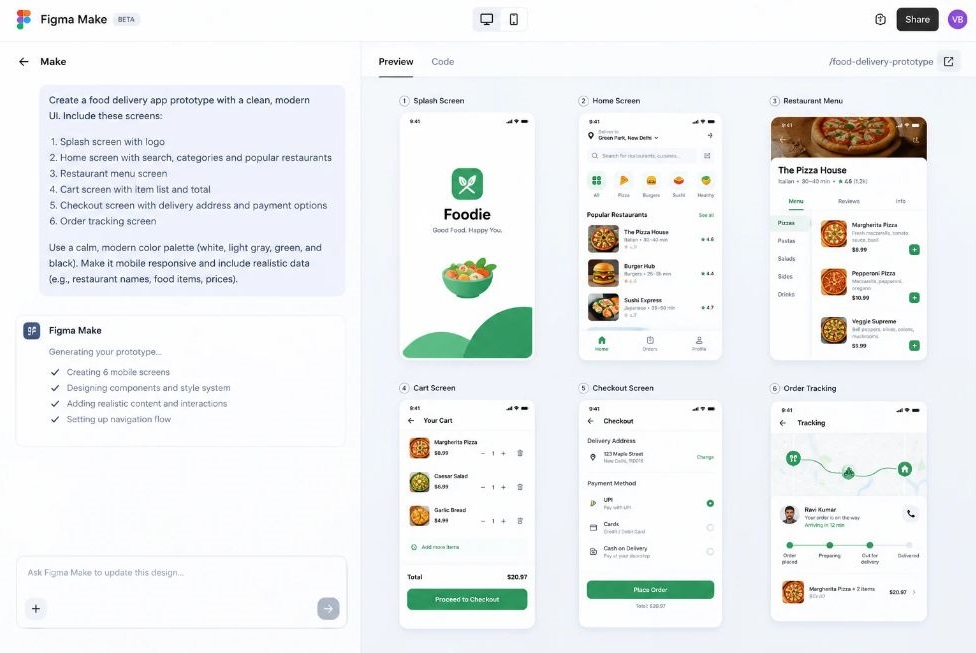
Figma Make is Figma’s prompt-to-app environment, where you describe a screen or flow and get a working prototype. It reached general availability on 24 July 2025, and it’s separate from the AI features inside Figma Design itself, a split that confuses a lot of people.
In 2026 it has kept moving. The Make model picker includes models from Anthropic, Google, and OpenAI, and GPT-5.6 was added recently. Figma’s design agent gained web search, so it can pull live content and stats onto the canvas, and AI image edits now run in parallel so the canvas doesn’t lock while a generation loads. The Figma MCP server connects your designs to coding tools. MCP, short for Model Context Protocol, is an open standard that lets AI tools connect to apps and data.
The honest downside is fragmentation. A review from Banani, a competing AI design vendor, argues Figma’s AI is spread across four or more surfaces, with the best features still in beta and credits that burn fast. A rival is talking, so discount accordingly, but test Make on your own plan before you build a workflow on it.
Google Stitch and Flowstep: Best for Fast Exploration
Google Stitch is a free AI-native UI design tool from Google Labs, and its March 2026 update turned it into a serious Figma companion. The update added an infinite canvas, a design agent that reasons across your whole project history, voice input, instant prototypes, and multi-screen generation. Press coverage at the time reported Figma’s share price fell after the announcement.
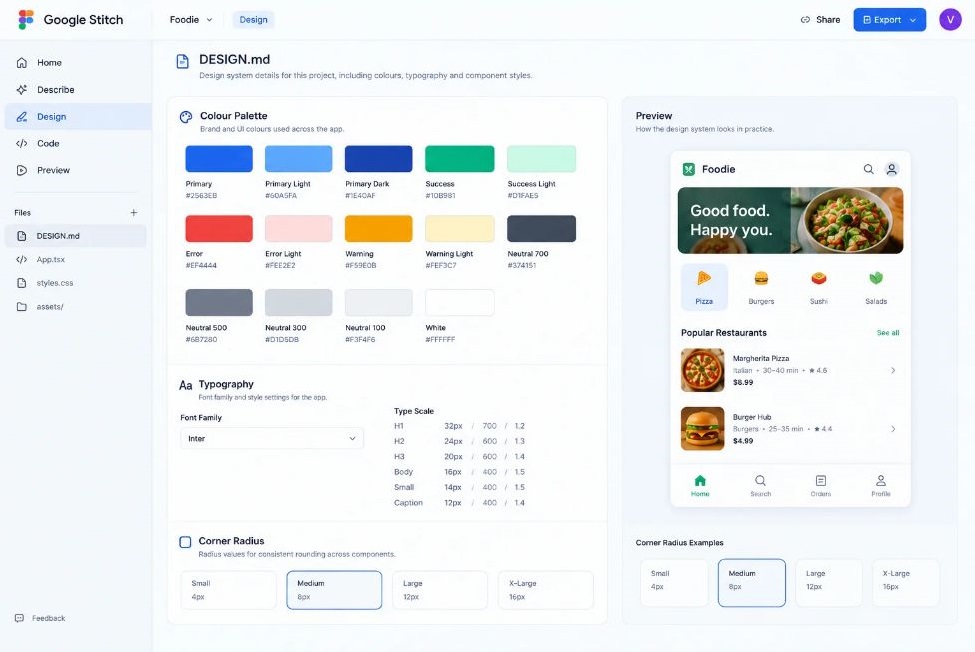
The feature worth your attention is DESIGN.md, a markdown file that captures your design rules in a portable format, so you can carry brand colours, type, and spacing between projects and across AI tools. Stitch can also extract a design system from any URL. Designs export to Figma with editable layers or out as code, and Stitch connects to coding tools through an MCP server and SDK. Google calls the intent-first approach vibe design: you describe the goal and the tool proposes interface directions.
Stitch has limits. It defaults to conventional patterns, offers little fine-grained editing, and its design system support is early next to a mature Figma library. The workflow most reviewers land on is to explore in Stitch, refine in Figma, then build.
Flowstep sits nearby for teams that want multi-screen UI generation with React export and MCP support. A DEV Community roundup lists a free plan and paid plans from $15 a month, but it’s a newer name, so check it against your needs before committing.
UX Pilot and Uizard: Best for Wireframes and Sketches
UX Pilot focuses on wireframes, flows, and usability insights, and it works from plain language. Uizard converts rough sketches into digital screens, which makes it handy for workshops where the first draft is a drawing on a whiteboard. Neither replaces a design system. Both shorten the blank-page stage, and that’s the stage where AI saves the most time.
Figma Make is the default AI tool for UI designers working inside Figma, while Google Stitch is a free option for exploring layouts with DESIGN.md and Figma export. A common workflow is to explore in Stitch or Make, refine in Figma, and hand off to code through MCP-connected tools.
Which AI Tools Help With Graphic Design, Social, and Marketing Visuals?
Canva is the fastest route from brief to finished social or marketing asset, and Adobe Express and Microsoft Designer cover lighter or lower-cost needs. These AI design tools win on volume: dozens of on-brand variations a week, not one hero image.
Canva: Best All-in-One
Canva’s AI features sit under the Magic Studio name: Magic Write for copy, Magic Edit for image changes, Magic Design for turning a text prompt into a template, plus AI image generation. The free tier doesn’t include Magic Studio in full, so test what your plan allows.
The bigger shift came at Canva Create in October 2025, when Canva launched its own design model. TechCrunch reported that it understands design layers and formats, which matters because output arrives as editable layers instead of a flat picture. Canva also added a chat-style Canva AI assistant, 3D object generation, and a way to copy the art style of an existing design. And it made its Affinity professional design suite free, with Canva AI available inside Affinity.
Honestly, that Affinity move is the one designers on a budget should notice. A free pro-grade vector and pixel app changes the maths on a starter stack.
Adobe Express and Microsoft Designer: Best for Quick, Low-Cost Output
Adobe Express is Adobe’s simplified editor with Firefly built in, and partner models now reach it too. It suits teams that want Adobe’s licensing posture without a full Creative Cloud plan. Microsoft Designer is free with a Microsoft account and offers AI layout suggestions and image generation, which makes it a decent option for non-designers on your team who’d otherwise open PowerPoint. The trade-off with both is control.
Which AI Tools Handle Video and Motion?
Runway is the AI video tool most designers end up using, because it pairs its Gen-4.5 video model with an editor and access to other third-party models. For short brand teasers, animated stills, and storyboards, it covers most of the job.
Runway announced Gen-4.5 on 1 December 2025, and it’s included on every paid plan, which start at $12 per user per month billed annually. The free plan gives a one-time 125 credits and no Gen-4 video model, so it’s a trial, not a workflow. The catch is credit maths. One review puts 625 Standard credits at roughly 104 seconds of Gen-4 Turbo but only about 52 seconds of Gen-4.5. Use Turbo to iterate and spend Gen-4.5 credits on finals.
Check any older workflow too. Runway’s API docs flagged Gen-3 Alpha Turbo and Gen-4 Aleph for sunset on 30 July 2026. Adobe is the other route: Firefly now includes a video editor and partner video models, which helps if your team already pays for Creative Cloud.
Which AI Tools Take Designs to Code?
Claude Design and Claude Code suit designers who want a prototype handed to real code, v0 suits React component work, and Lovable suits whole working apps. The shift matters because the line between design and build has blurred: the AI in Design 2026 report found about half of designers had shipped AI-generated code to production, and UX Tools’ Spring 2026 survey found 59.1% had built their own tool, app, or utility with AI in the previous six months.
Trust hasn’t caught up. The same UX Tools survey found only 32.8% of designers trust AI output for production with review. That gap is why code from these tools still needs an engineer’s eyes.
Claude Design and Claude Code: Best for Prototype-to-Code Handoff
Claude Design is a product from Anthropic Labs, launched on 17 April 2026 in research preview for Claude Pro, Max, Team, and Enterprise subscribers, so features and availability can change. It runs on Claude Opus 4.7 and creates designs, prototypes, slides, and one-pagers through conversation, with inline comments, direct text edits, and adjustment sliders for refinement. During onboarding it reads a team’s codebase and design files to build a design system, and it exports to Canva, PDF, PPTX, and HTML. Anthropic’s launch named Datadog and Brilliant among early adopters, who described speed gains rather than hands-off results.
Claude Code is the other half: a terminal-based coding agent that Claude Design can hand a finished prototype to. It’s the most powerful option here and the least designer-friendly, since it assumes developer comfort.
v0 and Lovable: Best for Components and Full Apps
v0 by Vercel generates React and Next.js interfaces using shadcn/ui and Tailwind. In February 2026 it added Git integration, a VS Code-style editor, database connectivity, and agentic workflows, and it has a free tier with paid plans from about $20 a month. Lovable goes wider, producing React front ends with Supabase back ends, and it accepts Figma designs as screenshots. It also ships a first-party MCP server.
How good is the output? One Muzli review puts Lovable’s generated code about 80% of the way there. That sounds right: enough to demo, not enough to skip code review.
Which AI Tools Help With Research and Ideation?
Dovetail handles research synthesis, and Firefly Boards handles fast, disposable visual exploration. These are the stages before any pixel gets placed, and they’re where AI is easiest to trust because a human still decides what the output means.
Dovetail: Best for Research Synthesis
Dovetail is a qualitative research repository with an AI layer called Magic AI. Depending on plan, it adds auto-theming, sentiment detection, highlights, summaries, and Ask Dovetail for searching across your research. The free plan lacks the advanced AI features, and pricing is per seat, which gets expensive when PMs and designers all need access. Treat its themes as a first pass. Reviewers are consistent that the insights still need human validation.
Firefly Boards: Best for Moodboards
Firefly Boards is Adobe’s collaborative surface for AI ideation, built for the kind of exploration you’ll throw away by lunchtime. It also accepts partner models, so one board can mix Adobe’s model with others. Use it to align a team on direction before anyone opens Photoshop.
How Do You Choose the Right AI Stack for Your Design Role?
Choose by your bottleneck, not by a tool’s reputation. A graphic designer’s bottleneck is usually variations and finishing, a UI designer’s is the blank screen and the handoff, and a freelancer’s is turnaround time and rights. Pick one tool for that stage, then add a second only when the first visibly stalls.
Here’s a simple way to build the stack.
- Audit your week. List the three tasks that eat the most hours, such as resizing social assets, drafting first-pass wireframes, or writing placeholder copy.
- Match each task to a stage in the table above and pick one tool for it.
- Test it on a live project for a week, not in a sandbox. Track hours saved and hours spent fixing output.
- Write your brand rules down once: a DESIGN.md file for Stitch, a Brand Kit in Recraft or Canva, or a design system in Claude Design. Every tool then starts from the same constraints.
- Cut anything you didn’t open twice.
Step 5 matters more than it looks. That Designer Fund number, seven tools on average, tells you most designers are collecting rather than choosing.
A Starter Stack for About $10 a Month
Midjourney Basic at $10 handles images. Google Stitch and Figma’s free tier, which includes limited AI features, cover UI exploration. Canva’s free tier and the free Affinity suite handle layouts and finishing. That’s one paid subscription. Free tiers cap their AI features, so expect to hit ceilings within weeks, and treat that as useful information about what’s worth paying for.
A Pro Stack for Client Work
Photoshop with Firefly covers rights-sensitive imagery, Midjourney Pro at $60 covers private generations, Figma with Make covers product work, Recraft covers vectors, Runway covers motion, and Claude Design or v0 covers code handoff. That’s a lot of subscriptions, and most bill in US dollars, so price the stack against the hours it saves rather than the sticker. If you’re on an in-house team, the tool that matters most is whichever one can ingest your design system, because brand consistency is the first thing to break.
What Should Designers Check Before Using AI Output in Client Work?
Check four things before AI output reaches a client: usage rights for the specific model, privacy settings, whether the file is editable, and whether a human has reviewed it. Skip any of them and a fast draft becomes an expensive correction.
- Usage rights. Rights differ by tool and sometimes by model within a tool. Recraft says paid plans include full ownership and commercial rights, and one review says every paid Midjourney plan includes commercial usage, but terms change, so read the current ones. In Adobe’s apps, remember that partner models aren’t developed by Adobe.
- Privacy. Midjourney images are public by default unless you’re on Pro or Mega with Stealth mode on.
- Editability. Prefer outputs you can revise: SVG from Recraft, layered files from Photoshop, layer-aware designs from Canva, Figma exports with Auto Layout. A flat PNG turns into rework at the first revision round.
- Provenance and review. Google embeds SynthID watermarks in images from its tools, including Nano Banana Pro, and your client may have a disclosure policy of its own. Have a person review generated code and copy before either ships.
None of this is legal advice. Put your AI policy in the contract: which tools you use, who owns the output, and what you disclose.
The Short Version: One Tool Per Stage
The tools will keep changing. Midjourney’s version number will probably be out of date by the time you read this. The structure holds up better: one tool per job, brand rules written down once, and a human making every decision a client will see.
If you do one thing this week, run the audit from the stack section. List the three tasks that eat your hours, pick a single tool for each, and test it on live work. Then come back in a month and cut whatever you didn’t open twice. That beats any ranking, this one included.
Knowing which tool to open is half the job. The other half is prompting it well and chaining tools into workflows you can repeat, and that’s where most people stall. YUP’s AI Marketing course teaches the prompting, automation, and tool-connection habits behind the workflows in this guide, so you can go from trying tools to running a system.
FAQ
What are the best AI tools for designers in 2026?
The best AI tools for designers in 2026 depend on the job. Midjourney leads on aesthetic image exploration, Adobe Firefly and Photoshop on rights-conscious editing, Recraft on vectors, Figma Make and Google Stitch on UI, Canva on marketing layouts, Runway on video, and Claude Design or v0 on design-to-code. Start with the stage that eats most of your week.
What is vibe design?
Vibe design is an intent-driven way of designing where you describe a goal, feeling, or business outcome and an AI tool proposes interface directions. Google used the term for its March 2026 Stitch update. You still pick the direction and do the refining, so the skill shifts toward briefing and judgment.
Midjourney vs Adobe Firefly: which should I use?
Use Midjourney when you want the strongest aesthetics for concepts and moodboards. Use Adobe Firefly when the image goes into a client deliverable and you want clearer licensing and Photoshop-level editing. Plenty of designers use both, Midjourney for ideas and Firefly for finish.
Can Google Stitch replace Figma?
Not for most teams. Stitch is free and fast for exploration and solo projects, but reviewers point to limited fine-grained editing and early design system support. Figma still leads on team collaboration, mature design systems, and detailed editing. The usual workflow is to explore in Stitch and refine in Figma.
How do I keep AI output on brand?
Write your brand rules down once and feed them to every tool. Stitch uses a DESIGN.md file, Recraft and Canva have brand kits, and Claude Design builds a design system from your codebase and design files. Then give each prompt a reference image and specific constraints on type, colour, and spacing.
Can AI tools generate editable vector files?
Yes. Recraft V4 outputs native SVG with real paths you can open in Figma or Illustrator. Adobe’s Illustrator also has generative features such as Generative Shape Fill. Midjourney and Ideogram produce raster images, so a logo from either has to be redrawn or vectorised before it’s client-ready.
Is it safe to use AI-generated images in client work?
It can be, with checks. Confirm usage rights for the exact model, keep client work private where a tool defaults to public, and agree on disclosure in your contract. Adobe’s own models and plans with explicit commercial rights are the lowest-friction route. This isn’t legal advice, so have a lawyer review any contract language that matters.
Will AI replace designers?
The evidence so far points the other way. Figma’s 2026 AI report found 90% of respondents say design is at least as important as before AI, and nearly six in ten say it’s more important. Figma’s State of the Designer 2026 also found designers who increased their AI use were more likely to report growing job satisfaction. The work is moving toward direction, judgment, and review.
Why does my AI design output look generic, and how do I fix it?
Vague prompts get default patterns. Stitch, for example, defaults to conventional layouts, and most image models drift toward the same stock look. Fix it with reference images, explicit type, colour, and spacing constraints, a DESIGN.md file or brand kit, and one change per prompt so you can tell what worked.
Do I need to pay for all of these?
No. Stitch, Microsoft Designer, and the Affinity suite are free, and Canva, Figma, and Ideogram have free tiers with limits. Midjourney has no free plan, and Runway’s free plan is a one-time credit allowance. Start with one paid tool aimed at your biggest bottleneck and add others only when the free tiers stall.