
Your best take is ruined by the laundry rack behind you. It happens to everyone. The old fix was a green cloth, three lights and a lot of patience, but an AI video background changer now does the job in a few clicks, straight from your browser or phone.
That matters because video isn’t optional anymore. Wyzowl’s State of Video Marketing 2026 found that 91% of businesses use video as a marketing tool, and 63% of video marketers have used AI tools to create or edit it.
So which tool should you pick? This guide covers 12, what each does for backgrounds, what the free plans really give you and where they fall short. One of the twelve has closed down, and we’ll say which. A simple walkthrough and a list of mistakes that make edits look fake are in there too.
Table of Contents
What Are AI Video Background Changer Tools?
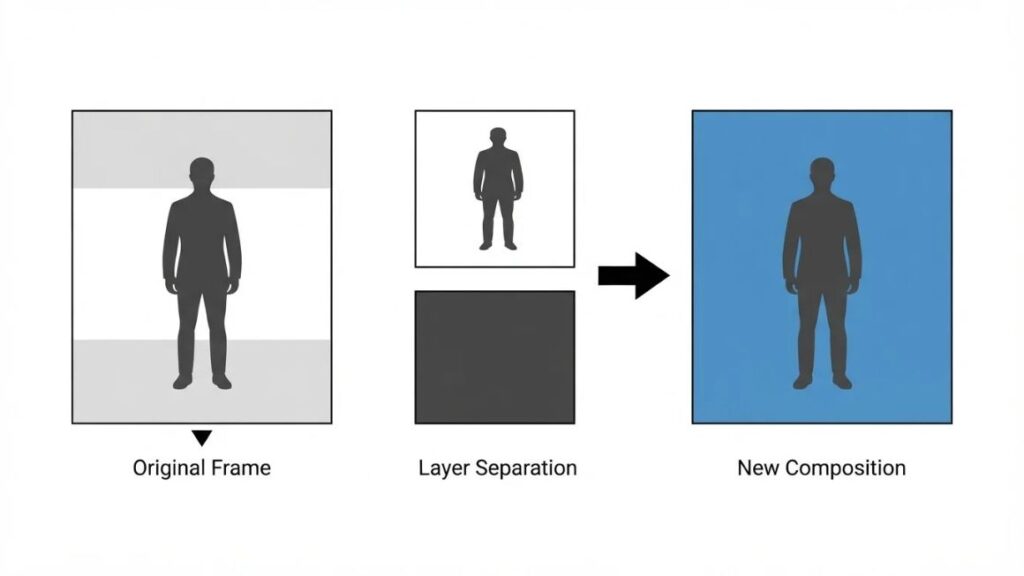
An AI video background changer is software that finds the person or object in a clip, separates it from everything behind it, and lets you put a new image, video or scene in its place. No green cloth, no lighting rig, no masking by hand.
You’ll see these tools sold as an AI video background remover, a green screen app or a cutout tool. Most people land on them after typing change video background without green screen into Google, and that’s exactly what they do. The catch: “AI” covers two very different ideas.
How Does AI Video Background Editing Work?
Every AI video background changer starts with segmentation, which means the model labels each pixel in each frame as subject or background. At 30 frames a second the cutout has to stay steady while you move, and that’s where weaker tools wobble, mostly around hair and fingers.
Then the tool places something behind your subject. Descript says its Green Screen effect removes the background so you can drop in a new image or leave the space transparent.
Background Removal vs Background Replacement
Removal gives you a subject floating on nothing. Replacement puts a new background behind it. Most editors do both, though a few, Beeble among them, stop at removal and hand you a transparent file. If all you need is to remove background from video footage for another app, that’s your version.
Then there’s generative editing, the newer kind of AI video background changer. Runway and Luma don’t cut anyone out. You describe the new setting in words and the model redraws the scene around your subject. Think of removal as scissors and generative editing as a repaint.
So, can AI change a video background automatically? For ordinary footage, mostly yes. The edges still need a human eye.
An AI video background changer segments the subject in every frame and places new visuals behind it. Cutout tools remove and replace backgrounds, while generative editors such as Runway’s Aleph 2.0 and Luma’s Ray3 Modify redraw the whole scene from a prompt.
12 Best Tools for Changing Video Backgrounds in 2026
Short answer: CapCut for most social creators, Canva if you’re already on Pro, Runway or Luma if you’d rather repaint the scene than cut it out. The rest have their reasons, and a couple have catches.
Pricing and limits below are as of November 2026, and they change often, so check the plan page before paying for any AI video background changer. If you’re hunting for AI tools to replace video backgrounds online, most of these run in a browser.
1. CapCut: Best for Social Media Video Editing
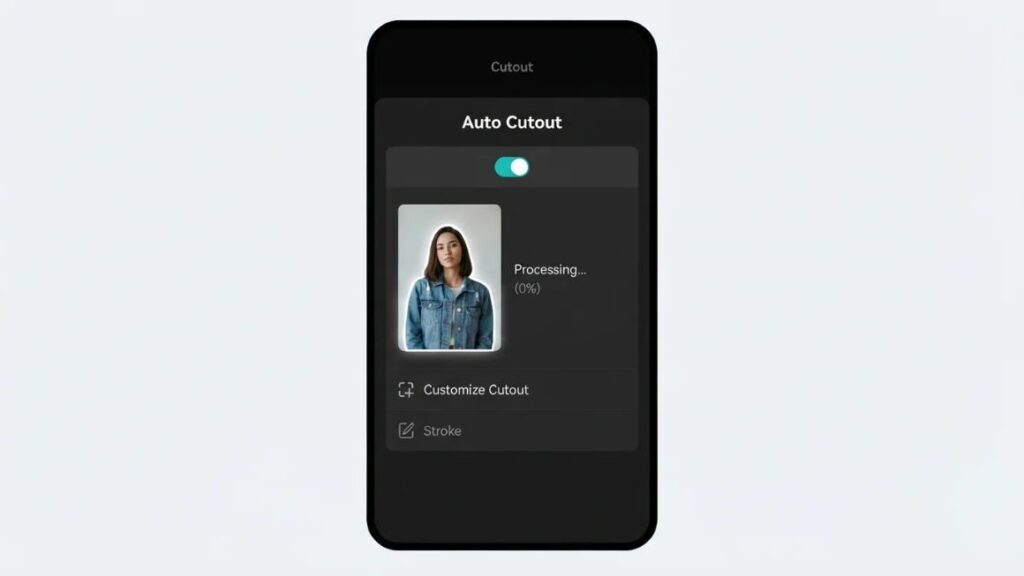
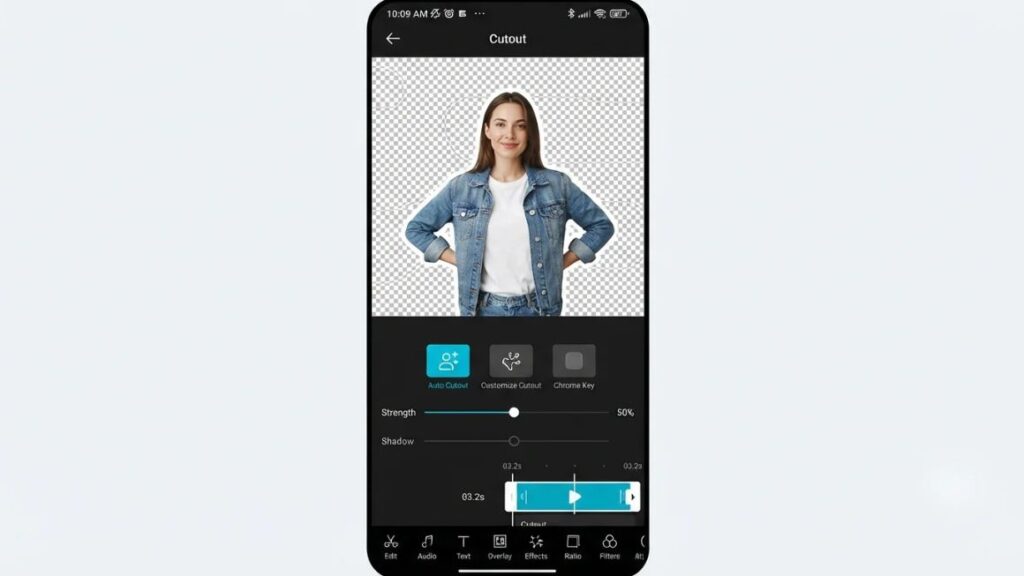
CapCut is the closest thing to a free AI video editor that most short-form creators will ever need. It handles backgrounds three ways: Chroma Key for green screens, Auto Cutout for AI removal, and Custom Cutout when you’d rather paint the fix by hand. To swap a background, layer your subject clip over the new one, select the subject, open the Cutout tab and tap Auto Cutout.
The free plan includes the editor and some AI background removal, though reports disagree on the monthly limit. Pro lifts it.
Pros: fast, works on phone and desktop.
Cons: Auto Cutout can clip ears or drop clothing, so scrub frame by frame.
2. Canva: Best for Beginners and Marketing Videos
If you’ve ever made an Instagram post in Canva, you already know the layout. The Video Background Remover is one click, needs no green screen, and works on your uploads or Canva’s library clips. Then you drag in a new background, which makes it the best video background changer for beginners who’d rather skip the timeline.
The catch: it’s Pro only, and a StreamYard guide citing Canva says it handles clips under 90 seconds, a limit worth rechecking. Don’t confuse it with Canva’s photo remover.
Pros: templates, brand kits, gentle learning curve.
Cons: paywalled, short clips, and MP4 downloads only.
3. VEED: Best for Browser-Based Video Editing
VEED lives in your browser and splits the job in two. Green Screen (Chroma Key) removes one solid colour. Background Remover handles a person standing in front of a busy room. VEED’s support page says the free plan gets full Chroma Key plus one free try of the Background Remover, while paid plans get both.
Apply the tool to your clip, then upload a new background. Skip that and your export gets a flat colour, because VEED can’t export transparent video.
Pros: quick, nothing to install.
Cons: video only, and roundups report 720p and a watermark on free exports.
4. Runway: Best for Advanced AI Video Editing
Runway doesn’t cut anything out. Its Aleph 2.0 model reads your text prompt and rewrites footage you already have, so a studio backdrop can turn into a moody warehouse. It edits video rather than generating it from text, and it needs a paid plan. A June 2026 comparison lists Standard at $12 a month on annual billing, with 625 credits that vanish faster than you’d expect.
Pros: the most creative control on this list.
Cons: credits burn quickly, and reviewers recommend one change per prompt, so expect trial and error.
5. Adobe Express: Best for Quick Professional Edits
Adobe’s free Express plan removes backgrounds from photos. For video, Adobe’s plan page puts Remove Video Background on Premium, which is why free users often find the button greyed out. One US review lists Premium at $9.99 a month; check your region.
The extras are templates, Adobe Stock and Adobe Fonts.
Pros: polished templates, familiar Adobe look.
Cons: video removal is paywalled, and it’s built for quick edits, not fine control.
6. Kapwing: Best for Collaborative Online Editing
Kapwing’s editor is layer-based and runs in the browser, which suits teams editing one project together. Select a clip, open Effects and you’ll find Remove Background, Blur Background and Chroma Key.
Free is where this AI video background changer pinches. Kapwing’s help page says the free plan exports up to one minute, in 720p, with a watermark. Pro, listed at $16 per member a month on annual billing, brings 1080p and 120-minute exports.
Pros: layers, shared projects.
Cons: the one-minute cap and watermark make free a trial, not a workflow.
7. Descript: Best for Talking-Head Videos
Descript is built for people who talk to a camera: podcasters, course creators, founders. Its Green Screen effect is AI-powered, needs no physical screen, and can be switched on and off without reprocessing. Add your own image, pick one from its stock library, or leave the layer transparent.
Two catches. It uses AI credits on current plans and needs an internet connection, and it expects a clear person in frame, so keep pets and stray microphones out of shot.
Pros: great for tutorials.
Cons: not meant for product shots, and big clips can take a minute or two.
8. Cutout.Pro: Best for Dedicated Background Removal
Cutout.Pro is an online video background remover with one job. Upload an MP4, MOV, WebM or GIF, let the AI separate the subject in every frame, and download a transparent result. Every upload gets a free five-second preview at 360p, enough to judge hair and edges before you spend anything.
Pros: no editor to learn, preview before you pay.
Cons: credit costs climb with clip length, and the transparent MOV only displays properly in editors that read alpha, like DaVinci Resolve, iMovie or Premiere Pro.
9. Unscreen: Once the Simplest Option, Now Closed
Unscreen was the name everyone suggested for years, and plenty of older listicles still do. Canva, which bought Unscreen’s parent company in 2021, says on its help page that Unscreen.com has closed and that its team is now focused on Canva’s own Video Background Remover. That page gives June 29, 2026 as the date, though several trackers say December 2025. Either way, it’s gone.
Lookalike domains such as unscreen.io aren’t affiliated, so skip them. Canva is the closest replacement, and videos you already exported from Unscreen can still be used commercially, per Canva.
Pros and cons: it was fast and simple. It’s also closed.
10. Luma: Best for Generative Video Modification
Luma’s Dream Machine has a Modify Video feature, and since December 2025 it has run on Ray3 Modify. Describe the change in words and the model redraws the scene while trying to keep the person’s movement intact. Luma’s help article uses a background swap as its main example and says Modify Video comes with all paid Dream Machine subscriptions, on web and iOS.
Pros: handles lighting, setting and weather in one pass.
Cons: paid only, and because it redraws instead of cutting, check that your subject still looks like your subject.
11. Beeble: Best for Advanced Video Compositing
Beeble’s Background Remover arrived in April 2026 and is aimed at people who composite for a living. It extracts an alpha matte, a mask recording how see-through each pixel is, across the whole clip. MatAnyone 2 handles ordinary footage and CorridorKey handles green screen shots. Exports include a 10-bit MOV with alpha, PNG sequences or alpha-only mattes.
It’s on the Creator and Professional plans only, and per Beeble’s docs costs 1 credit per 30 frames with MatAnyone and 2 with CorridorKey.
Pros: pro-grade exports.
Cons: no free tier, and overkill for a quick Reel.
12. Fotor: Best for Accessible Creative Editing
Fotor is better known for photo editing, but it has a Video Background Remover for portrait clips. Upload an MP4 or MOV, let the AI strip the background, then put a colour or an image behind your subject. Fotor’s page lists upload limits of 4K, 60 seconds, 30 FPS and 500 MB. Free users reportedly get just a short preview.
Pros: easy, and it runs on web, iOS, Android, Windows and Mac.
Cons: the 60-second ceiling and limited free access.
Comparison of the Best Video Background Editing Tools
Here’s every AI video background changer side by side. CapCut and Fotor cover the most devices, and Runway, Luma and Beeble solve a different problem. These are all video editing tools for content creators, but they aren’t all free.
| Tool | Best for | Automatic removal | Replacement | Free plan | Platform | Export notes |
| CapCut | Social video | Yes, Auto Cutout | Yes | Yes, AI limits | Web, desktop, mobile | Chroma Key included |
| Canva | Beginners | Yes, one click | Yes | No, Pro only | Web, mobile | MP4 download |
| VEED | Browser editing | Yes, paid | Yes | Chroma Key, one AI try | Browser | No transparent export |
| Runway | Generative edits | Prompt-based | By prompt | No, paid | Web | Credit-based |
| Adobe Express | Quick edits | Yes | Yes | No, Premium | Web, mobile | Premium plan |
| Kapwing | Team editing | Yes | Yes | Yes, watermark | Browser | Free: 1 min, 720p |
| Descript | Talking heads | Yes, Green Screen | Yes | Limited, AI credits | Web, desktop | Effect toggles off and on |
| Cutout.Pro | Pure removal | Yes | Add elsewhere | 5-second preview | Browser | Transparent MOV |
| Unscreen | None now | Closed | Closed | Closed | Closed | Closed |
| Luma | Generative edits | Prompt-based | By prompt | No, paid | Web, iOS | Paid Dream Machine |
| Beeble | Compositing | Yes, alpha matte | Export for comp | No | Web app | 10-bit MOV, PNG sequence |
| Fotor | Short portrait clips | Yes | Colour or image | Preview only | Web, mobile, desktop | 60-second upload cap |
How to Choose the Right Video Background Editing Tool?
Pick your AI video background changer by footage and output, not feature count. A plain wall behind you? Almost anything works. A moving subject, a messy room or a client deliverable narrows the list fast.
Consider Your Editing Experience
Never opened a timeline? Canva and Fotor keep things simple, and CapCut isn’t far behind. Kapwing, VEED and Descript give more control. Beeble assumes you know what an alpha channel is.
Check Video Quality and Export Resolution
Free plans love caps. Kapwing’s free exports stop at 720p, Cutout.Pro’s free preview is 360p, and Fotor takes 60 seconds at most. Check the ceiling before you edit a single frame.
Look at Pricing and Free-Plan Restrictions
The best free tools to change video backgrounds are CapCut, VEED’s Chroma Key and Cutout.Pro’s preview, and each comes with strings. A watermark can cost more credibility than a month of Pro. Cheap often beats free.
Check Supported Formats and Devices
Wondering how to change video backgrounds on mobile? CapCut and Fotor have iOS and Android apps, Canva and Adobe Express work on phones, and Luma’s Modify Video runs on iOS. Most browser tools take MP4 and MOV, and Cutout. Pro adds WebM and GIF.
Consider Privacy and Data Security
Before you commit to any AI video editing software, read its data terms. Descript’s Green Screen needs a network connection and Cutout.Pro processes in the cloud, so your footage leaves your device. Check commercial rights to the export too.
Pick an AI video background changer by matching it to your footage, export needs and budget. Free plans often cap resolution or clip length or add watermarks, and cloud processing means privacy terms matter before you upload client work.
How to Change a Video Background Using AI?
Here’s how to change the background of a video using AI, with CapCut as the example. Any AI video background changer follows roughly these five steps, and it’s also how to remove a video background without a green screen. Menus differ a little on mobile.
Step 1: Upload Your Original Video
Open CapCut, start a new project and import your clip. Decent light and a clearly visible face make the next steps easier.
Step 2: Remove the Existing Background
Select the clip, open the Cutout tab and tap Auto Cutout. CapCut’s AI detects the person and erases everything behind them.
Step 3: Select or Upload a New Background
Put your new image or video on the main track, then move your cutout clip to the track above it. That’s how to replace a video background with an image, and the same move works for stock footage.
Step 4: Adjust the Subject and Background
Scale your subject so it sits naturally. Where Auto Cutout misses, switch to Custom Cutout and brush the fix by hand. Per BIGVU’s comparison, the Smart tools are Pro-only, while the free Eraser works but needs careful strokes.
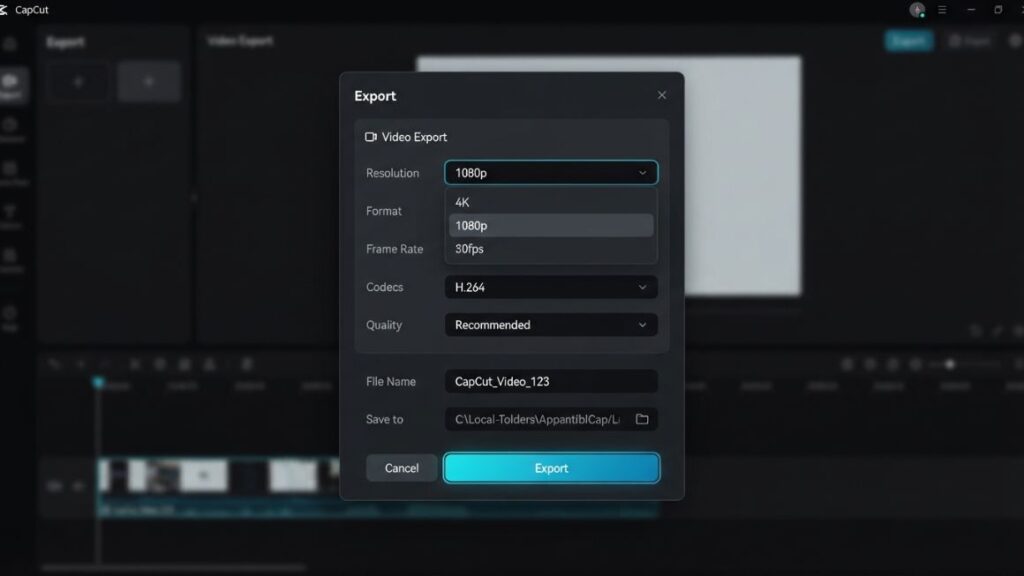
Step 5: Preview and Export Your Video
Scrub through frame by frame, watching ears, hands and shoulders. Then export at your plan’s highest resolution.
In Canva it’s shorter: upload the clip, select it, click Edit video, then Background Remover (Pro).
Best Practices for Getting Professional Results
Every bad cutout from an AI video background changer has the same backstory: footage that made the model’s job harder than it needed to be.
Record Videos in Good Lighting
Even, front-facing light helps the AI find edges. Descript’s guidance asks for good light and no moving faces behind you.
Keep the Subject Visually Separate from the Background
Green shirt against a green wall, black hair against a dark curtain. That’s how arms vanish. Add distance and contrast.
Avoid Overly Complicated Backgrounds
Both the old one and the new one. A busy replacement scene fights your subject for attention. A soft blur or clean office reads better.
Check Hair, Hands and Moving Objects
These are the usual failure points, so scrub slowly. BIGVU found CapCut’s Auto Cutout can drop clothing or clip ears without warning.
Match Background Lighting and Colours
If your face is lit from the left, the new scene should be too. Warm skin against a cold blue backdrop looks pasted on.
Preview the Final Video Before Publishing
Watch it full screen on your phone. Edge flicker shows up there first.
Latest Trends in AI Video Background Editing
Generative Background Replacement
Runway’s Aleph 2.0 and Luma’s Ray3 Modify skip the cutout and redraw the scene from a prompt. Luma launched Ray3 Modify in December 2025, and video background replacement is a showcase use.
More Realistic Subject Segmentation
Beeble’s April 2026 launch pairs MatAnyone 2 with CorridorKey, aimed at cleaner edges around hair and motion. Expect automatic video background removal to get less wobbly.
Prompt-Based Video Editing
Typing “keep the person identical, replace the background with a beach” is slowly replacing sliders and masks.
AI-Powered Editing for Short-Form Content
Wyzowl’s 2026 report found 69% of video marketers have created social media videos, the most common use. No wonder background tools now sit inside editors built for vertical clips.
Faster Browser-Based Video Workflows
VEED, Kapwing, Descript, Fotor and Cutout.Pro all run online. Unscreen’s closure points the same way: standalone cutout sites are folding into bigger editors.
Common Mistakes to Avoid When Changing Video Backgrounds
- Starting with low-quality footage. Grainy, dim, shaky clips give the AI nothing to hold onto.
- Ignoring the edges. A faint halo around your head gives the game away on a phone screen.
- Picking a background lit from the wrong direction. Viewers feel it even if they can’t name it.
- Overdoing the effects. A tropical beach behind a quarterly review reads as a joke.
- Forgetting export quality and aspect ratios. A 16:9 clip stretched into a 9:16 Reel looks off, so set the canvas first.
- Skipping the fine print. Stock backgrounds have licences, and cloud tools hold your footage.
Also Read: AI UGC Ad Generator: Best Tools, Features, Costs & How to Create High-Converting Ads in 2026
Conclusion
If you want one answer: start with CapCut, move to Canva if you’re already paying for Pro, and try Runway or Luma only when you’d rather repaint a scene than cut it out. Beeble is for compositors. Unscreen is closed.
The right AI video background changer is the one that fits your footage and budget, not the one with the longest feature page. Test the free versions on a real clip first. A five-second preview tells you more than any review, this one included.
If you’d like to go beyond tools and learn how to plan and grow social content, YUP’s Social Media Marketing course is the next step.
Frequently Asked Questions
What is the best AI tool for changing video backgrounds?
For most creators, CapCut. It starts free, runs on phone and desktop, and covers AI cutouts and green screen in one editor. Canva is easier if you’re on Pro, and Runway or Luma suit you if you’d rather redraw the whole scene from a prompt.
Can I change a video background for free?
Yes, with limits. CapCut’s free plan includes some AI removal, VEED’s includes Chroma Key and one AI try, and Cutout.Pro gives a free 5-second, 360p preview. Expect watermarks or caps.
Can AI remove a video background without a green screen?
Yes. CapCut’s Auto Cutout, Canva’s Video Background Remover and Descript’s Green Screen all work on ordinary footage. A real green screen still gives cleaner edges, and Descript itself says its Chroma Key effect beats the AI option when you’ve filmed on green.
Which tools can replace a video background with an image?
CapCut, Canva, VEED, Descript and Fotor all let you upload your own image once the original background is gone. Canva and Descript also have built-in libraries.
Can I change a video background on my phone?
Yes. CapCut and Fotor have iOS and Android apps, Canva and Adobe Express work on mobile, and Luma’s Modify Video runs on iOS. Phone edits are fine for Reels, though a bigger screen helps with hair and hands.
Does changing a video background reduce video quality?
Not by itself, but plan limits and compression can. Kapwing’s free exports cap at 720p, and Fotor takes 60 seconds at most. Export at the highest resolution your plan allows.
Are AI video background changers safe to use?
Mostly, if you read the terms. These tools upload your footage to cloud servers, so hold back client or unreleased footage until you’ve checked the data policy and export licence. Watch for lookalike sites too. The Unscreen shutdown spawned a few.
Which tool is best for professional video editing?
It depends on what professional means for you. Beeble produces alpha mattes and 10-bit exports for compositors, Runway and Luma suit generative scene changes, and Descript suits talking-head work.