

Most explainer videos never get made. Not because the idea is weak, but because the studio quote lands, someone winces, and the project dies quietly in a Slack thread.
AI explainer video makers change that math. You paste in a script or a prompt, pick a presenter or an animation style, and get a watchable first draft in minutes. The demand is real. Wyzowl’s 2026 State of Video Marketing report found that 91% of businesses use video as a marketing tool, and 68% of video marketers create explainers, making them the second most common format.
But the market is crowded and confusing. Some tools give you talking avatars. Others build cartoon scenes, or wrap stock footage around a blog post. Pick the wrong one and you’ll burn credits on a tool that was never built for your kind of video.
This article compares 10 of the best, with November 2026 pricing, free-plan limits and honest downsides, plus how to choose and how to make your first video. Shortlisting AI video creation tools right now? Start here.
Table of Contents
What Are AI Explainer Video Makers?
AI explainer video makers are software tools that turn a script, prompt or document into a short video that explains an idea, product or process. They handle scenes, narration and often a digital presenter, so you don’t need cameras, actors or animation skills to produce a first draft.
You’ll also see them sold as an AI explainer video generator. Same idea, different label.
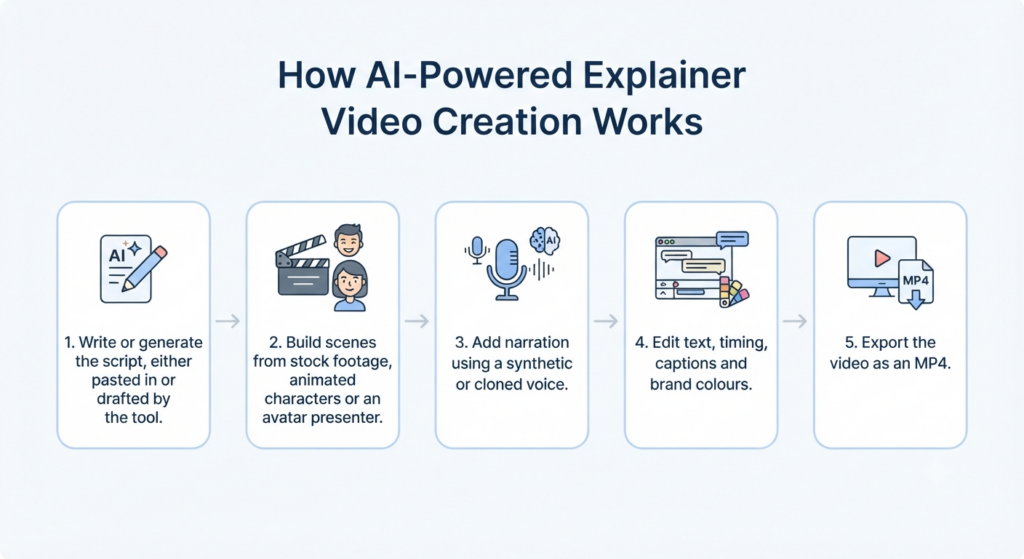
How AI-Powered Explainer Video Creation Works
- Write or generate the script, either pasted in or drafted by the tool.
- Build scenes from stock footage, animated characters or an avatar presenter.
- Add narration using a synthetic or cloned voice.
- Edit text, timing, captions and brand colours.
- Export the video as an MP4.
AI saves the most time on the first draft, the voiceover and translation. Humans are still needed for the message itself, fact-checking and brand judgement.
Traditional Video Production vs AI Video Creation
Traditional production means storyboards, voice artists, animators and rounds of feedback. AI video production squeezes most of that into one dashboard.
| Factor | Traditional production | AI video creation |
| Turnaround | Weeks | Minutes to hours for a first draft |
| Cost model | Per-project quote | Monthly subscription or credits |
| Skills needed | Specialist team | Someone who can write a clear script |
| Creative control | Very high | Moderate, limited by templates |
Also Read: Best AI Video Editors in 2026
AI explainer video makers turn a script, prompt or document into a finished video with scenes, narration and often an avatar. They cut a first draft from weeks to minutes, but humans still own the message, accuracy and brand.
10 Best AI Explainer Video Makers in 2026
The best AI explainer video makers in 2026 are HeyGen and Synthesia for presenter-led videos, Vyond, Animaker and Powtoon for animation, InVideo AI, Pictory and Steve AI for automated drafts, and Canva and VEED for branded or refined edits. Your best pick depends on video style, not feature count.
We compared each tool on video style, editing control, free-plan limits, pricing and fit. Many meter usage in credits, a monthly allowance you spend on video, voices and avatars. Prices are in US dollars as listed in October and November 2026. They change often, so check the vendor’s page before paying.
1. HeyGen: Best for Presenter-Led Explainer Videos
What it is: HeyGen is an AI avatar video generator that turns a script into a video with a digital presenter.
Key features: Stock and custom avatars, voice cloning, lip-synced video translation and a prompt-based Video Agent. Creator and higher plans list 175+ languages and dialects.
What makes it useful: Your presenter can speak the language your audience speaks, without a reshoot.
Who should use it: Founders, marketers and trainers wanting a human face without filming.
Pricing and free-plan limits: The free plan gives up to 3 videos a month, each up to 1 minute, watermarked at 720p. Creator costs 29amonth(24 billed yearly) for 600 credits, 1080p and no watermark. Pro starts at $49.
Advantages and disadvantages: Lip-sync and language reach are strong. But credits are metered, so heavy use gets expensive, and it’s a weaker fit for illustrated scenes.
Our verdict: The best first pick when a presenter is what your video needs.
2. Synthesia: Best for Business and Training Videos
What it is: Synthesia is an avatar-led platform built mainly for business, training and internal videos.
Key features: Express-2 avatars with hand and body gestures, AI dubbing, templates and interactive elements. It supports 140+ languages.
What makes it useful: Onboarding scripts change often. You edit the text and regenerate instead of re-recording.
Who should use it: HR, learning teams, internal comms and B2B companies.
Pricing and free-plan limits: Free Basic gives about 10 watermarked minutes a month, with no downloads. Starter is 29amonth(18 billed yearly) for roughly 10 minutes. Creator is 89(64 yearly) for about 30 minutes plus API access.
Advantages and disadvantages: Polished output and good team features. The minute caps feel tight, though, and costs climb fast at volume.
Our verdict: Pick it for training and internal videos. Skip it if you want punchy marketing animation.
3. Vyond: Best for Animated Character Videos
What it is: Vyond is a character-animation platform that builds animated explainer videos from templates, characters and scenes.
Key features: Character library, scene templates, AI voices and team collaboration. Professional adds instant translation into 80+ languages.
What makes it useful: Characters act, move and emote the way you direct them. That’s real animation control, not a slideshow.
Who should use it: Learning teams, agencies and businesses with a recurring animation need.
Pricing and free-plan limits: No permanent free plan. Third-party sources report a short trial, so confirm it on Vyond’s site. Starter costs 58peruseramonthbilledyearly(699 a year), or about $99 monthly. Professional is $100 yearly.
Advantages and disadvantages: The deepest animation control on this list. But it’s pricey, billed per seat, and harder to learn than prompt-based tools.
Our verdict: Worth it if animation is your core format and you’ll publish regularly.
4. InVideo AI: Best for Quick Prompt-to-Video Creation
What it is: InVideo AI is a text to video AI platform. You describe the video, and it drafts the script, picks footage, adds a voiceover and subtitles.
Key features: Prompt-to-video, editing through typed instructions, plus AI avatars and voice clones on paid plans.
What makes it useful: It’s the shortest path from a rough idea to a first cut.
Who should use it: Solo marketers, small businesses and frequent publishers.
Pricing and free-plan limits: A free plan exists, but exports are watermarked and usage is limited. Plus costs about 17amonthbilledyearly(200 a year), or roughly $20 monthly. Credits don’t roll over, and generative scenes use them quickly.
Advantages and disadvantages: Very fast and flexible. Credit burn is the catch, and stock-based videos can look generic.
Our verdict: Great for speed. Watch your credits.
5. Pictory: Best for Turning Blogs into Videos
What it is: Pictory is a script to video generator that also converts blog posts, URLs and long recordings into short videos.
Key features: Blog-to-video, auto-captions, video summarising, brand kits and AI voices, with premium ElevenLabs voices capped by minutes.
What makes it useful: You reuse content you’ve already written.
Who should use it: Content marketers and agencies repurposing text.
Pricing and free-plan limits: No permanent free plan. A 14-day trial gives 3 watermarked projects. Starter costs 25amonthbilledyearly(29 monthly). Professional costs 35yearly(59 monthly).
Advantages and disadvantages: Quick repurposing and solid captions. Videos lean on stock footage, and creative control is limited.
Our verdict: Choose it for repurposing text, not for brand-heavy storytelling.
6. Animaker: Best for Custom Animated Explainers
What it is: Animaker is a browser-based animation platform with characters, templates and built-in voices.
Key features: A custom character builder, templates, text-to-speech and AI-generated clips on paid plans.
What makes it useful: It gives you character animation at a lower starting price than Vyond.
Who should use it: Educators and small businesses wanting animation on a budget.
Pricing and free-plan limits: The free plan allows 3 downloads a month with a watermark. Billed yearly, Basic is $15, Starter $25 and Pro $43 a month. Extra downloads beyond the cap cost $10 to $20 each, and commercial rights reportedly start at Pro, so check the licence.
Advantages and disadvantages: Good value and plenty of assets. Download caps and overage fees add up.
Our verdict: Strong value for animation, as long as you stay under the caps.
7. Powtoon: Best for Animated Presentations
What it is: Powtoon is a template-led tool for animated explainers and presentations.
Key features: Templates, a character library, AI text-to-speech and AI credits on paid plans.
What makes it useful: Building a video feels like building slides.
Who should use it: Teachers, HR and sales teams making internal or educational explainers.
Pricing and free-plan limits: The free plan exports watermarked 720p videos up to 3 minutes. Lite costs about $15 a month billed yearly. Professional is listed at $40 a month billed yearly, which one review calls a promotional rate.
Advantages and disadvantages: Easy to learn, with a deep template library. Videos from templates can look alike.
Our verdict: A good fit for slide-style explainers.

8. Steve AI: Best for Automated Video Creation
What it is: Steve AI is an AI video generator from the team behind Animaker. It turns text, scripts and blog posts into animated or live-action style videos.
Key features: Text, script and blog-to-video, 300+ animated characters, AI voices and generative credits.
What makes it useful: It’s automation first. You get a draft with very little setup.
Who should use it: Marketers, small businesses and faceless-channel creators.
Pricing and free-plan limits: Starter costs about 19amonthbilledyearly(29 monthly), and Pro about $39 yearly. Free access is limited and works more like a preview.
Advantages and disadvantages: A cheap entry point and fast results. You get less control than in Vyond or Animaker.
Our verdict: Try it when speed and price matter more than polish.
9. Canva: Best for Simple and Branded Explainer Videos
What it is: Canva is a design platform with a video editor, templates and Magic Studio AI tools. It isn’t explainer-specific, but handles simple branded videos.
Key features: Video templates, Brand Kit, animations, stock media and AI video generation within a monthly allowance.
What makes it useful: Your colours, fonts and logo already live there.
Who should use it: Small teams and non-designers making short, on-brand explainers.
Pricing and free-plan limits: The free plan is permanent. Pro is listed at $15 to $18 a month, or about $10 to $12 a month billed yearly. Canva prices by country, so your rupee price will differ.
Advantages and disadvantages: Familiar, affordable and brand-friendly. It has less depth for avatars or character animation than dedicated tools.
Our verdict: Best when design consistency matters more than AI automation.
10. VEED: Best for Video Editing and Refinement
What it is: VEED is browser-based AI video editing software with auto-subtitles, audio cleanup and AI avatars on higher plans.
Key features: Auto-subtitles, Clean Audio, screen recording, translation and a brand kit.
What makes it useful: It’s a finishing tool. Fix a rough AI video and add captions in one place.
Who should use it: Marketers and course creators cleaning up recordings.
Pricing and free-plan limits: The free plan exports 720p with a watermark and a 10-minute cap. Lite costs about 12amonthbilledyearly(19 monthly). Pro costs 24yearly(49 monthly).
Advantages and disadvantages: Excellent captions and cleanup. But it isn’t a full explainer builder, and the best AI features sit behind higher plans.
Our verdict: Pair it with another tool, or use it alone for edited screen recordings.
Comparison of the Best AI Explainer Video Makers
Pick by video style: avatars, animation, fast automated drafts or branded polish. Prices show the lowest paid rate, billed yearly unless stated.
| Software | Best use case | Video styles | Free plan | Starting paid price | Main limitation |
| HeyGen | Presenter-led videos | Avatar | Yes (3 short videos) | 24/month(29 monthly) | Credits run out fast |
| Synthesia | Training and business | Avatar | Yes (no downloads) | 18/month(29 monthly) | Tight minute caps |
| Vyond | Character animation | Animated | No (trial reported) | $58/month | High per-seat price |
| InVideo AI | Prompt-to-video | Stock footage, avatar | Yes | $17/month | Credit burn |
| Pictory | Blog-to-video | Stock footage | No (14-day trial) | 25/month(29 monthly) | Generic footage |
| Animaker | Custom animation | Animated | Yes (3 downloads) | $15/month | Download caps |
| Powtoon | Animated presentations | Animated, slides | Yes (3-minute cap) | $15/month | Template sameness |
| Steve AI | Automated drafts | Animated, live-action style | Limited preview | 19/month(29 monthly) | Less control |
| Canva | Branded simple videos | Template, motion graphics | Yes | $10 to $12/month | Light on avatars |
| VEED | Editing and captions | Edited footage | Yes | 12/month(19 monthly) | Not a full builder |
How to Choose the Right AI Explainer Video Maker?
Choose the AI explainer video maker that matches your video style, editing needs, budget, languages and licensing. A feature-packed tool that doesn’t fit the project loses to a simpler one that does.
Consider Your Video Style
Decide first: presenter, animation or stock-footage montage? HeyGen and Synthesia do presenters. Vyond, Animaker and Powtoon do animation. InVideo AI and Pictory lean on footage.
Check Editing and Customisation Options
Test whether you can change one scene without regenerating the whole video. Check brand kits, fonts and timing controls too.
Compare Pricing and Usage Limits
A free AI video maker is fine for testing, rarely for publishing, because watermarks and caps follow you everywhere. Look at the unit each plan sells. Is it minutes, credits or downloads? Then estimate your monthly volume honestly.
Look at Language and Voice Support
If you serve Indian audiences, test Hindi and regional voices before paying. A good English voice says nothing about a Tamil or Marathi one.
Check Export Quality and Commercial Rights
Confirm the resolution (720p, 1080p or 4K), watermark rules and licence terms. Free plans often don’t allow business use, and some paid tiers restrict it too.
The right AI explainer video maker depends on the project. Pick a video style first, then compare editing control, usage limits, language support and commercial rights. Free plans suit testing, not publishing.
How to Create an Explainer Video Using AI: Step-by-Step
You can make an AI explainer video in six steps: pick one idea, write a tight script, choose a style, generate visuals and voice, edit, then export. A 60-second video needs a script of roughly 130 to 150 words.
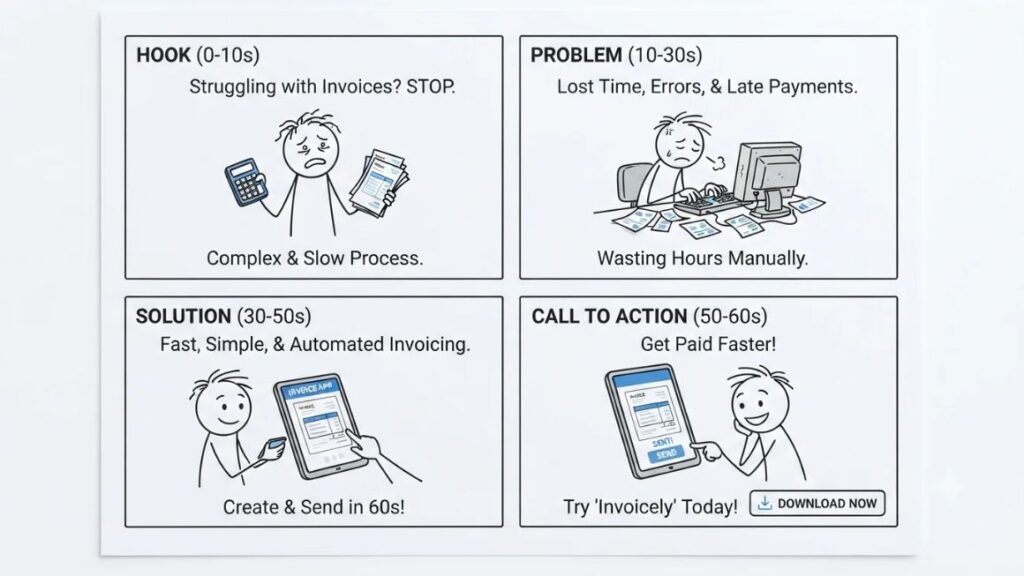
Here’s a walkthrough. Imagine a small invoicing tool for Indian freelancers (a made-up example) that wants a 60-second product explainer video for its homepage.
Step 1: Decide What You Want to Explain
Pick one problem and one audience. For the invoicing tool: freelancers who lose hours chasing late payments.
Step 2: Write a Clear and Engaging Script
Use a simple shape: hook, problem, solution, three benefits, call to action. Read it aloud. If you stumble, viewers will too.
Also Read: Best AI Script Generators: Features, Use Cases & SEO Tips
Step 3: Select the Right Video Style
For a software product, a friendly avatar over screen recordings or clean animation both work. Choose based on your brand. A serious finance tool shouldn’t look like a cartoon.
Step 4: Generate Visuals and Voiceovers
Paste the script in and generate scenes. Then pick a voice from the tool’s AI voiceover generator and check how it pronounces your product name. Fix it phonetically if needed.
Step 5: Edit, Review and Improve the Video
Watch with fresh eyes. Trim long pauses, correct any odd visuals, add captions and match brand colours. Ask someone new to the product if they understood it.
Also Read: 7 Steps to Make High-Performing Youtube Videos Even if you are a Beginner
Step 6: Export and Publish Your Video
Export in 1080p MP4. Upload it to your homepage, YouTube and LinkedIn. Check the opening seconds on mobile, because that’s where viewers decide whether to stay.
Best Practices for Creating Effective AI Explainer Videos
Effective AI explainer videos stick to one problem, one message and one call to action. Keep the script short, show on screen what you’re saying, and add captions so the video still works with the sound off.
Keep the Message Simple
If you can’t summarise the video in one sentence, it’s doing too much.
Focus on One Main Problem
Explainers that cover every feature explain nothing. Build around the pain point your buyer feels most.
Use Visuals That Support the Explanation
Every scene should show what the voice is saying. Watch for AI glitches like warped hands or garbled on-screen text.
Add Captions and Clear Voiceovers
Many people watch on mute. Captions fix that. Choose a calm, natural voice and slow it slightly if your topic is technical.
Include a Relevant Call to Action
Tell viewers exactly what to do next. Start a trial, book a demo, read the guide. One action, not four.
Also Read: Video Marketing Strategy: Guide to Success in 2026
Benefits and Limitations of AI Explainer Video Creation
AI explainer video creation is faster and cheaper than traditional production, but it still needs human review. It works best as a first-draft engine, not a replacement for professional video teams.
Benefits: Faster Production, Lower Barriers and Easier Updates
You can go from idea to draft in an afternoon. You don’t need editing skills. And when your product changes, you update the script and regenerate.
Limitations: Visual Errors, Generic Content and Limited Creative Control
AI visuals sometimes glitch, and stock-based tools can feel generic. Templates limit how far you can push a brand’s look. Honestly, if your video is a flagship brand film, hire a studio. If it’s a how-it-works explainer, AI is often enough.
Also Read: AI UGC Ad Generator: Best Tools, Features, Costs & How to Create High-Converting Ads in 2026
Latest Trends in AI Explainer Video Creation in 2026
The clearest 2026 shifts are lifelike avatars, easier translation, prompt-first workflows and brand control. Each shows up in current product releases.
More Realistic AI Presenters
Synthesia’s Express-2 avatars, introduced with Synthesia 3.0, add natural hand and body gestures. HeyGen offers limited access to its Avatar IV model even on the free plan.
Multilingual Video Production
HeyGen lists 175+ languages and dialects on Creator, and Vyond’s Professional plan includes instant translation into 80+ languages.
Prompt-Based Video Workflows
In October 2026, Synthesia launched Syren, which builds motion graphics, avatars and voiceover from a prompt or document. InVideo AI and HeyGen’s Video Agent work the same way.
Greater Focus on Brand Consistency and Human Editing
Brand kits now appear in Canva Pro, Pictory, VEED and others. The pattern is clear: AI makes the draft, and humans make it on-brand.
Also Read: AI Tools for Marketing: 150+ Tools to Build Your Stack in 2026
Conclusion
Choose HeyGen for presenter-led videos, Synthesia for training, Vyond or Animaker for animation, InVideo AI or Pictory for fast drafts, and Canva or VEED for branded polish. Always check pricing and licensing on the vendor’s site, because both change often. Start with a free plan, make one real video, and judge the result by whether your audience understood it. Not by how impressive the feature list looked.
Want to go beyond single tools and build a repeatable AI workflow for your marketing? The YUP AI Marketing course walks you through prompting, automation and AI-assisted content, step by step, with practical projects.
Frequently Asked Questions (FAQ)
What is the best AI tool for making explainer videos?
There’s no single winner. HeyGen is best for presenter-led videos, Synthesia for training, Vyond for animation and InVideo AI for speed.
Can I make an explainer video for free?
Yes, for short tests. HeyGen, VEED, Canva, Animaker and Powtoon all have free plans, but videos are usually watermarked or capped. Paid plans start around $12 to $29 a month, with avatar tools costing more as volume grows.
How long does it take to create an explainer video using AI?
A 60-second first draft often takes 15 to 30 minutes once the script is ready. Editing, checking facts and polishing add time.
Can AI make animated explainers?
Yes. Vyond, Animaker, Powtoon and Steve AI build animated scenes with characters and templates. Results suit simple explanations, but complex custom animation still needs human animators.
Are AI-generated explainer videos suitable for businesses?
Yes, for onboarding, product explainers, support and social content. For video creation for businesses, review every video for accuracy and brand fit first. Check each tool’s commercial-use terms before publishing.
Can I use AI-generated videos commercially?
Usually on paid plans, not on free ones. Animaker, for example, reportedly offers commercial rights from its Pro plan upward. Read the licence on your plan.
Do I need video editing experience to create an explainer video?
No. Most tools work from a script and templates, and you edit by changing text. If you can build a slide deck, you can make a basic explainer.