Your banner is the first thing a stranger sees on your channel page. They decide within a few seconds whether you look worth following. A blurry image does damage. So does a channel name chopped in half on a phone screen. That’s the exact problem a YouTube banners generator is built to fix: it hands you the right canvas, a layout to start from and an export YouTube won’t reject.
The audience you’re competing for is enormous. Statista, drawing on DataReportal figures, puts India’s YouTube ad reach at 518 million people as of April 2026, the largest of any country. When that many people can scroll past you, your channel’s front door matters.
The encouraging part is that you no longer need Photoshop or a freelance designer to get decent YouTube channel art. Browser tools ship with pre-sized templates, and a few can paint a background from a one-line prompt. The less encouraging part is that “free” means something different in every tool. One gives unlimited downloads. Another stamps a watermark across your export. A third charges per download.
This guide compares ten tools, explains the size rules YouTube actually applies, walks through a build step by step, and shows how to use AI without ending up with garbled lettering. No design background needed.
Table of Contents
What Is a YouTube Banner and Why Does It Matter?
A YouTube banner is the wide image across the top of your channel page. It tells a visitor who you are and what the channel covers before they’ve watched a single video.
The role of banners in building a YouTube brand
Videos get seen one at a time, in feeds, in search, in suggestions. The banner is the one spot where name, topic and tone sit together, and over months it works like a shop sign. Viewers who recognise the colours and fonts from your thumbnails feel they’ve landed in the right place. A good YouTube banners generator won’t fix a weak idea, but it removes the technical headaches so the idea can show.
Businesses feel this even more. A brand channel with no banner looks abandoned, even when the videos are good.
How channel branding influences first impressions
Picture what happens when someone clicks your name under a video. They land on your channel, glance at the banner, glance at the profile picture, glance at the latest uploads. That’s it. Nobody studies any of it.
So the banner has to read in a second, and it has to match the quality of the videos below it. Polished videos under a pixelated banner feel oddly mismatched. The reverse is just as strange.
Also Read: Content Marketing Strategy: The Complete Guide (2026)
What information should your banner communicate?
You don’t need to say everything. Pick from this list and drop whatever doesn’t earn its place:
- Channel identity: the name, plus a logo or face people will remember
- Content category: what you make, in a handful of words, like “weekly personal finance for first jobbers”
- Upload schedule, but only if you really keep it. A “new video every Friday” line that isn’t true is worse than no line at all
- Website or social handles, short enough to read on a phone
Also Read: Brand Identity Management: Building a Brand People Instantly Recognize
How a YouTube Banners Generator Works
A YouTube banners generator is an online design tool that opens a canvas already sized for channel banners, lets you edit a template or generate artwork, and exports a file ready for YouTube Studio. The real differences between tools lie in how much help they give you along the way.
Choosing a template or starting from scratch
Most people should start with a template. Free YouTube banner templates are easy to find, and the better ones already respect the safe area, which spares you from the most common mistake. The catch is sameness. Search any category in any tool and you’ll spot the same layouts on a hundred channels. So pick a template for its structure, then change nearly everything else.
A blank canvas makes sense when you already have a logo, a palette and a clear idea. It takes longer. It’s also the only route to a banner that looks like yours.
Customising colours, fonts and images
This is where a custom YouTube banner actually gets made. Swap the template’s palette for your brand colours, or for the two or three colours that run through your thumbnails. Choose one font for the headline and, at most, one for supporting text. Replace stock photos with your own face, product, desk or set.
Honestly, two fonts is plenty. Three starts to look like a ransom note.
Using AI to generate banner designs
Plenty of generators now include a prompt box. You describe a scene, and a background comes back. That works well for atmospheric or abstract art. It works badly for anything containing words, because AI still mangles lettering often enough that you should plan to add text yourself. The AI section later in this guide covers the whole process.
Downloading and preparing the final design
Export as PNG if the banner has crisp text or logos, and as JPG if it’s mostly photographic. Confirm the file is 2560 x 1440 pixels (or at least 2048 x 1152) and comfortably under 6 MB. If the tool offers a quality slider, lower that before you shrink the dimensions.
10 Best Tools to Create YouTube Banners in 2026
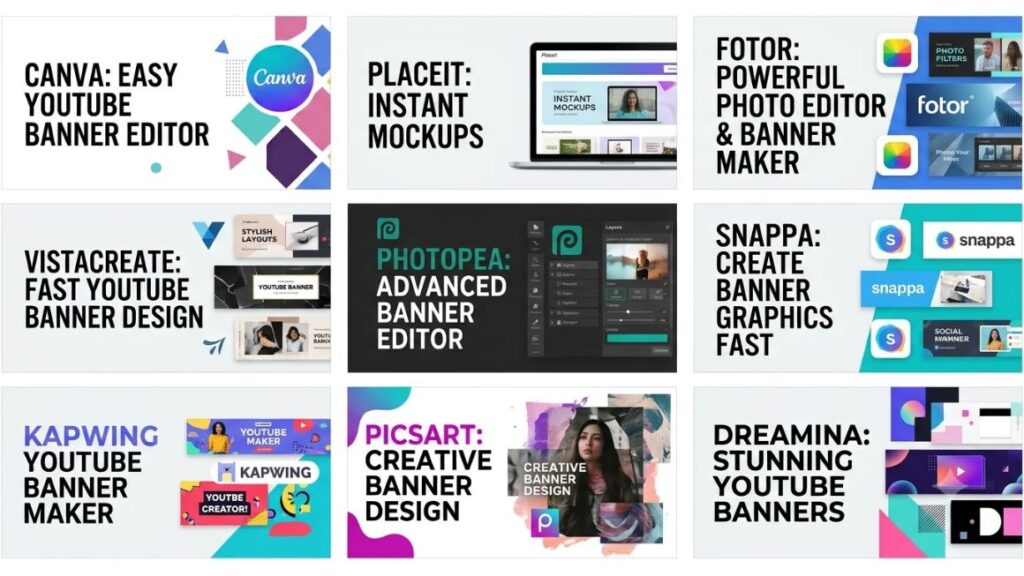
Canva is the easiest all-round pick. Adobe Express is the best choice if you want AI imagery that’s designed to be commercially safe, and Photopea is the strongest free option if you’re comfortable with layers. The other seven each fill a specific gap.
Pricing moves around constantly, so treat the numbers below as a snapshot and check each tool’s own pricing page before you pay. Every YouTube banners generator here gets judged on the same things: how easy it is, what the free plan really includes, and what the good parts cost.
1. Canva
As a YouTube banners generator, Canva is the default answer for a reason. Its YouTube banner maker opens at the right size, and the drag-and-drop editor needs almost no learning. Canva’s own page points to a library of more than three million free stock photos and graphics. One quirk worth knowing: Canva recommends keeping the file at 4 MB or smaller, which is tighter than YouTube’s own 6 MB cap. Follow Canva’s number.
The free plan covers templates and basic design work. Pro adds premium assets and brand tools, and its price has been raised more than once since 2024, so look at the current figure in your currency before subscribing.
Best suited for: first-timers, and anyone already building social posts in Canva.
2. Adobe Express
Adobe Express has a free plan that needs no credit card, with more than 100,000 templates. What makes this YouTube banners generator different is AI. Adobe says its Firefly image models were trained on licensed content such as Adobe Stock plus public-domain material, and the features are designed to be commercially safe. Free users get limited daily generations, and the paid Premium plan (US$9.99 a month at the time of writing) adds 250 generative credits every month.
Think of it as a YouTube banner creator with a serious AI engine bolted on. It takes a little longer to learn than Canva. Not much longer.
Best suited for: creators making banners for a brand or client, where the legal side of AI imagery matters.
3. Placeit
Placeit is the odd one out among YouTube banners generators, and calling it free would be a stretch. You can customise ready-made templates in the browser, editing text, colours and images, but downloading costs money. A single design has been priced at about $2.95, while the unlimited subscription is listed at around $14.95 a month, or roughly $90 to $100 a year depending on the source and the offer.
Paid downloads carry commercial rights and no watermark. So who is it for? Someone who wants a polished result fast, doesn’t need ten banners, and would rather pay once than learn an editor.
Best suited for: one-off banners where speed beats budget.
4. VistaCreate
VistaCreate (formerly Crello) is the budget-minded YouTube banners generator for people who find Canva pricey. The free Starter plan is limited to a single user, with 10 GB of storage and one brand kit. Pro costs about $13 a month, or $10 a month billed annually, and comes with a 14-day free trial. Pro is where the extras live: more than 200,000 premium templates, a background remover, an AI object remover, 100 AI image generations a month and HD downloads.
The editing feels familiar if you’ve used Canva. The asset library is smaller. That’s a fair trade if the price matters to you.
Best suited for: small businesses and solo creators who want brand kits without paying Canva rates.
5. Fotor
Fotor started as a photo editor, and its YouTube banners generator still shows it. It advertises more than 1,000 YouTube banner templates, and it has an AI banner generator that builds banners from a text or image prompt. Photo-heavy banners, like a portrait with a cut-out background, are where it feels strongest.
Watch the free plan. Fotor says its AI banner tool is watermark-free, but some reviewers report watermarks on free exports and locked AI features, so preview the export before you commit a design to it. Paid tiers start at a few dollars a month on annual billing.
Best suited for: beginners who want to try AI features cheaply, especially with photo-based layouts.
6. Snappa
Snappa keeps things plain, and that’s the pitch. Preset canvas sizes for every major platform, a clean editor and a library of more than 6,000 templates mean there’s very little to configure. Think of it as a YouTube channel art maker without the clutter.
The free plan gives you every template but only three downloads a month. That sounds generous until you’ve done a banner, a thumbnail and one retry. Pro runs about $10 a month on annual billing, or $15 month to month.
Best suited for: creators who need a banner or two a month and hate fiddly software.
7. Photopea
Photopea runs in a browser tab and looks almost exactly like Photoshop. It reads and writes PSD files with layers, masks and smart objects intact, and it processes files locally in your browser rather than uploading them. It’s free with ads, and a Premium plan of about $5 a month removes the ads. A single developer has been building it since 2013.
It isn’t a template-led YouTube banners generator. Expect to start from a blank 2560 x 1440 canvas or a PSD a designer sent you. The learning curve is real, but so is the control.
Best suited for: people who already understand layers, and professionals who need PSD compatibility without paying Adobe.
8. Kapwing
Kapwing is a video editor first, and its YouTube banners generator is a side job. Its strength is collaboration: several people can work on the same project, which helps when an editor, a designer and a channel owner all touch the same brand assets.
The free plan puts a Kapwing watermark on exports. Removing it means Pro, which is listed at $16 a month billed annually or $24 month to month. If a banner is all you need, other tools on this list do it more cheaply.
Best suited for: video-first teams who already pay for Kapwing and want banners, thumbnails and clips in one workspace.
9. Picsart
Picsart’s YouTube banners generator works as a workflow: start from a prompt, a photo or a template, and it can place your name and logo inside YouTube’s central safe area for you. The free plan includes a small allowance of AI credits each week, and the banner tool itself is free to open, though some content and features sit behind a subscription.
If you edit on your phone more than your laptop, Picsart is the natural pick. The creative effects are playful, so keep a lid on them if your channel is serious.
Best suited for: mobile-first creators and photo-led channels, like lifestyle, travel and fashion.
10. Dreamina
Dreamina, from the CapCut family, is the only YouTube banners generator here built purely around prompt-based images. Type a scene, get a background. Its free accounts receive daily credits (120 a day for US accounts, with other regions varying, so the allowance in India may differ), and the creative range is wide: illustrated worlds, moody photography, abstract gradients.
Two limits matter. Free-account downloads in Dreamina’s own test carried visible AI marks, and commercial licences and cleaner exports sit on paid plans. Dreamina also isn’t a layout tool, so you’ll add your name and logo elsewhere.
Best suited for: AI-first backgrounds that you finish in Canva, Adobe Express or Photopea.
Also Read: AI Tools for Designers: What to Use at Each Stage of Your Workflow (2026 Cheat Sheet)
Comparison of the Best Banner Creation Tools
For beginners, Canva wins. For commercially safe AI, Adobe Express does. For free, professional-grade editing, Photopea is hard to beat. The table lines up every YouTube banners generator on the list so you can check the trade-offs yourself.
| Tool | Free plan | AI features | Templates and customisation | Watermark and download limits |
| Canva | Yes | AI image and editing tools, with limits that vary by plan | Huge template library, drag-and-drop editing | Premium assets need Pro; keep file at 4 MB or less |
| Adobe Express | Yes, no card needed | Firefly generative AI; daily free generations, 250 monthly credits on Premium | 100,000+ templates on Free | Some premium assets locked behind Premium |
| Placeit | No (pay per download or subscribe) | Not the focus | Ready-made designs, editable text, colours and images | Paid downloads are watermark-free |
| VistaCreate | Yes (Starter) | AI image generator, object remover (Pro) | 200,000+ premium templates on Pro, smaller free library | HD downloads on Pro |
| Fotor | Yes | AI banner generator, background removal | 1,000+ YouTube templates advertised | Watermark reports vary; preview before export |
| Snappa | Yes | Background removal (Pro) | 6,000+ templates, all open on Free | Three downloads a month on Free |
| Photopea | Yes, with ads | Limited | Blank canvas and PSD editing, full layers | No export watermark; ads in the interface |
| Kapwing | Yes | AI tools run on credits (10 on Free) | Video-first editor with collaboration | Watermark on free exports |
| Picsart | Yes | AI image generator, weekly free credits | Templates plus prompt-based workflows | Some content and tools need a subscription |
| Dreamina | Yes (daily credits) | Core feature: text-to-image | Images only, no layout tools | Free outputs can carry AI marks; commercial use on paid plans |
Sorting by experience? Beginners: Canva, then Snappa or VistaCreate if cost matters. Professionals: Photopea for precision, Adobe Express for its AI rules. AI enthusiasts: Dreamina or Picsart for the art, plus a layout tool for the text.
The best YouTube banner tool depends on skill, budget and how much you want AI involved. Canva suits beginners, Adobe Express suits creators who need commercially safe AI imagery, and Photopea suits anyone who wants free layer-based control. Always preview exports, because watermarks and download caps differ between free plans.
What Is the Correct YouTube Banner Size in 2026?
Upload a 16:9 image at 2560 x 1440 pixels, keep it under 6 MB, and put anything important inside the central safe area. Everything else is detail.
Recommended image dimensions
The YouTube banner size 2560 x 1440 is the one to aim for, because TV screens show the whole image and a larger file stays sharp there. Here are the YouTube banner dimensions and limits on one screen:
| Spec | Value |
| Recommended upload | 2560 x 1440 px |
| Minimum upload | 2048 x 1152 px |
| Aspect ratio | 16:9 |
| Safe area at the minimum size | 1235 x 338 px |
| Safe area scaled to 2560 x 1440 | about 1546 x 423 px |
| Maximum file size | 6 MB |
| Common formats | JPG, PNG, GIF (not animated), BMP |
Minimum upload requirements
YouTube’s minimum is 2048 x 1152 pixels at 16:9. Go smaller and the upload screen asks you for another image. Some tools set stricter limits of their own, like Canva’s 4 MB suggestion, so double-check the file.
Understanding the safe area
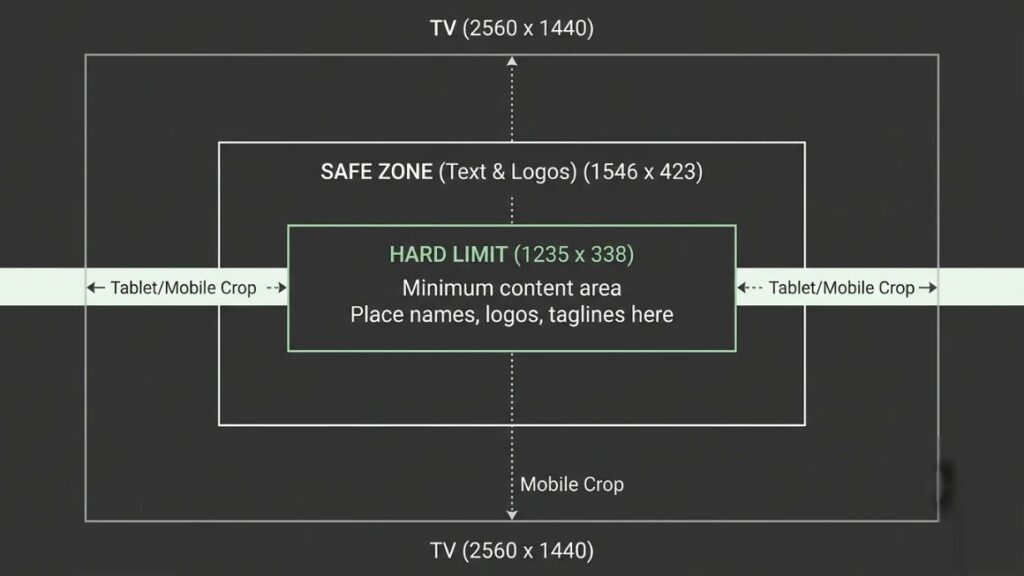
The safe area is the centred zone that appears on every device. YouTube gives it as 1235 x 338 pixels at the 2048 x 1152 minimum, and scaling that proportionally gives roughly 1546 x 423 pixels at 2560 x 1440. Guides mix these two numbers up constantly, which is why people get confused.
Here’s the simple rule. Treat the smaller box, 1235 x 338, as the hard limit for your name, logo and tagline. Stay inside it and you’re never wrong. Use the extra room for background only.
Why banners look different on mobile, desktop and television
One file, four crops. On a 2560 x 1440 upload, TVs show the entire image. Desktop browsers show a wide strip about 2560 x 423 pixels, tablets show roughly 1855 x 423, and phones show about 1546 x 423. In other words, everything above and below that central band disappears on most screens.
That’s why a banner can look perfect in your editor and wrong on your phone. You designed for the TV and viewed it on the phone.
File formats and upload restrictions
Most sources list JPG, PNG, GIF without animation and BMP, up to 6 MB, while a few add WebP and TIFF, so watch the upload dialog for the current rules. Use PNG for text and logos, which stay crisp, and JPG for photography, which keeps the size down. If you’re over the limit, reduce quality a notch before you reduce dimensions.
The recommended YouTube banner size is 2560 x 1440 pixels at 16:9, with a minimum of 2048 x 1152 and a 6 MB file limit. Only the centred safe area, 1235 x 338 pixels at the minimum size, is guaranteed to appear on every device, so names, logos and taglines belong there.
How to Create a Professional YouTube Banner Step by Step?
Pick a tool, set a 2560 x 1440 canvas, build your design around the safe area, preview it, and upload it in YouTube Studio. Here’s the whole process in eight lines before the detail:
- Choose a design tool that fits your skill and budget.
- Set the canvas to 2560 x 1440 pixels.
- Pick a template or layout that suits your channel.
- Add your logo, images and channel name.
- Choose readable fonts and colours.
- Keep everything important inside the safe area.
- Preview and download the design.
- Upload the banner in YouTube Studio.
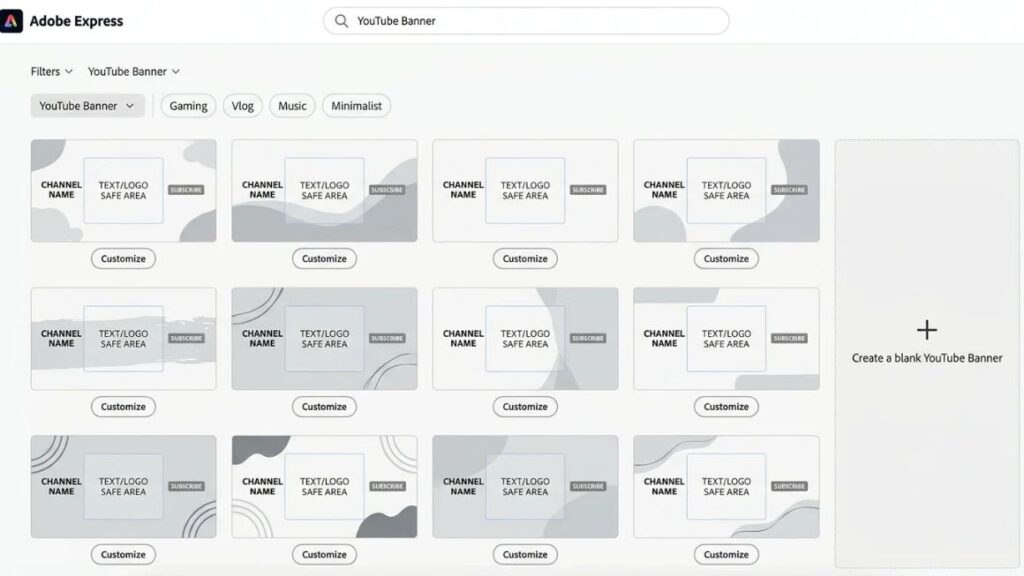
Step 1: Choose the right design tool
Use the comparison above to pick a YouTube banners generator. No strong feelings? Open Canva. Avoiding any paid plan? Start with Photopea or Adobe Express. Don’t spend an hour comparing, because switching later costs nothing.
Step 2: Select your canvas dimensions
Choose a YouTube banner template and the tool should set 2560 x 1440 for you. Any decent YouTube banners generator does. On a blank canvas, type the dimensions yourself. Never start from a smaller size and stretch it up, because you can’t recover detail that was never there.
Step 3: Choose a design that matches your channel
Match the mood of your videos. A calm finance channel and a loud gaming channel shouldn’t share a banner style. If your thumbnails use bold colours and big type, your banner should echo that.
Step 4: Add your logo, images and channel name
Place the channel name first, centred. Then your logo or face. Then a short tagline, if it fits. If you add a photo of yourself, use a clean cut-out or an uncluttered background so the text doesn’t fight it.
Step 5: Select readable fonts and suitable colours
Choose a bold, simple typeface for the name. Go for strong contrast between text and background, light on dark or the reverse. Skip thin script fonts, which blur on small screens.
Step 6: Keep important elements inside the safe area
Turn on the tool’s guides if it has them, or draw a rectangle at 1235 x 338 pixels in the centre of the canvas. Everything vital goes inside. This single habit prevents most cropping complaints, and the YouTube banner safe area is the thing most first-timers ignore.
Step 7: Preview and download your design
Look at the design at thumbnail size. Does the channel name still read? Then export a PNG or JPG, check the file is under 6 MB, and keep the editable version in case you want to change it later.
Step 8: Upload the banner to YouTube Studio
Upload it from a desktop browser if you can:
- Sign in to YouTube Studio.
- Open Customization from the left menu, then Branding.
- Next to Banner image, click Change and choose your file.
- Use the device previews to check the crop, and adjust if needed.
- Click Done, then Publish.
A worked example in Canva
Say you run a made-up channel called Rupee Notes, with weekly money explainers for first-job earners. In Canva you’d pick a template with a calm centre, swap in the navy and yellow from your thumbnails, type “Rupee Notes” in one bold font, add a short tagline below, and place a small logo to the left. Everything sits inside the centre box. Export as PNG, check the size, upload. Twenty minutes, mostly spent on fonts.
How to Create a YouTube Banner Using AI?
Generate a text-free background with an image model, choose a consistent visual style, then add your channel name and logo in a design tool so the lettering stays sharp. An AI YouTube banner generator will give you the artwork, but it won’t reliably give you readable words.
Writing an effective AI image-generation prompt
Good prompts have four parts: the subject, the style, the palette and the composition. The composition part is the one people forget. Tell the model you want a wide 16:9 image with a calm, empty centre, and say “no text, no logos”. Otherwise it paints right where your name should go.
Three sample prompts to adapt:
- Personal finance channel: “Wide 16:9 banner background for a personal finance channel aimed at young Indian professionals. Flat vector style, deep navy and warm yellow palette, abstract coins and rising bar shapes pushed to the far left and right edges, calm empty space in the middle, no text, no logos.”
- Street food vlog: “Wide 16:9 photographic banner background of a busy Old Delhi street food lane at dusk, warm lantern light, steam rising from a griddle near the edges, shallow depth of field, soft dark area in the centre for text, no text, no watermark.”
- Gadget reviews: “Wide 16:9 banner background for a tech review channel, tidy desk seen from above, matte black surfaces with electric blue lighting, devices arranged along the edges, centre dark and uncluttered, minimal, no text.”
Selecting the right visual style
Pick one style and stick with it. Photographic suits travel, food and lifestyle. Flat illustration suits education and finance. Abstract gradients suit tech and business. The test is simple: put the banner next to your last three thumbnails. If they look like they belong to different channels, change the banner.
Generating and refining banner backgrounds
Generate several versions, not one. Pick the strongest, then change one thing at a time, like the palette or the lighting. Stacking five changes in one prompt usually muddies the result. Check the resolution too: in Dreamina’s own free-account test, a download came out at 2560 x 1440, which matches the recommended size, but other tools output smaller images that need upscaling.
Adding readable text and branding manually
Add the text in Canva, Adobe Express or Photopea, not in the image model. AI-rendered lettering is unreliable, and a misspelt channel name is the fastest way to look careless. Place the name and logo inside the safe area, on top of the calm centre you asked for in the prompt. Any YouTube banners generator with an AI feature follows the same rule: art from the model, words from you.
Checking the final design before uploading
Preview the banner at phone size and TV size. Then think about ownership. The US Copyright Office’s January 2025 report concluded that prompts alone don’t give the user enough control to count as authorship, so output made purely from a prompt generally isn’t protected by US copyright. In practice, someone could reuse your AI background. Your own logo, photo or layout makes the banner more clearly yours. Also read the tool’s licence, because free tiers can restrict commercial use.
An AI banner works best when the model creates a text-free background and a design tool adds the channel name and logo. Output created purely from prompts may not be protected by US copyright, so combining AI art with your own branding elements is the safer route.
YouTube Banner Design Best Practices
Good YouTube banner design comes down to restraint: fewer elements, clearer contrast and one idea per banner. Here’s what that looks like in practice.
Keep your branding consistent
Use the same colours, fonts and logo placement across your banner, thumbnails and profile picture. Viewers shouldn’t have to work out that it’s the same channel.
Use high-quality images
Blurry photos read as careless. Start at the full 2560 x 1440 size, use sharp originals, and avoid enlarging small images. A good phone photo beats a poor stock image every time.
Avoid overcrowding the design
One name, one tagline, one visual. That’s the limit. If you’re tempted to add the upload schedule, three social handles and a slogan, remember that the safe area is roughly the size of a wide letterbox.
Choose contrasting colours
Dark text on a light background, or the other way round. Be careful with busy photos behind text. Try the squint test: blur your eyes at the screen, and if the name vanishes, the contrast is too low.
Make your channel identity immediately clear
A stranger should know the topic in about three seconds. “Weekly personal finance for first jobbers” beats “Welcome to my channel” by a mile. Specific beats friendly.
Preview your design across different devices
Check phone, laptop and TV views in the Studio preview before you publish. Then check the live channel page on your actual phone. It takes a minute.
Update your banner when your channel evolves
Changed niche? New upload day? Rebranded? Update the banner the same week. An outdated banner promising content you no longer make confuses new visitors, and there’s no real downside to refreshing it.
Also Read: Social Media Brand Management: Strategy, Challenges, Optimization,& Brand Metrics
Common Mistakes to Avoid When Creating a YouTube Banner
Most banner problems come from six repeat mistakes, and none of them needs design talent to fix.
Using incorrect image dimensions
Starting from a square or thumbnail-sized canvas and stretching it leads to blur and unexpected crops. A good YouTube banners generator prevents this by opening at the right size, so don’t override it.
Placing important text outside the safe area
The classic. The channel name sits near an edge, looks fine in the editor, and vanishes on mobile. Keep text inside the 1235 x 338 box.
Using too many fonts and colours
Two fonts and three colours is a sensible ceiling. More than that and the banner looks like a collage.
Choosing low-resolution images
Screenshots, small downloads and heavily compressed photos get ugly when scaled to TV size. If the original is small, find another.
Ignoring mobile users
Most viewers won’t see the full banner. Design for the narrow central strip first, then treat the rest as bonus.
Using copyrighted images without permission
A picture found through a search engine isn’t free to use. Use your own photos, a stock library with a clear licence, or assets covered by your design tool’s terms. Using someone else’s artwork on a monetised channel is a quick route to a takedown.
How to Choose the Right Banner Generator for Your Needs?
The best YouTube banners generator depends on how you work: Canva for beginners, Adobe Express or Photopea for more control, Dreamina or Picsart if AI imagery is the point, and Snappa or Photopea if the budget is zero.
Best option for beginners
Canva. The templates are pre-sized, the editor is friendly, and there’s rarely anything to configure. Snappa is a close second if you want an even plainer screen.
Best option for professional creators
Photopea if you think in layers, Adobe Express if you want AI with clearer commercial terms. Both give you more control than a template-first tool.
Best option for small businesses
VistaCreate or Canva, because brand kits keep colours and logos consistent across posts. Placeit works for a quick one-off when you’d rather pay than learn.
Best option for AI-generated designs
Dreamina or Picsart for the artwork, Adobe Express if commercial safety matters. Finish the text in a layout tool.
Best option for users looking for free tools
Photopea has no export limits, only ads. Canva and Adobe Express have usable free plans, and Snappa’s three monthly downloads are enough if you only update the banner occasionally.
Also Read: How to Build A Social Media Marketing Strategy in 7 Steps
| If you are… | Best pick | Why | Watch out for |
| A complete beginner | Canva | Pre-sized templates, easy editor | Premium assets need Pro; 4 MB file suggestion |
| A professional creator | Photopea or Adobe Express | Layer control, or AI with clearer commercial terms | Photopea has a learning curve |
| A small business | VistaCreate or Canva | Brand kits, consistent assets | Pro plans needed for the full library |
| Making AI-generated designs | Dreamina or Picsart | Prompt-based images | Free outputs may carry marks; add text yourself |
| Working with no budget | Photopea, Canva Free or Snappa Free | No-cost editing | Ads in Photopea; three downloads on Snappa |
Choose a YouTube banner tool by how you work. Beginners do best with Canva, professionals with Photopea or Adobe Express, businesses with VistaCreate or Canva brand kits, and AI-first creators with Dreamina or Picsart for artwork plus a layout tool for text.
Conclusion
A good banner doesn’t need talent. It needs the right size, a clear message and a bit of discipline about where things go. Upload at 2560 x 1440, keep your name and logo inside the safe area, and preview on a phone before you publish.
Choosing the tool is the easier half. Canva suits most beginners, Adobe Express and Photopea give you more control, and Dreamina or Picsart make sense for AI artwork. Pick based on budget and time, and don’t get stuck comparing. Whichever YouTube banners generator you choose, the most useful thing you can do today is make a first version and look at it on your phone.
If you want to go further than a good-looking banner, and learn how to plan content, grow a channel and measure what’s working, take a look at YUP’s Social Media Marketing course. It’s a natural next step once your channel has a face worth showing.
Frequently Asked Questions (FAQs)
Which is the best free YouTube banner generator?
The best free YouTube banners generator for most people is Canva’s free plan: pre-sized, easy, with a large template library. If you want pro-level control and don’t mind ads, Photopea is better. Adobe Express is the pick for free access to commercially safe AI features.
Can I create a YouTube banner without design experience?
Yes. Use a template, change the colours and text, and keep everything inside the safe area. The first one won’t be perfect, but you can update it anytime.
What is the recommended YouTube banner size in 2026?
Upload 2560 x 1440 pixels at 16:9, with 2048 x 1152 as the minimum and a 6 MB limit. Keep text inside the central 1235 x 338 pixel safe area. If you’ve been searching for a YouTube cover photo size, this is the same thing.
Can AI generate a complete YouTube banner?
It can generate the artwork, but not reliably the text. AI often garbles words. The better method is to generate a text-free background, then add your channel name and logo in a design tool where you control the lettering.
How do I create a banner without a watermark?
Avoid premium-only assets on free plans, since they’re the usual cause. Photopea doesn’t watermark exports, and paid tiers from Placeit and Kapwing remove it. Fotor’s free exports have been reported to carry marks, so always preview the export first.
Are free banner generators safe to use?
The reputable ones are. Stick to established YouTube banners generators, don’t upload private images you wouldn’t want stored, and be wary of lookalike sites that ask you to install something. Photopea processes files locally in your browser, which is a plus for privacy.
Can I use AI-generated images commercially?
It depends on the tool’s licence. Free plans often limit commercial use, and Adobe describes Firefly features as designed to be commercially safe. Separately, purely prompt-made images may not qualify for US copyright, so add your own elements to make the banner distinctively yours.
How often should I update my YouTube banner?
There’s no fixed schedule. Update it when your channel changes: a new niche, a new upload day, a rebrand, or a new series you want to highlight. Otherwise, a quick yearly review is enough.
Why does my YouTube banner look cropped on mobile?
Phones show only the central strip of the image, about 1546 x 423 pixels on a 2560 x 1440 upload. If your text sits near the edges, it gets cut. Move important elements into the 1235 x 338 pixel safe area and re-upload.
Can I create a YouTube banner using my phone?
Yes. Canva, Adobe Express and Picsart all work on phones. Design at 2560 x 1440, export, then upload through YouTube Studio. If the app doesn’t show a banner option for your account, switch to a browser to upload it.