
Posting a Short every day sounds easy. Well, until you try it for three weeks. The scripting, the cutting, the captions. And the awkward re-exports at 11 pm. Most creators quit around week two. Honestly, that’s not a motivation problem. It’s a workflow problem.
That’s where a YouTube Shorts generator comes in. You hand it something you already have. A topic, a script or a long video. It hands back a vertical clip with captions and music attached. Some tools invent the whole video from a prompt. Others dig out the best 30 seconds of your podcast. They do different jobs. So picking the wrong one burns money fast.
This guide covers ten of them: what each costs as of October 2026, where the free plans run out, and how to go from idea to upload without making the kind of repetitive content YouTube now refuses to pay for.
Table of Contents
What Is a YouTube Shorts Generator?
A YouTube Shorts generator is software that turns a prompt, script or existing video into a vertical clip. Captions, music and voiceover are added for you. YouTube treats any square or vertical upload of three minutes or less as a Short, according to YouTube Help. So the output has room to be more than a quick teaser.
That definition covers a lot of ground. That is why search results for an AI YouTube Shorts generator look so messy. Some tools create footage from nothing. Others never create anything at all. They just find the best moments in a video you already made. Mixing the two up is the most expensive beginner mistake in this category.
A YouTube Shorts generator turns a prompt, script or long video into a vertical clip with captions and audio already added. Since 15 October 2024, YouTube has classed any square or vertical upload of up to three minutes as a Short (YouTube Help, 2024). The right tool depends on what you’re starting with, not on which brand is most popular.
How Does It Work?
Nearly every generator follows the same loop, whatever the landing page says.
- Enter a topic, script or video link.
- Let the software analyse the input and split it into scenes or candidate moments.
- Review what it produced and cut anything that doesn’t fit.
- Add captions, voiceover, music and transitions.
- Edit the result and export the final video.
Step three is the one people skip. More on that later.
Different Types of Video Generators
Five types cover almost every tool in this guide.
- Prompt-to-video tools build scenes from a topic or script. An AI video generator in the strict sense, such as InVideo AI or Revid, lives here.
- Long-video clippers, like OpusClip and Vizard, find highlights in recordings you already have. Think of them as a YouTube video to Shorts converter.
- Script-to-video tools such as Pictory match written text to stock footage.
- Avatar tools like HeyGen put a digital presenter on screen.
- Template editors, Canva and CapCut among them, give you structure and leave the creative work to you.
Who Should Use These Tools?
Honestly, almost anyone who posts video on a schedule. A solo YouTube Shorts creator can batch a week of clips on a Sunday. Small businesses get product explainers without hiring an editor. Podcasters turn one episode into a dozen clips. Agencies and social media managers get a faster first draft for every client.
Total beginner? Start with one tool and one format. That’s plenty.
Also Read: AI Agent for Video Marketing: Automate Video Creation, Publishing & Analytics
How to Choose the Right Tool for Creating YouTube Shorts?
Choose a YouTube Shorts generator by what you’re starting with. Long recordings call for a clipper. A bare idea calls for a prompt-to-video tool. Brand consistency calls for a template editor. Price and watermark rules come second. But they decide whether the free plan is usable at all.
Ease of Use and Learning Curve
Beginners should pick the tool they can finish a video in on day one. If the first export takes three hours, the tool is the problem, not you. Browser-based editors like VEED and Kapwing need no install. That helps on shared or older laptops. Heavier editors give more control but ask for more patience.
Video Quality and Customisation
Check five things before committing: vertical 9:16 export, resolution (1080 x 1920 is the usual target), transitions, background visuals, and brand colours and fonts. Free plans often cap exports at 720p. A soft video on a modern phone looks worse than most people expect. A YouTube Shorts maker that can’t lock your brand font will cost you time on every single video.
Automatic Captions and Voiceovers
Captions are the feature people notice first and trust least. Test accuracy with your own accent, your own language mix and your own jargon before paying for anything. Voiceovers need the same suspicion. So a flat robotic voice is the quickest way to make a Short feel automated. Read every generated line yourself. Every time.
Also Read: Best AI Video Editors in 2026
Editing Flexibility
A generator’s first draft is rarely the final cut. You’ll want to swap a clip, delete a dead scene, nudge the timing and fix a wrong word without starting over. Tools that lock you into the generated result are fine for experiments and frustrating for anything with your name on it. Good YouTube Shorts editing tools let you change any single element.
Pricing, Free Plans, and Usage Limits
Every YouTube Shorts generator prices differently. So read the limits before the price. A $15 plan with 150 processing minutes is a different product from a $15 plan with unlimited exports. Compare these before you pay:
- Free trial versus a permanent free plan
- Monthly subscription versus credit-based pricing
- Watermarks on free exports
- Export limits, including resolution and length
- Commercial usage rights for the output
Credits are the sneaky one. In OpusClip, one credit equals one minute of source video. In Revid, credits are spent per second of generated video. The rate depends on the model. Same word, completely different maths.
Match the tool to your starting material: a clipper for long recordings, a prompt-to-video tool for ideas, an avatar tool for presenter-style videos, and a template editor for branded work. Then compare credits, watermarks, resolution caps and commercial rights, because those limits matter more than the headline price.
10 Best Tools for Creating YouTube Shorts in 2026
These ten YouTube Shorts generator picks are based on each tool’s published workflow and plan details, not hands-on testing by YUP. Prices were checked in October 2026 and change often. So confirm them on the vendor’s page before paying.
1. OpusClip
OpusClip takes a podcast, webinar or interview and cuts it into short vertical clips with captions already burned in. It reframes the speaker automatically, scores clips for likely performance and adds animated subtitles in 20+ languages. For talking-head content, it mostly delivers. Think of it as a long video to short video converter with a scoring layer on top.
The catch is credits. One hour-long episode can swallow an entire free month. Free-plan clips stop being exportable after three days.
- Free plan: Yes. 60 credits a month, watermarked clips, no editor.
- Pricing (as of October 2026): Starter $15 a month for 150 credits, Pro $29 a month for 300 credits.
- Who should use it: podcasters, webinar hosts and anyone sitting on hours of existing footage.
2. CapCut
CapCut is an editor, not a generator. You bring the footage, then lean on templates, auto-captions, transitions and effects. The free plan is genuinely usable. Standard edits export without a watermark, though anything built on Pro templates or effects gets stamped.
Here’s the problem for readers in India: CapCut has been banned there since June 2020 and still isn’t officially available in 2026. Indian creators generally turn to editors such as VN or InShot instead.
- Free plan: Yes, with basic editing. Pro templates and effects add a watermark.
- Pricing (as of October 2026): Standard $9.99 a month and Pro $19.99 a month in the US, with regional pricing elsewhere.
- Who should use it: creators outside India who want hands-on control over every cut.
3. InVideo AI
InVideo AI works as a text to video generator. You type a prompt or paste a script. It assembles scenes, stock footage, voiceover and subtitles, then lets you refine the result by chatting with it. It suits explainers, listicles and channels that never show a face.
Cost is the weak spot. Plans run on credits, generative models eat them quickly, and unused credits don’t roll over.
- Free plan: Yes, with the InVideo watermark and weekly limits.
- Pricing (as of October 2026): Plus around 20amonth(17 on annual billing), Max around $100 a month. Older listings show lower figures, so check the live page.
- Who should use it: marketers and educators who want a finished explainer from a script.
4. VEED
VEED is a browser-based YouTube Shorts editor. Upload a clip. Generate subtitles. Clean the audio. Resize to 9:16 and export. Nothing to install. That suits agency teams sharing machines. Its AI extras, such as avatars and dubbing, use credits separately.
The free plan works better as a trial than a working tier: exports carry a watermark and top out at 720p.
- Free plan: Yes. 720p, 10-minute cap, VEED watermark, 2 GB storage.
- Pricing (as of October 2026): Lite from about $12 a month on annual billing (about $19 monthly), Pro from about $24 a month annually.
- Who should use it: marketers who need quick polish and subtitles in the browser.
5. Canva
Canva already holds most small teams’ brand colours and fonts. That is exactly why its video editor makes sense for branded Shorts. Start from a vertical template, drop in clips, swap the text, export. It isn’t a clip-finder, and heavy editing feels basic next to a dedicated editor.
- Free plan: Yes, and it’s permanent. Premium templates and the Brand Kit sit behind Pro.
- Pricing (as of October 2026): Canva Pro is $18 a month or $144 a year in the US, and about ₹499 a month in India.
- Who should use it: small businesses and marketers who care about a consistent look.
6. Pictory
Pictory turns scripts, blog posts and article URLs into videos by matching text to stock footage, then adding voiceover and captions. If you’ve got a back catalogue of written content, it’s the quickest way to give it a second life. The trade-off is a stock-footage look that can feel generic. So add your own clips where you can.
- Free plan: No permanent plan. A 14-day trial with limited video minutes.
- Pricing (as of October 2026): Starter 29amonth(25 billed annually), Professional $59 a month.
- Who should use it: bloggers and content teams repurposing written work.
7. Vizard
Vizard finds highlights in long recordings, reframes them to vertical, adds captions and lets you tweak clips in a text-based editor. Paid plans accept uploads up to 600 minutes. Like OpusClip, it’s credit-based, and the free plan is basically a sampler: 720p, watermarked, three days of storage.
- Free plan: Yes. 60 credits a month with a watermark.
- Pricing (as of October 2026): Creator about $29 a month, or roughly $14.50 to $17 a month billed annually.
- Who should use it: podcasters, coaches and agencies clipping interviews or presentations.
8. Kapwing
Kapwing is a browser editor with subtitles, resizing and AI clip extraction, and its pricing is per member, which matters for teams. Clip-extraction quality varies by source. So budget time to review. On the free plan, exports carry a watermark, stay at 720p and stop at four minutes.
- Free plan: Yes, with a watermark.
- Pricing (as of October 2026): Pro 16amonthpermemberonannualbilling(24 monthly), Business $50 a month per member annually.
- Who should use it: small teams editing the same projects together.
9. HeyGen
HeyGen builds videos around AI avatars. Write a script, pick an avatar and voice. It produces a presenter-style video, with dubbing into other languages available too. It’s one way to make faceless YouTube videos without recording yourself.
Credits drain faster on newer avatar models. Realistic synthetic people may trigger YouTube’s disclosure rules, covered below.
- Free plan: Yes. 3 watermarked videos a month, up to one minute each.
- Pricing (as of October 2026): Creator 29amonth(24 annually), Pro from $49 a month.
- Who should use it: educators and marketers who need a presenter without a camera.
10. Revid AI
Revid creates short-form videos from an idea, link, script or recording. Its own pricing page says it writes hooks, adds voiceovers in 70+ languages and publishes straight to TikTok, Instagram, YouTube and X. Credits are spent per second of generated video, and premium models cost far more than basic ones.
- Free plan: No permanent plan. New accounts get a few free credits to try it.
- Pricing (as of October 2026): Growth 39amonth(32 billed annually) for 2,000 credits, Elite $89, Ultra $199.
- Who should use it: creators posting daily across several platforms.
Best Tools Compared: Which One Should You Choose?
| Tool | Best for | Starting input | Free plan | Entry paid price (Oct 2026) |
| OpusClip | Repurposing long videos | Existing footage | Yes, watermarked | $15/month |
| CapCut | Creative editing | Footage or templates | Yes (not available in India) | $9.99/month |
| InVideo AI | Automated video creation | Text prompts | Yes, watermarked | About $20/month |
| VEED | Online editing | Video files | Yes, watermarked | About $12 to $19/month |
| Canva | Branded content | Templates and media | Yes | $18/month (₹499 in India) |
| Pictory | Script-based videos | Text and scripts | No, 14-day trial | $29/month |
| Vizard | Extracting highlights | Long recordings | Yes, watermarked | About $29/month |
| Kapwing | Collaborative editing | Text and footage | Yes, watermarked | $24/month per member |
| HeyGen | Virtual presenters | Scripts | Yes, 3 watermarked videos | $29/month |
| Revid AI | Idea-based generation | Topics and prompts | No, trial credits | $39/month |
Best Free Option
No single YouTube Shorts generator wins here. That’s the honest answer. Canva’s free plan is permanent and works in India. CapCut’s is generous, but only if you’re outside India. OpusClip and Vizard give 60 credits a month. This is a trial of the clipping quality rather than a weekly workflow. Every free AI video generator has a catch, whether that’s a watermark, a resolution cap or an expiry window. So decide which catch you can live with.
Best Option for Beginners
For a first YouTube Shorts generator, start with Canva if you want to edit, or InVideo AI if you’d rather describe a video and let the tool build it. Both let you finish a first video quickly, which matters more than any feature list.
Best Option for Businesses and Marketers
Canva fits brand consistency, Kapwing fits shared team projects and HeyGen fits repeatable presenter-style videos. Whichever you choose, check commercial usage rights in the terms before you publish client work.
Best Option for Podcast and Long-Form Creators
OpusClip and Vizard are built for this. Compare clip selection on one of your own episodes. Then check speaker tracking, caption accuracy and export quality. The free plans are enough for that test, as long as you download your clips within the expiry window.
Also Read: 35+ AI Tools for Content Creation, Chosen by Experts
How to Create a YouTube Short Using a Generator: Step-by-Step Guide
Creating a Short with a YouTube Shorts generator takes seven steps: pick a topic. Write a short script. Choose a creation method. Generate the video. Add captions and audio. Review everything. Then export and upload. The review step is where most of the quality comes from.
Step 1: Choose Your Topic
Pick a topic that answers one specific question your audience actually asks. “How to write a Reel hook” beats “social media tips”. If you can’t phrase it as a question, it’s probably too wide for 40 seconds.
Step 2: Write a Short Script
Keep it tight: an opening hook, the main point, one example or demonstration, a closing message and a call to action. Read it aloud. If you run out of breath, cut a sentence.
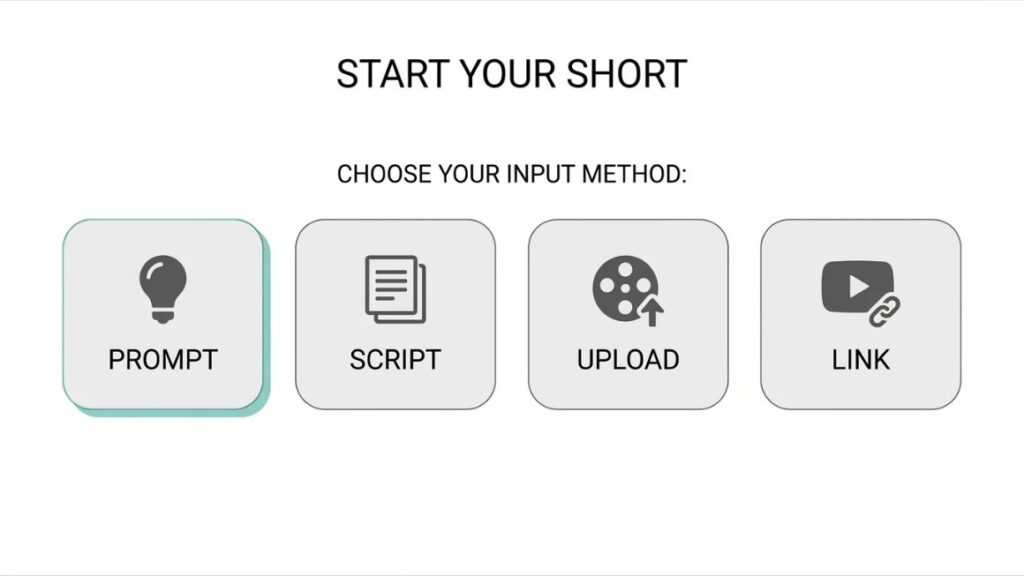
Step 3: Select Your Creation Method
Use a prompt if you’ve only got an idea, a script if the wording matters, uploaded footage if you’ve already filmed, or a video link if you’re clipping something existing. The input decides which tool from the list above fits.
Step 4: Generate the Video
Let the tool build scenes, pick moments or assemble footage. Expect a rough draft, not a finished video. Generate twice if the first pass misses the point.
Step 5: Add Captions, Voiceovers, and Music
Captions help viewers who can’t or won’t turn the sound on. Choose a readable font, strong contrast and short lines. Pick music from the tool’s licensed library or YouTube’s own, and keep it quieter than the voice.
Step 6: Edit and Review the Output
Run this checklist before exporting:
- Are the captions accurate?
- Does the video make sense without sound?
- Are there awkward cuts?
- Is the audio clear?
- Are the visuals relevant to what’s being said?
- Is the information accurate?
Step 7: Export and Upload
Export at 9:16, 1080 x 1920. Write a title that says what the viewer will learn, add a short description, and check copyright on any music or footage you didn’t create. If the video includes realistic synthetic content, switch on the altered-content disclosure at upload.
Best Practices for Creating Engaging Short Videos
Even the best YouTube Shorts generator only gets you a first draft. What separates a Short people finish from one they swipe past is mostly decided in the first two seconds.
Start With a Strong Hook
Open with a question, a surprising fact, a relatable annoyance or a visual demonstration. “Most marketers caption their Shorts wrong” beats “Hi everyone, today we’re talking about captions” every time.
Keep One Main Message Per Video
One video, one idea. If you catch yourself writing “and one more thing”, that’s your next Short.
Use Clear Captions
Plenty of viewers scroll with the sound off, so captions carry the video. Use high contrast, short lines, correct spelling, and keep text away from the bottom edge where YouTube’s buttons sit.
Make Your Videos Feel Natural
Pacing, a bit of story and your own commentary matter more than polish. Automated content has a rhythm people recognise: same voice, same stock clips, same cuts. Add one thing only you could add, whether that’s an opinion, a number from your own work or a mistake you made.
Add a Relevant Call to Action
Pick one and place it last:
- Subscribe for more practical marketing tips.
- Watch the full tutorial.
- Visit the website to learn more.
Experiment With Different Video Formats
Rotate through formats until the analytics tell you what your audience prefers:
- Tutorials
- Quick tips
- Myth-busting
- Before-and-after demonstrations
- Product explainers
- Behind-the-scenes videos
Also Read: How to Create a Content Calendar That Converts
How to Optimise Your Shorts for YouTube Discovery?
A Short can be well made and still go nowhere because nobody could tell what it was about. Discovery is mostly clarity.
Write Search-Friendly Video Titles
Say what the viewer will learn. “How to add captions to a Short in Canva” is clearer than “You won’t believe this trick”, and it matches how people actually search.
Create Relevant Descriptions
Two or three sentences of context, plus a link to the full video if one exists. Descriptions give YouTube extra context about what the Short covers.
Use Relevant Hashtags
A few that match the topic. Piles of unrelated tags look spammy and don’t help.
Understand YouTube Shorts Analytics
Since 31 March 2025, YouTube counts a Shorts view every time a Short starts to play or replays, with no minimum watch time, according to YouTube Help. The older, stricter number lives on as engaged views in Analytics. So the headline view count flatters you a little. Watch these instead:
- Views and engaged views
- Average view duration
- Average percentage viewed
- Likes and comments
- Subscribers gained
Understand Viewer Retention
If viewers leave at second three, rewrite the hook. If they leave at second 20, the middle is padding. Strong first seconds, a clear story and a satisfying ending hold people better than any effect.
Also Read: 20 Best YouTube SEO Tools in 2026
Can You Monetise Videos Created With These Tools?
Yes, but using a YouTube Shorts generator doesn’t qualify a channel for monetisation, and YouTube won’t pay for mass-produced or repetitive content. Eligibility rules and originality rules both apply, and both changed recently.
YouTube Partner Programme Requirements
Right now, ad revenue through the YouTube Partner Program (YPP) needs 1,000 subscribers plus either 4,000 qualified public watch hours in 12 months or 10 million qualified public Shorts views in 90 days. A lower tier starts at 500 subscribers, three public uploads in 90 days and either 3,000 watch hours or 3 million Shorts views, and adds fan funding and shopping features.
The bar is about to move. According to YouTube’s 10 August 2026 announcement, new applicants from 1 February 2027 need 1,000 subscribers plus either 8,000 qualified watch hours in 365 days or 20 million qualified Shorts views in 90 days. Shorts revenue sharing will also require 10 million qualified Shorts views over 90 days. Channels already in YPP keep their status.
From 1 February 2027, new YouTube Partner Program applicants need 1,000 subscribers plus either 8,000 qualified watch hours or 20 million qualified Shorts views in 90 days (YouTube Blog, August 2026). Existing partners keep their status, but Shorts revenue sharing will require 10 million qualified Shorts views over 90 days.
Originality and Repetitive Content
On 15 July 2025, YouTube renamed its “repetitious content” policy “inauthentic content” to make clear it covers mass-produced or repetitive videos, such as ones made from a template with little variation. YouTube’s Rene Ritchie called it a minor update to long-standing rules.
In July 2026, trust and safety chief Matt Halprin spelled out three kinds of video that can’t earn through YPP, as reported by The Media Copilot and TechCrunch: generic, template-based clips, content built to distress viewers, and AI personas, particularly on health or finance topics. AI itself isn’t the target. Volume without originality is.
So a channel that publishes a YouTube Shorts generator’s default output, same template, same voice, same stock footage, is exactly what that policy describes. Meaningful editing, original commentary and real viewer value are your protection.
Copyright and Commercial Usage Rights
“Royalty-free in the tool’s library” doesn’t automatically mean licensed for monetised YouTube use. Read each tool’s terms on music, stock footage and commercial rights. One October 2026 review noted that Pictory’s terms don’t expressly grant commercial rights to its output. That is a good reminder to check before assuming.
AI-Generated Content Disclosure
YouTube requires creators to disclose realistic content that a viewer could mistake for a real person, place or event when it was made with altered or synthetic media, according to YouTube’s 2024 policy. You don’t need to disclose AI used for scripts, ideas or automatic captions, or clearly unrealistic content such as animation. A realistic avatar or cloned voice may well need the label, and YouTube can add one itself if you don’t.
Common Mistakes to Avoid When Creating Shorts
Publishing Videos Without Reviewing Them
Generated captions get names wrong and stock clips drift off-topic. Watch the whole thing first.
Using Generic Scripts and Repetitive Templates
If your last five Shorts could swap titles without anyone noticing, that’s a monetisation risk, not a style.
Ignoring Copyright Restrictions
A licensed library helps, but a trending song pulled from somewhere else can get a video muted or claimed.
Overloading Videos With Effects
Three transitions in five seconds feels like noise. Let the idea carry the clip.
Focusing Only on Views Instead of Audience Quality
A million skim-views with weak retention and no subscribers gained won’t build a channel.
Publishing Without a Clear Content Strategy
Tools speed up production. They don’t tell you who the videos are for.
Also Read: Video Marketing Strategy: Guide to Success in 2026
Are Automated Video Generators Worth Using?
For most creators and marketers, yes. A YouTube Shorts generator is worth using as long as a human reviews every output. These AI video creation tools remove the slow parts of production, but they don’t remove the need for judgement.
What you gain:
- Faster content production
- Less manual editing
- Easier repurposing of existing content
- More consistent workflows
- A lower barrier for beginners
What you give up, or still have to handle:
- Generated footage may not match the script
- Captions can contain mistakes
- Some outputs look generic
- Subscription and credit costs add up
- Human review is still necessary
The pattern is simple. Generators are great at speed and mediocre at taste. You supply the taste.
Final Thoughts
The best YouTube Shorts generator is the one that fits how you already work, not the one with the loudest ads. A podcaster and a solo faceless creator need entirely different tools, and neither needs all ten.
Start small. Pick one YouTube Shorts generator, make five or six Shorts, and read your engaged views and average percentage viewed before spending anything more. Then fix the weakest part of the workflow, whether that’s hooks, captions or editing, before adding a second subscription.
If you want a clearer plan for what those videos should say and who they’re for, YUP’s Social Media Marketing course covers the strategy that no generator can write for you.
Frequently Asked Questions (FAQ)
What is the best YouTube Shorts generator in 2026?
There’s no single best YouTube Shorts generator, because tools solve different problems. OpusClip and Vizard suit long recordings, InVideo AI and Revid AI suit prompts, HeyGen suits avatar presenters, and Canva suits branded templates. Choose by your starting material.
Can I create YouTube Shorts for free?
Yes, but every free plan has a limit. Canva’s is permanent, while OpusClip, Vizard, VEED and Kapwing add watermarks and caps. CapCut offers a generous free plan but isn’t available in India.
Can AI generate Shorts from a text prompt?
Yes. Prompt-to-video tools such as InVideo AI and Revid AI build scenes, voiceover and captions from a prompt or script. Expect to edit the draft, because the first output rarely matches your intent exactly.
How can I turn a long YouTube video into Shorts?
Upload the video or paste its link into a clipper like OpusClip or Vizard. It finds highlights, reframes them to 9:16 and adds captions. Review each clip, trim the start so it opens on the hook, then export.
Can I create Shorts without showing my face?
Yes. Use avatar tools, stock-footage tools, screen recordings or voiceover-led videos. Just add original commentary, because channels built on identical faceless templates risk falling under YouTube’s inauthentic content policy.
Are AI-generated Shorts eligible for monetisation?
They can be, if the channel meets YPP requirements and the videos aren’t mass-produced or repetitive. YouTube says the issue is low-originality content, not AI use itself. Original commentary and meaningful editing protect you.
What is the ideal length for a YouTube Short?
YouTube allows up to three minutes but publishes no ideal length. Use the shortest length that completes the idea. For most tips and tutorials, that’s well under a minute.
Do I need editing skills to create Shorts?
No. Generators handle cuts, captions and reframing for you. A basic eye for pacing and readable text helps, and you’ll pick that up after a handful of videos.
Can I upload AI-generated videos directly to YouTube?
Yes. Export in 9:16 and upload through YouTube Studio like any other video. If the content is realistic synthetic media, turn on the altered-content disclosure during upload.
Can I use copyrighted music in AI-generated Shorts?
Not safely. Use music from YouTube’s library or a tool’s licensed library, and check its commercial terms. Copyrighted tracks can lead to claims, muting or lost revenue.
How many Shorts should I publish per week?
YouTube doesn’t set a number. Pick a pace you can keep up without cutting quality, whether that’s three a week or one a day, and hold it for a month before judging results.
Are automated videos good for growing a YouTube channel?
They can help, if you review them and add something original. Channels that publish unedited, repetitive output tend to stall and may lose monetisation. Treat automation as a first draft.