
You’ve got a Tumblr blog you actually care about. The posts sound like you. The avatar is just right. Then there’s the header, sitting at the top like a stock photo nobody got round to replacing.
That gap is easy to close. A Tumblr banner generator does most of the work. You pick a template or a blank canvas. Add your colours and text. Export one image. Simple on paper. In practice people trip on the details, like the wrong dimensions, a background so busy the title disappears, or a GIF that freezes on upload.
This guide covers templates, the right canvas size, a few tool picks, the upload steps on desktop and mobile, and fixes for the usual problems. Good Tumblr blog design starts at the top of the page, so that’s where we’ll start too.
Table of Contents
What Is a Tumblr Banner and Why Does Your Blog Need One?
A Tumblr banner is the wide image across the top of your blog, which Tumblr itself calls the header image. It sits above your title, description and posts, so it’s usually the first thing a visitor sees.
Understanding the Tumblr Header
Think of it as a masthead. Tumblr’s Help Center lists it as one piece of your blog’s appearance, next to the avatar, colours and title font.
People mix up the three image types constantly. The header is the wide banner. The avatar is the small image beside your blog name and your posts, square or round depending on the theme. Post images live inside individual posts and have nothing to do with how the blog looks overall.
How a Good Banner Improves Your Blog’s Appearance
A decent header does four jobs at once. It gives the blog a look people recognise. It tells visitors something about you before they’ve read a word. It ties in with your avatar so the two don’t clash. And it makes the whole blog look deliberate instead of half-finished.
That last one matters more than most people admit. A default header is the loudest sign a blog isn’t looked after.
How to Create a Tumblr Banner Using an Online Tool?
To make a Tumblr banner online, open a design editor, set the canvas to 2048 x 1152 pixels, add a background, place your text, then preview and export. Five steps, and the first one takes the longest because you’re choosing, not doing.
- Choose a design tool.
- Set the canvas to 2048 x 1152 pixels.
- Pick a background image or colour.
- Add text, fonts and design elements.
- Preview the design, then download the file.
Step 1: Choose Your Design Tool
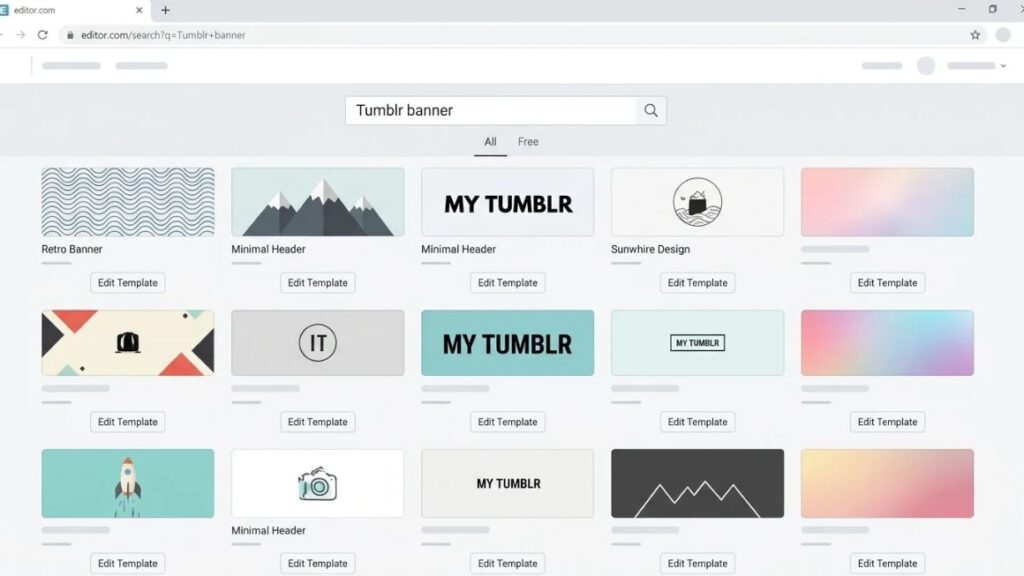
Pick the editor you’ll enjoy opening. Canva and Adobe Express both offer free plans with templates and blank canvases. If you’re nervous, start from a template and change everything. If you already know what you want, a blank canvas gives you more room. Either way, any Tumblr banner generator worth your time should let you set exact dimensions and export a PNG or JPEG without a watermark.
Step 2: Select the Correct Canvas Size
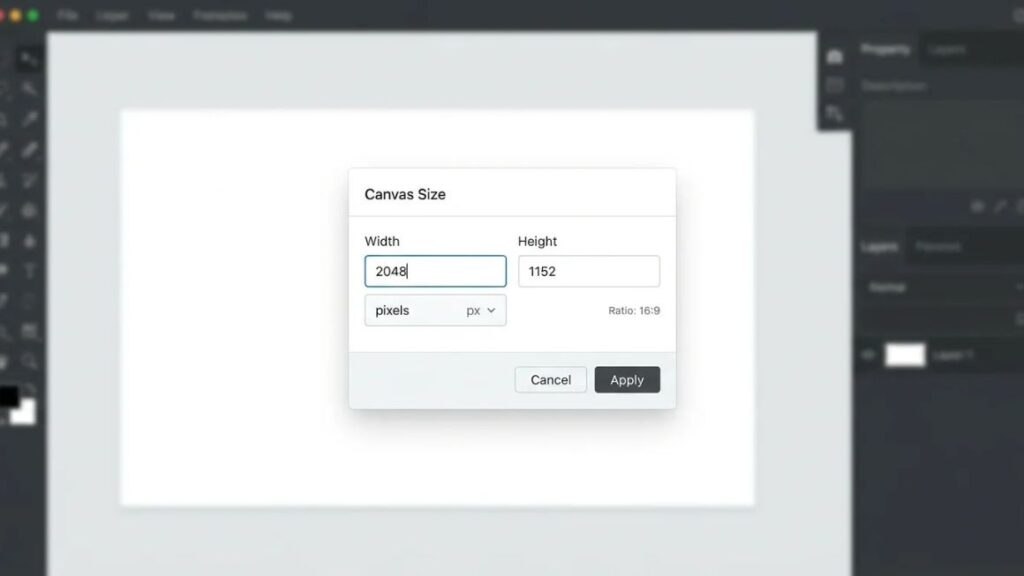
Set the canvas to 2048 x 1152 pixels. That’s the header size Tumblr recommends, and it works out to a 16:9 ratio.
Why does it matter so much? Because Tumblr displays your header at different sizes depending on the screen and theme, and a canvas with the wrong ratio gets trimmed in places you didn’t plan for. Start at 16:9 and the cropping becomes predictable. One warning: some editors ship Tumblr presets at a wider 2.84:1 ratio, so check the numbers before you trust a preset.
Step 3: Choose a Background Image or Colour
Your background does the heavy lifting, so pick it before anything else. A personal photo, an illustration, a gradient or a quiet pattern all work. Match it to the blog: a film blog might use grainy stills, a study blog a calm paper texture.
The one rule is to keep it quiet. A background with detail in every corner fights your text, and your text loses. If you love a busy photo, blur it slightly or lay a soft colour overlay on top.
Also Read: 13 Best Brand Guidelines Examples from Top Global Brands
Step 4: Add Text, Fonts, and Design Elements
Now add your blog name or a short tagline. Short is the whole point, because a header isn’t the place for a paragraph. Pick one readable font, or two if they’re clearly different, and choose colours that contrast with the background. Light text on a dark photo works. Mid-grey on mid-grey doesn’t.
A custom Tumblr banner works best with one clear focal point, and the text is usually it. Shapes, stickers or illustrations can finish things off, but add them one at a time and stop when it feels done. That’s usually one element sooner than you think.
Step 5: Preview and Download Your Design
Check spacing and alignment first, then shrink the preview right down. If the title is still readable at thumbnail size, it’ll survive a phone screen. Export as PNG when you’ve got sharp text and flat graphics, or JPEG for photo-heavy designs. Keep the file under 10 MB, which is Tumblr’s limit for headers.
Save it somewhere you’ll find it again.
Making a Tumblr banner takes five steps: choose an editor, set a 2048 x 1152 pixel canvas, add a background, place readable text and export a file under 10 MB. Tumblr’s Help Center lists 2048 x 1152 pixels at a 16:9 ratio as the ideal header size.
Best Tumblr Banner Generator Tools to Try
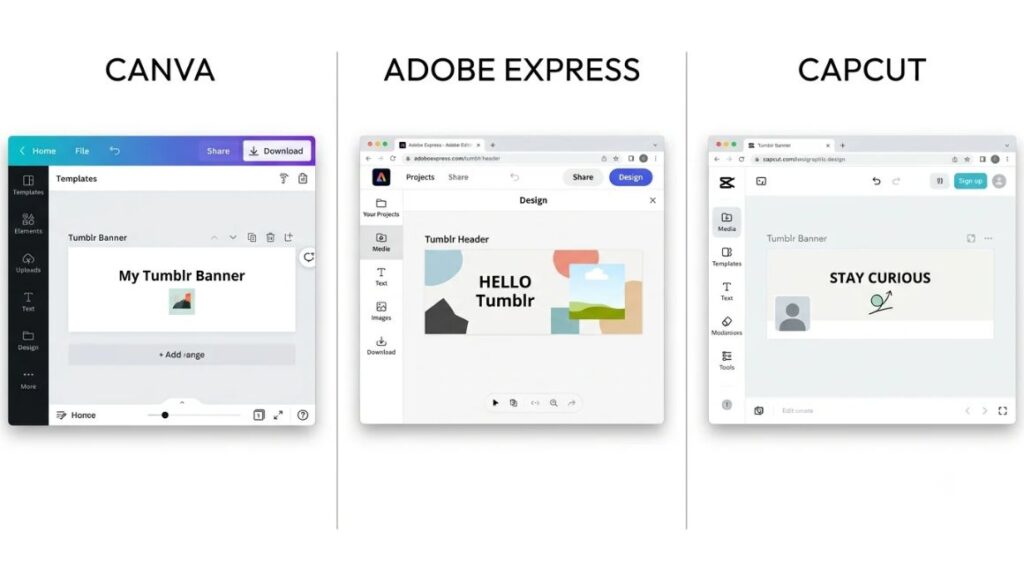
Canva is the easiest Tumblr banner generator for beginners, Adobe Express gives you more say over layout, and CapCut is the quick option when you just want something done. None of them is the only right answer.
| Tool | Best for | Check before you commit |
| Canva | Beginners | Free plan has a limited set of templates and graphics; some assets are premium |
| Adobe Express | More layout flexibility | Free plan with thousands of templates; some assets are premium; confirm the preset ratio |
| CapCut | Quick, simple designs | Confirm export options and which assets are paid |
Canva
Canva is where most people start, and honestly, it earns it. As a Tumblr banner maker it gives you drag-and-drop editing, a big font library, stock photos and graphics, and PNG export. Canva’s Tumblr page also mentions free iPhone, iPad and Android apps. The free plan covers a limited selection of templates, graphics and fonts, so you’ll occasionally fall for a premium one.
Watch the canvas size. Canva’s Tumblr sizes page lists a 3,000 x 1,055 pixel banner, not the 2048 x 1152 pixels in Tumblr’s own recommendation.
Adobe Express
Adobe Express suits people who want a bit more control. It has a dedicated Tumblr banner page, a resize tool where you can enter your own dimensions, a large library of fonts and Adobe Stock images, and a free plan with thousands of templates. Some assets are premium, so “free” comes with a small asterisk.
Its blank Tumblr template is set to 2.84:1, which is wider than Tumblr’s 16:9 recommendation. Easy fix: resize to 2048 x 1152 before you start designing.
CapCut
CapCut isn’t the first name people think of for stills, but its web editor has a Tumblr banner page with templates plus text, colour and background tools. It’s the fast route. Open it, search for a banner template, swap the words and export. CapCut advertises no watermark and no credit card for its online banner tools, but check what you can export and which assets cost extra before you build a design around them.
Other Online Design Options
Fotor, Pixlr and Photopea are worth a look too. Whichever free banner maker you try, judge it on three things: the formats it exports (PNG, JPEG and WEBP all suit Tumblr), how much of the free plan is genuinely free, and whether you can type in exact dimensions.
Any online banner creator that won’t let you set 2048 x 1152, or stamps a watermark on free exports, isn’t worth your afternoon. And be wary of any Tumblr banner generator that promises “completely free” without showing you the paid tier.
Also Read: Top 20 Digital Marketing Platforms in 2026
Tumblr Banner Size and Design Specifications
Tumblr recommends a header image of 2048 x 1152 pixels at a 16:9 ratio, saved at under 10 MB. That comes from Tumblr’s Help Center page on blog appearance, last updated in December 2025.
Recommended Header Image Dimensions
Here’s the bit that confuses people. Search around and you’ll find plenty of guides quoting 3000 x 1055 pixels, roughly 2.84:1, instead. Canva’s size page does. Some guides trace that number to Tumblr’s own default headers rather than an upload rule. Tumblr’s help page says 2048 x 1152, so that’s the target.
- Dimensions: 2048 x 1152 pixels
- Aspect ratio: 16:9
- Maximum file size: 10 MB
Whichever Tumblr banner size a guide recommends, 16:9 is the ratio Tumblr itself publishes. Every Tumblr header image spec here comes from that help page. Build to those numbers, keep important content central, and it’ll hold up either way.
Supported Image Formats
The Help Center lists JPEG, PNG, WEBP and GIF for headers. Use JPEG for photographs, PNG for graphics and text that need sharp edges, WEBP when your editor exports it and you want a smaller file, and GIF only if you want movement. Avatars are stricter: JPEG, PNG and WEBP only, and a GIF avatar gets converted to a still image.
Why Your Banner May Look Different on Mobile and Desktop
Because your blog shows up in more than one place. Tumblr’s Help Center separates your blog’s appearance, which controls how it looks in the dashboard, the mobile apps, search results and at www.tumblr.com/yourblog, from a custom theme, which applies at yourblog.tumblr.com. Both can show a header, and a theme may crop or position it differently. So preview on a real phone as well as a desktop browser.
Tumblr’s Help Center recommends a 2048 x 1152 pixel header at 16:9 and under 10 MB, in JPEG, PNG, WEBP or GIF format. Some guides quote 3000 x 1055 instead, but that figure doesn’t appear on Tumblr’s appearance help page, so building at 16:9 and checking the preview is the safer route.
Creative Tumblr Banner Design Ideas for Different Blog Styles
Browse Tumblr banner templates in any Tumblr banner generator and they sort themselves into a handful of styles. Four are worth borrowing from.
Minimalist and Clean Designs
Simple typography, a neutral background, lots of empty space. Picture off-white with a thin sans serif title and nothing else. It’s hard to get wrong, which is why it suits writing blogs and portfolios. The risk is blandness, so choose one small accent colour and repeat it in your avatar.
Aesthetic and Vintage Designs
This is where a Tumblr aesthetic banner usually ends up: muted palettes, film-style photography, grain, retro type. Think dusty pink, faded green, a slightly washed-out sky. Use a single photo and a soft overlay rather than stacking five textures, because vintage looks fall apart when they’re overdone.
Photography and Travel Designs
Landscape photos suit a wide header naturally. Use your own, or build a collage of three or four frames from one trip so the colours hang together. Keep the horizon off dead centre and leave a calm patch of sky or sea for the title.
Personal, Art, and Fandom-Inspired Designs
Original illustrations, a palette pulled from a favourite character, a hand-lettered title. Fandom banners are everywhere on Tumblr. Just don’t lift someone else’s artwork without permission. Ask first, credit the artist, or draw your own. Copyright applies even when the blog is small.
Tips for Designing a Tumblr Banner That Stands Out
Most good banners come down to a few habits.
Pick one colour palette and stick with it, whichever Tumblr banner generator you use. Three colours is plenty, four if one is a neutral. Keep your title away from the edges, since that’s where cropping hits first. Make the text readable before you make it pretty. And use high-resolution images, because a small photo stretched across 2048 pixels goes soft immediately.
Restraint matters here. If you can remove an element and nothing is lost, remove it.
Then there’s the avatar. It sits right beside the header, so the two need to get along: shared colours, a similar mood, nothing that fights. Finally, preview it. Every time, even for a tiny tweak.
How to Upload and Change Your Tumblr Banner?
On desktop, open Settings, choose your blog, click Edit appearance and use the pencil icon on the header image. On mobile, open your blog, tap the palette icon, then tap the header image. Tumblr profile customization all happens in that one editor, and Tumblr’s Help Center documents both routes.
Changing Your Header on Desktop
- Log in to Tumblr.
- Open Settings from the menu on the left.
- Select your blog.
- Click Edit appearance at the top.
- Click the pencil icon on the header image.
- Upload your finished design.
- Preview the changes, then save.
Changing Your Header on Mobile
- Open the Tumblr app.
- Tap the account button to view your blog.
- Tap the palette icon at the top of the screen.
- Tap the header image.
- Add or change the image.
- Review how it looks before you leave the editor.
Common Tumblr Banner Problems and How to Fix Them
A Tumblr banner generator can’t fix a bad export. Most header problems come down to resolution, ratio or file settings, so work through them in that order.
Banner Looks Blurry
Usually the source image was too small, or it’s been resized and exported more than once. Start with a file at least 2048 pixels wide, resize once, export once. PNG keeps text sharp, and a low-quality JPEG smears it.
Banner Gets Cropped
Check the ratio first: 16:9. Then move anything that matters towards the centre and preview on desktop and phone. If it still crops badly, the theme is probably repositioning it.
Image Is Not Uploading
Check the file is under 10 MB and in JPEG, PNG, WEBP or GIF format. Tumblr doesn’t support CMYK or other non-RGB files, so save in RGB and try again. Still stuck? Export a brand new copy from your editor, which Tumblr’s help page says can clear encoding snags.
Animated GIF Is Not Working Properly
Tumblr’s GIF guidance says GIFs under 3 MB aren’t compressed, and if it can’t serve a GIF over 5 MB, it shows only the first frame. That guidance is written for posts, and the header limit is 10 MB, but treat 3 MB as a comfortable target. Trim frames, reduce the width and shorten the loop.
Is a Free Tumblr Banner Generator Worth Using?
Yes, for most blogs. A free Tumblr banner generator gives you a clean, correctly sized header without paying for software you’d open twice.
The upsides are obvious. Templates save you the blank-page panic, and the tools suit people who’ve never touched design software. The limits show up later: premium assets hidden in the free library, watermarks on some exports, and templates that other people have used too.
When does paid software make sense? When you want full control over layers, you’re building a visual identity beyond one blog, or you’re drawing your own illustration. Otherwise, choose by how much you care and how often you’ll change the header.
Conclusion
Your header is the first thing people see, so it’s worth an evening. Build it at 2048 x 1152, keep the background calm, make the text readable, and check the preview on a phone before you call it finished. A Tumblr banner generator takes care of the layout, but the taste is still yours. Try different colours, move things around, and don’t be afraid to redo it in a month.
The same visual thinking carries over to Instagram and LinkedIn once you start making content for a brand. YUP’s Social Media Marketing course walks through that side of it, from design basics to planning a feed.
Frequently Asked Questions
How can I create a Tumblr banner for free?
Use a free Tumblr banner generator such as Canva or Adobe Express. Choose a template or a blank 2048 x 1152 pixel canvas, change the background, text and colours, then export a PNG or JPEG under 10 MB. Check each plan for premium assets and watermarks before you download.
What is the recommended size for a Tumblr banner?
Tumblr’s Help Center recommends 2048 x 1152 pixels at 16:9, with a file size under 10 MB. Some guides and editor presets use 3000 x 1055 for the desktop display instead. Start at 16:9, keep important content central and confirm the result in Tumblr’s preview.
Can I create a Tumblr banner without design experience?
Yes. Templates give you the layout, preset sizes remove the maths, and drag-and-drop editors let you swap text, fonts and colours without anything technical. Start from a template, change one thing at a time and keep it simple. Plain designs usually look better than crowded ones anyway.
Which tools can I use to design a Tumblr header?
Canva suits beginners, Adobe Express offers more layout control, and CapCut’s web editor is quick for simple designs. Fotor, Pixlr and Photopea are other online options. Whichever you choose, make sure you can set exact dimensions and export without a watermark.
Can I use my own photos in a Tumblr banner?
Yes. Use sharp, high-resolution photos, crop them to 16:9 and keep the focal point central. You need to own the photo or have permission to use it, and the same goes for other people’s artwork. Stock images from an editor’s library come with licence terms worth reading.
Can I upload an animated GIF as my Tumblr banner?
Yes. Tumblr accepts GIFs for headers, though a GIF used as an avatar becomes a still image. Keep the file small, because Tumblr’s guidance says GIFs over 5 MB that it can’t serve may show only the first frame. Aim for under 3 MB.
Why does my Tumblr banner look different on mobile?
Your blog appears in several places: the dashboard, mobile apps, search results and, with a custom theme, at its own web address. Each can display and crop the header a little differently. Keep key content central and check the preview on both a phone and a desktop browser.
How do I change my Tumblr banner after uploading it?
On desktop, open Settings, pick your blog, click Edit appearance and click the pencil icon on the header image. In the mobile app, open your blog, tap the palette icon and tap the header image. Upload the new file and review the preview before you save.