
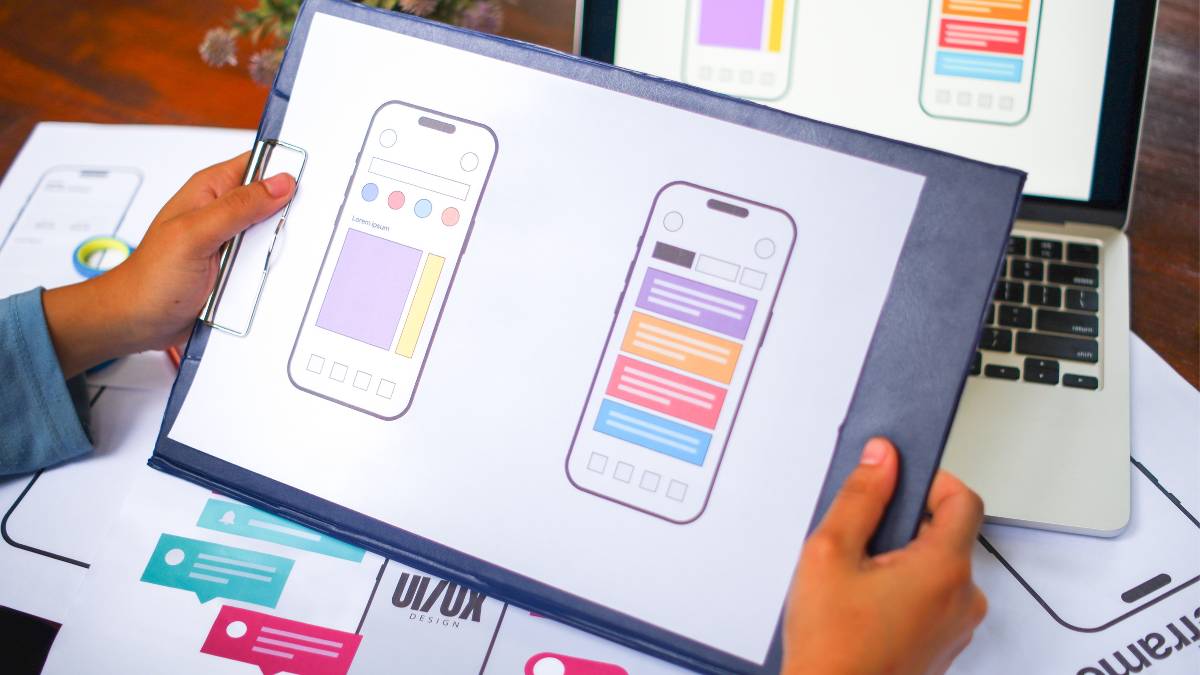
Design work is moving fast, and AI UI/UX Design Tools are starting to feel like part of the team rather than just software. This guide walks through the tools that actually help, from sketching ideas and building wireframes to testing flows and even generating code. Some tools speed things up, others give fresh perspectives on layouts and usability. There’s no magic wand, though; human judgment still matters. The post also digs into real-world examples, what works for different teams, and how to pick the right tool without getting lost in features. If the goal is quicker, smarter, more consistent design, this guide lays out the road without pretending it’s all effortless.
Table of Contents
Introduction
There’s been a quiet shift in how interfaces are being designed. Not louder tools. No more features. Just… less friction between idea and execution.
What used to take hours of wireframing, back-and-forth iterations, and small design decisions is now happening much faster, and in some cases, almost instantly. That’s where AI UI/UX design tools have started to change the pace of things.
They’re not replacing design thinking. That part still matters, maybe more than ever. But they’re removing a lot of the repetitive work that used to slow teams down; layout generation, component structuring, even early-stage UX copy.
For designers, this means spending less time pushing pixels and more time thinking about flow, usability, and real user problems.
For product teams and founders, it means getting from idea to a usable interface without waiting weeks.
This guide is built for:
- UI/UX designers are trying to speed up their workflow without losing quality
- Product teams looking to prototype faster
- Founders who need working designs before hiring full teams
What’s ahead is practical. No fluff. Just a clear breakdown of:
- How these tools actually work
- Where they help (and where they don’t)
- And which ones are worth paying attention to right now
Because at this point, ignoring this shift isn’t really an option.
What Are AI UI/UX Design Tools?
At a basic level, AI in UI/UX design is about using systems that can assist, or sometimes handle, parts of the design process based on patterns, data, and prompts.
Not magic. Not creativity in the human sense. But very good at recognizing structure and speeding things up.
These tools typically work around three things:
- AI-powered design automation
Repetitive tasks like spacing, alignment, and layout variations get handled automatically. - Generative design systems
You give an input: text, sketch, or idea; and the system generates interface options. - Predictive UX optimization
Some tools try to estimate how users will interact with a design before it’s even tested.
It’s less about “designing for you” and more about “removing the heavy lifting.”
Types of AI UI/UX Tools
Not all tools solve the same problem. That’s where most people get confused.
Here’s how they usually break down:
- AI wireframing tools
Turn rough ideas, sketches, or prompts into structured layouts quickly. - AI prototyping tools
Help create interactive flows without manually linking every screen. - AI UX research tools
Predict user attention, analyze behavior patterns, or simulate testing outcomes. - AI UI generators
Generate full interface designs based on simple descriptions. - AI design-to-code tools
Convert designs into usable frontend code, reducing handoff friction.
Most teams don’t rely on just one. They stack a few of these depending on the stage they’re at.
How AI UI/UX Design Tools Work
Core Technologies Behind AI Design Tools
Underneath all the clean interfaces, these tools rely on a few core technologies. You don’t need to understand them deeply, but knowing what’s happening behind the scenes helps set expectations.
- Machine learning models
Trained on large datasets of design patterns, layouts, and user interactions. - Generative AI (text-to-UI)
This is what allows someone to describe a screen in plain language and get a UI layout in return. - Computer vision for design analysis
Helps tools understand existing designs, like turning screenshots or sketches into editable layouts.
None of this is guessing randomly. It’s pattern recognition at scale.
Common Capabilities
Where things get interesting is in what these tools can actually do day-to-day.
Some of the more practical capabilities include:
- Generate UI from prompts
Describe a landing page, dashboard, or app screen, and get a structured layout to start with. - Convert sketches into wireframes
Even rough hand-drawn ideas can be turned into digital designs. - Auto-create UX copy
Buttons, headings, and microcopy get filled in based on context. - Predict user behavior with heatmaps
Estimate where users might click, scroll, or drop off.
None of these replaces judgment. But they cut down the time it takes to get to something usable.
Benefits of Using AI UI/UX Design Tools
Faster Design Workflow
This is the most obvious one. What used to take hours, or sometimes days, can now be done in minutes.
Early-stage work especially:
- Wireframes
- Layout variations
- Basic prototypes
Getting something on screen quickly changes how teams think and iterate.
Reduced Manual Work & Repetition
A lot of UI design is… repetitive.
Spacing elements. Adjusting alignment. Creating multiple variations of the same screen.
AI tools take over a big chunk of that. Not perfectly every time, but well enough to save serious effort.
Improved UX Decisions with Data
Some tools go beyond design and start looking at behavior.
They can:
- Predict attention areas
- Highlight weak spots in layouts
- Suggest improvements based on patterns
It’s not a replacement for real user testing. But it’s a useful early signal.
Better Collaboration Between Designers & Developers
One of the biggest bottlenecks in product teams is the gap between design and development.
AI tools are starting to close that gap by:
- Generating cleaner, structured designs
- Creating components that map better to code
- Even exporting usable frontend code in some cases
Which means fewer misunderstandings. Fewer revisions. Less back-and-forth.
At this point, the value isn’t just speed. It’s momentum.
Design moves faster. Decisions happen earlier. And teams spend less time stuck between idea and execution.
12 Best AI UI/UX Design Tools
1. Figma AI
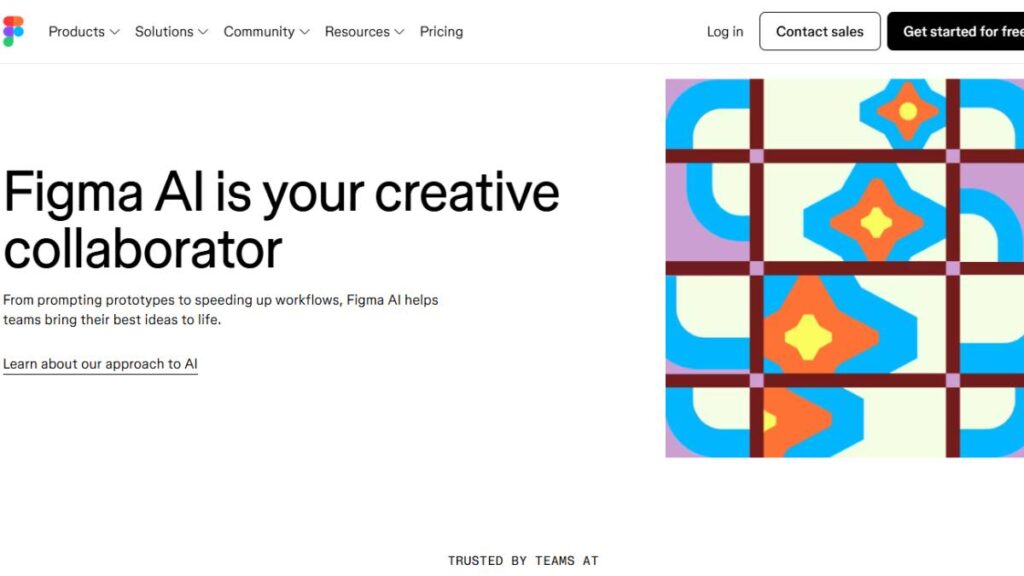
Best AI UI Design Tool for Collaboration
Figma didn’t need much help becoming the default design space for teams. It was already there. What changed is how quickly things now move inside it.
The AI layer doesn’t feel like a separate feature. It just removes some of the early friction; those moments where a blank canvas slows everything down. Layouts come together faster, components feel more structured from the start, and there’s less back-and-forth trying to “figure out the first version.”
What stands out is how well it fits into team workflows. Nothing breaks. Nothing feels forced. Designers, product folks, even developers; everyone’s still working in the same environment, just… moving quicker.
2. Uizard
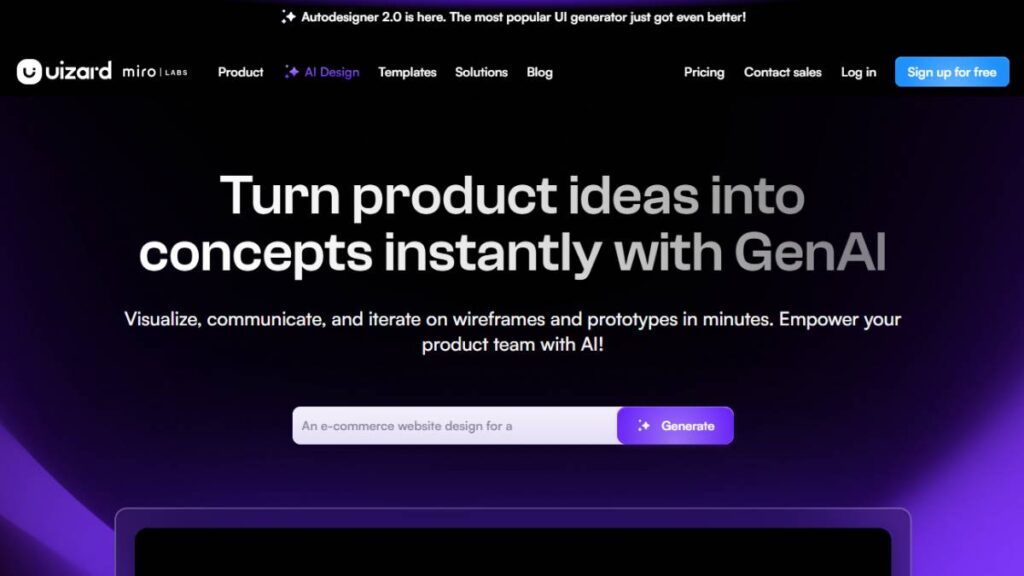
Best AI Wireframing Tool for Beginners
Uizard is simple in a way that’s actually useful. Not stripped-down. Just focused.
It’s built for getting ideas out of your head and onto a screen without overthinking the details. Rough sketches, screenshots, even half-formed concepts; it turns those into something structured enough to work with.
There’s no pressure to make things perfect here. That’s kind of the point. It helps teams get past the “where do we start?” phase, which, honestly, is where most projects get stuck longer than they should.
3. Galileo AI
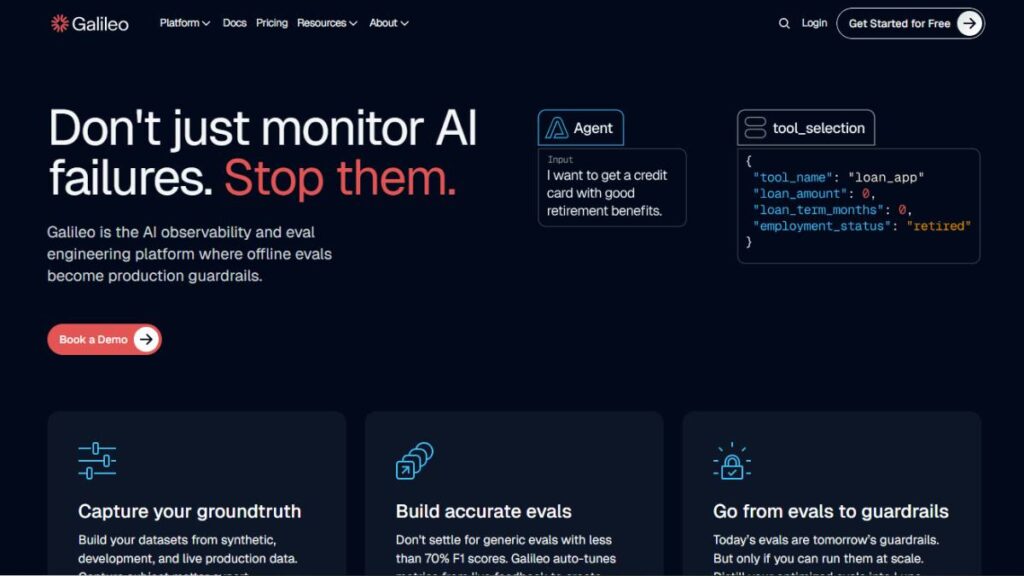
Best Text-to-UI Design Tool
There’s something interesting about tools that start with words instead of visuals. Galileo leans into that.
You describe a screen, a flow, a rough idea, and it builds a UI around it. Not always perfect, and that’s fine. The value is in how quickly it gets you to a starting point that feels… usable.
It tends to follow familiar patterns, which helps. You’re not getting something completely random. More like a rough draft that already understands how interfaces are supposed to behave.
Good for ideation. Less about precision, more about momentum.
4. Adobe Firefly
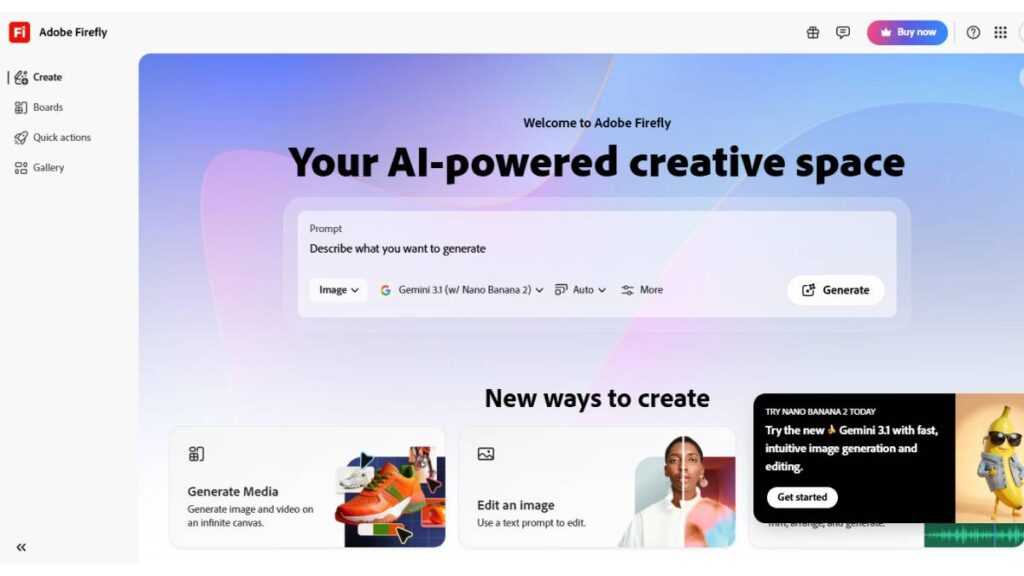
Best AI Tool for UI Assets & Visual Design
Design often slows down at the visual layer. Not the structure; the polish.
Finding the right icons, experimenting with colors, making everything feel cohesive… that takes time. Firefly helps speed that part up without making things feel generic.
It’s especially useful when consistency matters. Instead of pulling assets from different places and trying to make them fit, everything can be generated within a similar visual style.
For teams already inside Adobe’s ecosystem, it fits in naturally. No extra friction, no need to rebuild workflows.
5. Framer AI
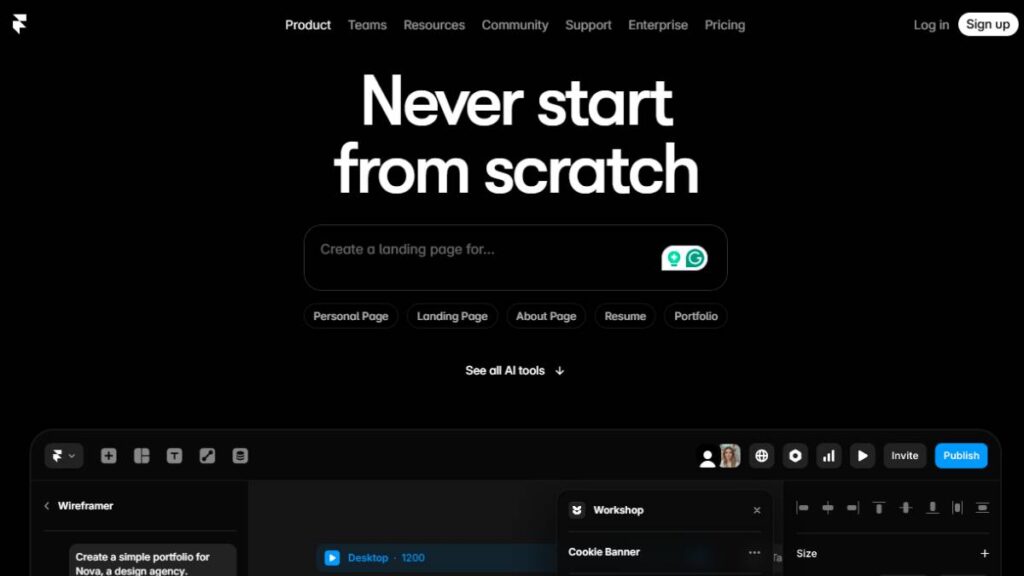
Best AI Prototyping Tool
Framer has been moving toward this for a while; designs that don’t just look real, but behave like real products.
The AI side of it pushes that further. You’re not just generating screens. You’re getting something interactive, something that responds. That changes how prototypes are used.
Instead of explaining how something should work, teams can show it. This usually leads to fewer misunderstandings later on.
There’s also a noticeable shift in how quickly ideas turn into something clickable. Not perfect, but close enough to test, tweak, and move forward.
6. Attention Insight
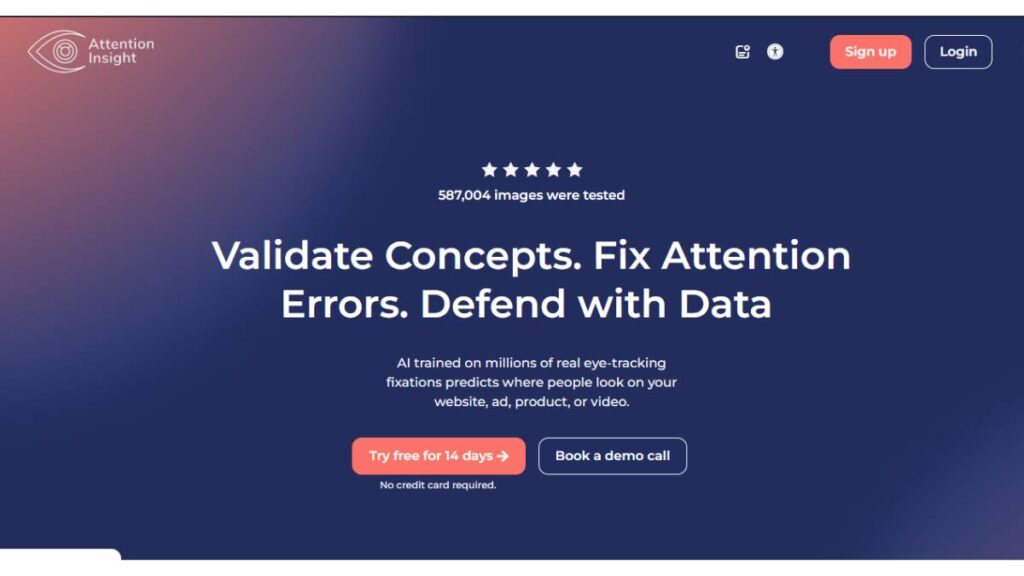
Best AI UX Testing Tool
Early-stage design decisions are often based on instinct. Experience helps, sure. But it’s still a bit of a guess.
Attention Insight tries to close that gap, at least partially. It predicts where users are likely to look, click, or ignore. The heatmaps aren’t exact, but they’re rarely useless either.
They tend to highlight obvious issues. Missed CTAs. Weak visual hierarchy. Areas that feel crowded or, sometimes worse, empty.
It’s not a replacement for real testing. But it’s a decent checkpoint before things go live.
7. UXPin AI – Best AI Design-to-Code Tool
UXPin approaches things differently. It’s less about quick visuals and more about building something that holds up when it reaches development.
Designs here are closer to actual components. Structured. Logical. Easier to translate into code without losing intent.
That matters more than it seems. A lot of time gets lost in handoffs when designs look great but don’t map cleanly to development.
This tool reduces that gap. Not entirely, but enough to notice.
8. Visily AI – Best AI UI Tool for Teams
Visily keeps things approachable. That’s probably its biggest strength.
It doesn’t assume deep design expertise. Teams can collaborate, build wireframes, and iterate without getting stuck in complexity. It’s especially helpful when multiple people, designers and non-designers, are working together.
One feature that stands out is turning screenshots into editable designs. Sounds small, but it saves time. A lot of time, actually, when referencing existing flows or rebuilding interfaces.
It’s practical. That’s the word.
9. Magician (Figma Plugin) – Best AI UI Assistant
Magician isn’t trying to take over the workflow. It just sits there and helps when needed.
Generating icons, suggesting copy, filling in small gaps; things that usually interrupt the flow more than they should. Individually, these tasks aren’t heavy. Together, they slow things down.
Having something that handles them quietly in the background makes a difference. Especially during long design sessions where attention starts to drift.
It’s subtle. But useful.
10. Relume AI – Best AI Tool for Web UI Systems
Relume focuses more on structure than visuals. And that’s not a bad thing.
It helps map out entire website systems, sections, layouts, and page flows before getting into detailed design. That upfront clarity saves effort later.
Instead of designing page by page, there’s a system to work within. Things feel more consistent. Less scattered.
It works well alongside other tools, which makes it easier to move from planning to actual design without starting over.
11. Khroma – Best AI Color Palette Generator
Color decisions can drag on longer than expected. Too many options. Too many combinations that almost work.
Khroma simplifies that by learning preferences and generating palettes that feel more intentional. Not random mixes, but combinations that make sense together.
It’s particularly helpful when building or refining a visual identity. Instead of testing dozens of options manually, you start with something that already feels close.
Saves time. And a bit of frustration.
12. Google Stitch – Best AI UI + Code Generator
Google Stitch is pushing toward something bigger; less separation between design and development.
It generates both the interface and the code behind it. That changes how quickly ideas move from concept to something functional.
Instead of static designs being passed along, there’s already a foundation in place. Developers don’t start from zero. Designers don’t have to explain every detail.
It’s still evolving, but the direction is clear. Fewer steps. Less translation. More continuity between design and build.
Looking across these tools, the pattern is hard to miss.
They’re not all trying to do the same thing. Some focus on speed. Others on structure. A few on testing or visuals. But together, they shift how design work actually happens.
Less time spent setting things up. More time shaping what really matters.
Enroll Now: Advanced Generative AI for Marketing
Comparison Table of Best AI UI/UX Design Tools
Not every tool here solves the same problem. Some are built for speed, others for structure, and a few for testing or visual polish. So comparing them side by side helps, at least to avoid picking something that looks good but doesn’t actually fit the job.
Here’s a simplified breakdown:
| Tool | Best Use Case | Key Strength | Pricing (Typical) | Skill Level |
| Figma AI | Team collaboration & UI design | Seamless workflows, component systems | Freemium / Paid | Beginner – Advanced |
| Uizard | Quick wireframing | Sketch-to-UI, fast MVPs | Freemium | Beginner |
| Galileo AI | Idea to UI generation | Text-to-UI layouts | Paid | Beginner – Intermediate |
| Adobe Firefly | Visual assets & styling | Asset generation, design polish | Paid | Intermediate |
| Framer AI | Prototyping & interaction | Interactive, responsive outputs | Freemium / Paid | Intermediate |
| Attention Insight | UX testing & validation | Predictive heatmaps | Paid | Intermediate |
| UXPin AI | Design-to-code workflows | Code-based components | Paid | Advanced |
| Visily AI | Team wireframing | Screenshot-to-design, collaboration | Freemium | Beginner |
| Magician | Design assistance | Microcopy, icons, suggestions | Free (plugin-based) | Beginner |
| Relume AI | Web structure & systems | Layout systems, site mapping | Paid | Intermediate |
| Khroma | Color systems | Personalized palettes | Free | Beginner |
| Google Stitch | UI + code generation | Faster dev handoff | Emerging / Paid | Intermediate – Advanced |
A couple of patterns stand out pretty quickly:
- Tools like Uizard and Visily lean toward speed and accessibility
- Framer and UXPin move closer to development workflows
- Attention Insight sits in a different lane; more about validation than creation
Trying to use one tool for everything usually backfires. Most teams end up combining two or three, depending on what stage they’re at.
How to Choose the Right AI UI/UX Design Tool
Picking the right tool isn’t really about features. Almost all of them sound impressive on paper. The real question is: where exactly does the bottleneck exist?
Based on Use Case
Start with the problem, not the tool.
If the challenge is getting ideas out quickly, then wireframing tools make more sense. If the issue is turning designs into something interactive, prototyping tools become more useful. And if decisions are being made without enough clarity, then UX research or testing tools start to matter.
- Wireframing – early-stage ideas, rough layouts
- Prototyping – interaction, user flows
- UX research – validation, behavior insights
- Design systems – consistency at scale
Trying to force a prototyping tool to do wireframing (or the other way around) usually slows things down more than it helps.
Based on Skill Level
Some tools assume a certain level of design knowledge. Others don’t.
Beginners tend to benefit more from tools that remove complexity. Clean interfaces, minimal setup, quick outputs. That’s where tools like Uizard or Visily feel easier to work with.
More experienced designers usually look for control. Flexibility. The ability to fine-tune things instead of accepting default outputs. That’s where tools like Figma AI or UXPin start to make more sense.
It’s less about “better” or “worse” and more about how much control is actually needed.
Based on the budget
Pricing can be a bit misleading at first glance.
A lot of tools offer free plans, which are good enough for testing ideas or small projects. But once teams start scaling, more users, more projects, more advanced features, the costs start adding up.
Free tools work well for:
- Early-stage exploration
- Personal projects
- Small teams testing workflows
Paid plans usually become necessary when:
- Collaboration increases
- Design systems get more complex
- Integration with other tools becomes important
Worth keeping in mind: switching tools later is often more painful than paying a bit earlier for the right one.
Real-World Use Cases of AI UI/UX Design Tools
This is where things get clearer. Not in theory, but in how these tools actually get used day to day.
Startup MVP Design
Speed matters more than perfection here.
Startups don’t need polished, pixel-perfect interfaces in the beginning. They need something usable; something that communicates the idea clearly enough to test.
AI tools help cut down the time between concept and prototype. Instead of spending weeks designing flows from scratch, teams can build rough but functional interfaces quickly, test them, and move on.
The focus shifts from “designing it right” to “learning what works.”
SaaS Product UI Design
SaaS products come with complexity: multiple dashboards, user states, and features layered over time.
Consistency becomes a bigger issue than creativity.
AI tools help maintain structure across different parts of the product. Layouts stay aligned, components feel connected, and updates don’t break the overall experience as easily.
They’re not designing the product on their own. But they reduce the effort required to keep everything coherent as the product grows.
Mobile App UX Design
Mobile design has less room for error. Smaller screens, tighter interactions, higher expectations.
AI tools help by generating layouts that already follow common mobile patterns. Navigation placement, spacing, hierarchy; it’s usually directionally correct from the start.
That doesn’t remove the need for refinement. But it avoids obvious mistakes early on, which saves time later.
E-commerce UX Optimization
E-commerce is less about aesthetics and more about conversion. Every design decision affects behavior: clicks, scrolls, drop-offs.
AI tools come in handy when optimizing these flows:
- Product pages
- Checkout processes
- Call-to-action placement
Predictive insights, like heatmaps or attention tracking, help identify weak spots before running full experiments.
It’s not perfect. But it gives teams a starting point instead of relying purely on guesswork.
Across all these use cases, the pattern stays consistent.
These tools don’t replace decision-making. They just make it easier to get to the point where decisions can actually be made.
AI UI/UX Design Workflow
There’s a noticeable shift in how design workflows look now. Less linear. Less rigid. Things move faster, but also a bit messier in the beginning, and that’s not necessarily a bad thing.
The process still follows the same core stages. Just… compressed.
Step 1: Idea – Prompt
Everything starts with clarity. Not perfect clarity, just enough to describe what needs to be built.
Instead of jumping straight into wireframes, the process often begins with prompts: basic descriptions of screens, flows, or features. The better the input, the more usable the output.
Vague ideas still lead to vague results. That hasn’t changed.
Step 2: Wireframe Generation
Once there’s direction, wireframes come together quickly. Not polished, not final; just structured.
This stage used to take time because every element had to be placed manually. Now, it’s more about selecting, adjusting, and refining.
What matters here isn’t visual quality. It’s flow:
- What comes first
- What the user sees next
- Where decisions happen
If the flow works, everything else becomes easier.
Step 3: UI Design Creation
This is where things start to feel real.
Layouts get refined. Visual hierarchy becomes clearer. Spacing, typography, colors; all the details that shape how a product feels.
The difference now is speed. Instead of building each screen from scratch, designers are working from structured outputs and improving them.
Which changes the mindset a bit. Less “create everything,” more “edit and elevate what’s already there.”
Step 4: Prototyping
Static screens don’t tell the full story. They never did.
Prototyping brings movement into the picture: how screens connect, how interactions feel, where friction shows up.
This stage has become more accessible. Instead of complex linking and manual setup, interactions can be generated or added quickly.
And once something is clickable, feedback becomes clearer. People react differently when they can actually use something, even if it’s rough.
Step 5: Testing & Optimization
This is where assumptions get challenged.
Early insights, like predicted attention or interaction patterns, help catch obvious issues. But eventually, real users need to come in.
Small adjustments here can make a big difference:
- Moving a button
- Simplifying a step
- Changing how information is presented
The loop becomes tighter. Design, test, adjust, repeat.
What used to take weeks now happens in shorter cycles. Not perfect cycles, but faster ones.
Limitations of AI UI/UX Design Tools
For all the speed and convenience, there are gaps. Some obvious, some subtle.
Lack of Human Creativity Nuance
Design isn’t just structure. It’s judgment. Context. Taste.
AI-generated layouts can feel correct, but not always thoughtful. They follow patterns well, but they don’t always understand why those patterns matter in a specific situation.
That nuance, knowing when to break rules, when to simplify, when to push something further; that still comes from experience.
Generic Design Outputs
This shows up quickly if everything is accepted as-is.
A lot of outputs tend to look… familiar. Safe layouts, predictable structures. Nothing wrong with that, but it can lead to products that feel indistinguishable from each other.
Without refinement, things start blending together.
Which is why editing matters. A lot.
Need for Manual Refinement
No matter how good the starting point is, it’s still a starting point.
Designs need adjustments:
- Alignment tweaks
- Better spacing
- Clearer hierarchy
- More intentional copy
Skipping this step usually shows. The interface might function, but it won’t feel finished.
That last 20–30% of work, the polishing, the thinking; that still takes time.
Future of AI in UI/UX Design
Things are moving fast, but not randomly. There’s a direction forming.
AI Co-Designers
The role is shifting from tool to collaborator.
Instead of just generating outputs, these systems are starting to suggest improvements, flag issues, and even guide decisions. Not perfectly, but enough to influence how work gets done.
Design becomes more of a dialogue than a one-way process.
Voice-Based UI Design
Typing prompts is one thing. Speaking them is another.
Voice-driven design isn’t mainstream yet, but it’s coming into the picture. Describing flows, adjusting layouts, and making changes in real time, it’s a different way of interacting with design tools.
Faster in some cases. More natural, maybe.
Fully Automated Design-to-Code Systems
This is where things get more interesting.
The gap between design and development keeps shrinking. Interfaces don’t just stay as visual outputs; they’re getting translated into functional code almost immediately.
Not perfect code. But usable enough to reduce the back-and-forth.
Fewer steps. Less translation. More continuity.
Personalized UX at Scale
User experiences are becoming less static.
Instead of one fixed interface, designs can adapt based on behavior, preferences, and context. Layouts shift. Content changes. Flows adjust.
This isn’t entirely new, but it’s becoming more practical to implement at scale.
Which means UX isn’t just designed once. It keeps evolving.
Conclusion
There’s a clear shift happening in how UI/UX design gets done.
Not everything has changed. The fundamentals are still there: understanding users, structuring flows, and making thoughtful decisions. That part isn’t going anywhere.
What’s changed is the speed. The starting point. The amount of manual effort it takes to move from idea to something usable.
AI UI/UX design tools aren’t replacing designers. They’re changing where the effort goes.
Less time building from scratch. More time refining, testing, and improving.
For some, that’s an advantage. For others, it takes adjustment.
But ignoring it completely? That’s probably not an option anymore.
The smarter approach is simple: use these tools where they actually help, skip them where they don’t, and keep the focus on what matters most.
The experience.
FAQs:
1. What are the best AI UI/UX design tools?
There isn’t a single “best” here; it usually depends on what stage of the workflow matters most. Some tools are strong for quick wireframes, others shine in prototyping or testing. In practice, teams mix a few together. One handles structure, another handles refinement. That combination tends to work better than relying on a single tool.
2. Are AI UI design tools replacing designers?
Not really, and that idea gets overstated. These tools are good at speeding things up, especially repetitive tasks, but they don’t replace judgment. Good design still needs context, trade-offs, and a bit of taste. What’s changing is the workload. Less manual effort, more thinking. That shift is already visible across teams.
3. Which AI tool is best for UI beginners?
For beginners, simpler is better. Tools that remove friction: quick layouts, basic flows, easy edits, help more than feature-heavy platforms. Early on, the goal isn’t to design something perfect. It’s to understand how screens connect and how users move through them. The easier that feels, the faster learning happens.
4. Can AI create complete UI/UX designs?
It can get most of the structure in place: screens, sections, and flows. That part is surprisingly quick now. But “complete” is where things fall short. Designs often need reworking to feel intentional. Spacing, hierarchy, clarity… those details don’t always land right the first time. So yes, close, but not finished.
5. Are there free AI UI/UX tools available?
There are, and they’re useful to a point. Free versions usually cover the basics, enough for testing ideas or small projects. But once things get serious, limits show up. Fewer exports, restricted features, and slower workflows. That’s when paid plans start making more sense, especially for teams working regularly.
6. How do AI UI/UX design tools improve user experience?
They speed up decision-making more than anything. Instead of guessing, there’s some direction; layout suggestions, flow improvements, even attention patterns. But they don’t magically improve UX. That depends on how those suggestions are used. Without thoughtful adjustments, the output can still feel… a bit off.
7. What is the difference between AI UI tools and traditional design tools?
Traditional tools are hands-on. Every element is placed, adjusted, and refined manually. AI-driven tools change that starting point; they generate something first, and then it gets edited. Same design principles, different process. It feels less like building from zero and more like shaping something that already exists.
8. Are AI UI/UX design tools suitable for beginners?
They can help, especially in the early stages. Instead of facing a blank canvas, there’s something to react to. That makes learning easier. But there’s a catch: over-reliance can slow deeper understanding. It works best when used as support, not as a shortcut to skip fundamentals.
9. Can AI tools generate complete UI designs from text prompts?
They can generate a solid starting point from a simple description. Layouts come together fast, sometimes surprisingly well. But the quality depends heavily on the input. And even then, refinement is almost always needed. It’s less “done for you” and more “draft created for you.”
10. Do AI UI/UX tools support responsive design automatically?
Some do a decent job adapting layouts across screen sizes. For basic structures, it works fine. But edge cases still need attention; spacing breaks, hierarchy shifts, usability drops. So while it saves time upfront, it doesn’t remove the need for proper responsive adjustments later.
11. Are AI UI/UX design tools free or paid?
Most follow a freemium model. You can start without paying, explore features, and build small things. But serious use usually pushes toward paid plans. More flexibility, better collaboration, fewer restrictions. Over time, the cost tends to justify itself if the workflow depends on it.
12. Which AI UI/UX design tool is best for startups?
Startups usually care about speed. Getting from idea to something usable, fast. Tools that help with quick prototypes or early validation tend to be the most useful. Budget matters too, so flexible pricing helps. It’s less about perfection, more about momentum in the early stages.
13. Can AI replace UX researchers and designers?
That’s unlikely. Research goes beyond patterns; it’s about understanding behavior, context, and intent. Tools can support that, sure, but they don’t replace it. The human layer, asking the right questions, interpreting results, that still sits at the core of good UX work.
14. What are the limitations of AI UI/UX design tools?
A common issue is sameness. Outputs often follow familiar patterns, which can make designs feel generic. There’s also a dependency on clear input; without it, results drift. And then there’s the finishing layer. Polishing, refining, making things feel cohesive… that still takes real effort.
15. How accurate are AI-generated UX insights like heatmaps?
They’re helpful early on. Good for spotting obvious issues or getting a rough sense of attention flow. But they’re not a replacement for real user data. People don’t always behave the way models predict. So it’s useful guidance, but not something to rely on blindly.
16. Can AI tools convert designs into code automatically?
They can generate front-end code for standard layouts, and that’s useful for getting started quickly. But the output usually needs cleanup. Structure, performance, edge cases; those still need developer attention. It shortens the process, but doesn’t fully replace it.
17. What skills are needed to use AI UI/UX design tools effectively?
The basics still matter: layout, hierarchy, spacing, and flow. Without that, it’s hard to judge whether something works or not. Clear thinking also plays a role, especially when giving inputs or refining outputs. The tools help, but they don’t carry the entire process.
18. Are AI UI/UX tools useful for mobile app design?
Yes, especially in early stages like wireframing and layout exploration. They help visualize flows quickly. But mobile design is detail-heavy; interactions, gestures, spacing need careful handling. That part still requires manual work to get right.
19. How do AI UI/UX tools help in design systems and consistency?
They can suggest patterns and components that align with existing structures, which helps maintain consistency. But they don’t build strong systems on their own. That still needs planning and discipline. Think of them as support, not the foundation.
20. What should you look for when choosing an AI UI/UX design tool?
Fit matters more than features. How easily it blends into the workflow, how much control it gives, how flexible it feels. Some tools look impressive, but they slow things down. The right one usually feels simple, even if it’s doing a lot behind the scenes.