
A music video used to need a crew, a location and a budget most independent artists never had. So the song went out with a static cover image, and that was that.
That’s changed. An AI music video maker can now turn a finished track, a set of lyrics or a single prompt into moving visuals in minutes. Some tools react to your drums and bass. Others plan a storyboard from your lyrics. A few make stunning five-second clips and leave the stitching to you.
The catch? These tools aren’t interchangeable. A cinematic clip engine and a full-song workflow solve different problems. Credits and watermarks can catch you out.
This guide compares 10 popular options on features, pricing as reported in late 2026, and real limits. You’ll also get a way to choose, a step-by-step workflow and a straight look at copyright. A good tool matches your song’s length, your style and your budget. Not the one with the flashiest demo reel.
Table of Contents
What Are AI Music Video Makers and How Do They Work?
An AI music video maker is software that turns a song, lyrics, images or text prompts into video, using AI to generate or arrange visuals around the audio. Some tools create every frame from scratch.
Think of it as a fast, slightly unpredictable editor who has actually listened to your track. The tool estimates your tempo, finds where the chorus kicks in, and sometimes separates vocals from drums so visuals can react to each. Lyrics, images and prompts then steer the visuals.
Control varies a lot. In an automatic workflow, you upload the song and the tool plans scenes, generates clips and assembles the cut. In a manual workflow, you generate clips and line them up yourself in an editor. Automatic is faster. Manual is precise.
How Does the Technology Work?
Four building blocks sit under almost every tool on this list.
- Audio analysis and beat detection. The software measures tempo, locates beats and bars, and flags jumps in energy such as a drop. Cuts and effects get timed to those points. Any song to video AI tool starts here.
- Prompt-based video generation. You describe a scene in words, and a video model generates a short clip.
- Image-to-video conversion. You upload a still, like album art, and the tool animates it.
- Scene generation and visual consistency. Better tools reuse reference images so the same singer and outfit appear across shots.
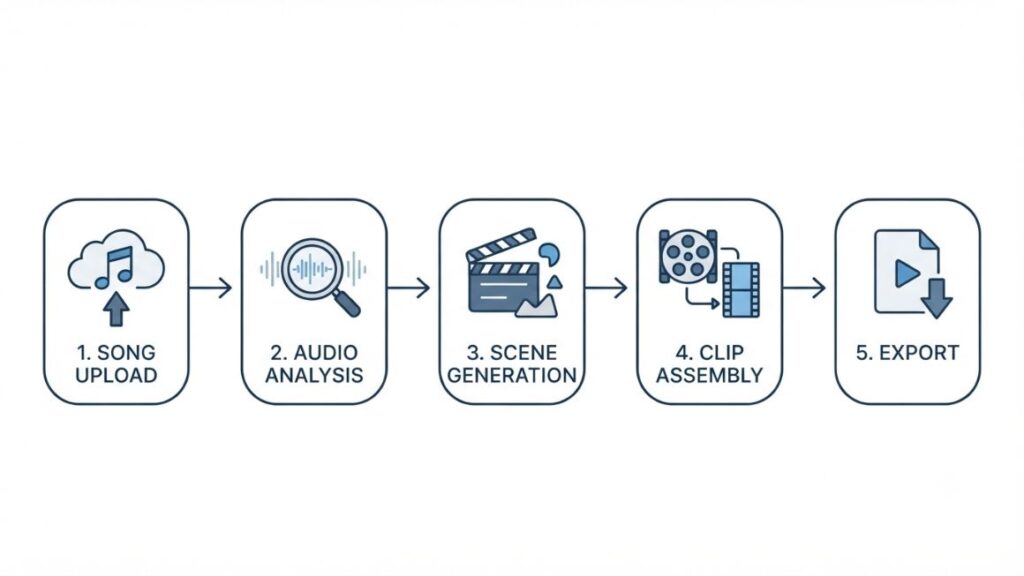
AI music video makers analyse a song’s tempo, beats and structure, then generate or arrange visuals timed to those points. Automatic tools build the whole video from one track, while clip generators like Runway or Kling produce short scenes you must sync and edit yourself.
10 Best Tools to Create Music Videos in 2026
For full songs with little editing, start with Freebeat or Rotor. For abstract, audio-reactive visuals, try Neural Frames or Kaiber. For cinematic clips you’ll edit yourself, Runway, Kling, Luma and Pika are the usual picks.
A note on the numbers. Prices and free tiers below are what was publicly reported in October and November 2026, and several companies changed plans this year. Some feature claims come from vendors’ own materials, and we’ve flagged those.
1. Neural Frames: Best for Audio-Reactive Visuals
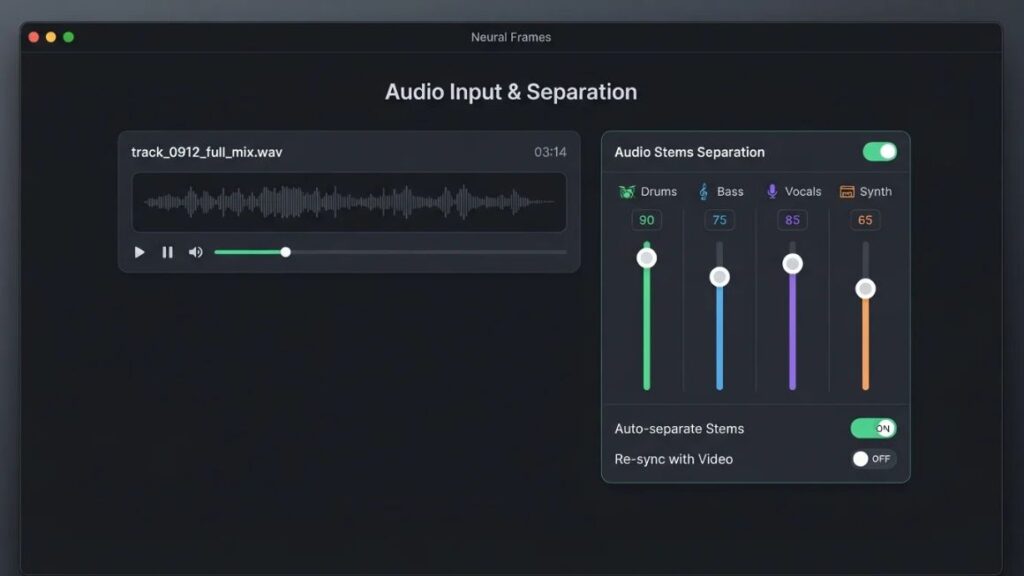
Neural Frames is built on one idea: visuals should move with the music, not just play over it. It can split a track into stems such as drums, bass and vocals, so a specific visual reacts to a specific sound. If you want an AI music visualizer with real creative controls, this is the category it fits.
Paid plans start at roughly $19 a month. A free trial is reported, but reviews disagree on its size, so don’t plan a project around it.
The good: tight audio control, ideal for electronic and hip-hop.
The catch: it’s credit-based, and the abstract look won’t suit every song.
Best for producers, DJs and VJs.
2. Freebeat AI: Best for Automated Music Videos
Freebeat is the most song-first tool here. Upload a track or paste a link, and it analyses tempo and structure, plans scenes, generates visuals and cuts them to the beat. Think of it as a beat sync video maker that also writes the storyboard. Its own materials claim full songs up to about six minutes, plus lip-sync.
New accounts are reported to get around 500 free credits, with watermarked exports. Paid plans appear to start near $8 to $10 a month.
The good: fast, full-song output.
The catch: much of the online praise comes from Freebeat’s own content, and lip-sync is reported to slip on fast rap or layered vocals.
Best for independent artists who want a quick finished draft.
3. Kaiber: Best for Artistic Music Visuals
Kaiber made its name with stylised, painterly animation and an Audioreactivity feature that makes visuals pulse with a track. Its workspace, once called Superstudio, now appears as Canvas on the pricing page, alongside Beat Sync and a timeline Editor.
Reported plans run from about $10 a month (Starter) to $99 (Pro), and price trackers logged two changes to its top plan this year.
The good: a distinctive look, ideal for loops and album-art motion.
The catch: credit limits, no clear permanent free plan, and it suits short visuals better than story-led videos.
Best for artists wanting a stylised look for Reels or Shorts.
4. Runway: Best for Cinematic Video Scenes
Runway is closer to a film toolkit than a music tool. This is the text to video AI that filmmakers reach for. Describe a scene or upload an image, and its Gen-4.5 model generates a clip with camera movement and lighting you can steer. It doesn’t listen to your song, so syncing is manual.
Credits are the real limit. Runway’s pricing page lists Gen-4.5 at 60 credits for a five-second clip, so Standard’s 625 monthly credits stretch to roughly ten clips. Standard costs about $15 a month, and the free plan gives a one-time 125 credits with a watermark.
The good: top-tier quality and camera control.
The catch: retries burn credits fast.
Best for creators who’ll assemble clips themselves.
5. Kling AI: Best for Realistic Character Motion
Kling comes from Kuaishou, the Chinese short-video company, and it’s known for natural human movement. That matters when your video centres on a performer. It offers image-to-video and a lip-sync tool that takes an uploaded audio track, and newer models can reportedly generate sound too.
Free access is reported at around 66 daily credits, with watermarks and lower resolution. Paid plans start at roughly $7 to $10 a month.
The good: realistic motion and a low entry price.
The catch: lip-sync and higher-quality modes use more credits, and free-queue waits can be long.
Best for performance-style videos.
6. Luma Dream Machine: Best for Cinematic Visuals
Luma’s Dream Machine runs on its Ray3 model and is popular for realistic lighting, smooth camera moves and a filmic finish. It handles text-to-video and image-to-video.
Luma reshuffled its plans in 2026, so older reviews are unreliable. Recent reports put watermark-free, commercial access at around $30 a month, with cheaper legacy tiers and a limited watermarked free option also mentioned.
The good: a polished look.
The catch: no audio sync, and murky pricing right now.
Best for atmospheric visuals behind a ballad or ambient track.
7. Pika: Best for Creative Short Videos
Pika leans playful. Pikaffects apply effects like melting or squishing, and Pika 2.5 adds better motion, plus Pikaframes for stitching keyframes into longer shots. It all suits punchy clips for Reels, Shorts or TikTok teasers.
Pika rebuilt its plan lineup in September 2026, and free-plan credits have changed more than once, so verify the live page. Earlier this year, paid plans started around $8 a month.
The good: quick, fun effects.
The catch: resolution tops out at 1080p, per one review, and effects can feel gimmicky over a full video.
Best for teasers and social promos.
8. Rotor Videos: Best for Music Promotion
Rotor takes a different route. Instead of generating every frame, it analyses your track and cuts together licensed stock footage, effects and text. It also makes Spotify Canvas loops, Apple Music Album Motion visuals and lyric clips through its new AI lyric video maker. Rotor is owned by LyricFind, and in June 2026 the India-based distributor SwaLay Digital added it to its platform.
On October 29, 2026, Rotor opened its Artist Unlimited plans to any artist, from $9.99 a month billed annually.
The good: predictable cost.
The catch: a stock-footage look and less creative control.
Best for an affordable promo video for every release.
9. Renderforest: Best for Template-Based Videos
Renderforest is a broad template platform with a music visualiser section. Pick a template, drop in your audio, change colours, text and logo, and export. It isn’t generative AI at its core, which is exactly why it’s predictable. As a simple music video maker online, that’s a fair trade.
The free plan is reported as 360p, watermarked and limited to about one minute, so treat it as a preview. Paid plans start around $10 to $13 a month depending on source, and watermark-free output usually needs a mid-tier plan.
The good: quick results and easy lyric text.
The catch: a template look and a confusing plan structure, say reviewers.
Best for beginners.
10. InVideo AI: Best for Promotional Video Creation
InVideo AI works from a prompt. Describe the video, and it drafts a script, picks footage, adds voiceover and music, and assembles a cut. Among AI video tools for musicians, it’s the odd one out because it isn’t music-first. It suits teasers and tour announcements better than a performance video.
The free plan is limited and watermarked. Paid plans start around $20 to $25 a month in most reports. The good: fast assembly and voiceover. The catch: no beat-driven workflow, and generative clips use more credits. Best for artists promoting a release or tour.

Quick Comparison of the 10 Tools
Want full songs with minimal editing? Pick Freebeat or Rotor. Want audio-reactive art? Neural Frames or Kaiber. Want clip-by-clip cinematic work? Runway, Kling, Luma or Pika.
Be suspicious of free plans. A free trial doesn’t mean unlimited free exports. Expect watermarks, duration caps or non-commercial licences, and confirm limits on each official page.
| Tool | Best for | Free option | Full-song support | Beat sync |
| Neural Frames | Audio-reactive visuals | Trial reported; size varies | Yes, via Autopilot | Yes, audio-reactive |
| Freebeat | Automated videos | Yes, free credits, watermarked | Yes, up to about 6 minutes (vendor claim) | Yes |
| Kaiber | Artistic visuals | Trial reported; no permanent free plan | Mode-dependent | Yes, Beat Sync mode |
| Runway | Cinematic scenes | Yes, 125 one-time credits, watermarked | No native full-song workflow | Manual |
| Kling | Character motion | Yes, daily credits, watermarked | No native full-song workflow | Manual |
| Luma | Cinematic visuals | Limited; plans changed in 2026 | No native full-song workflow | Manual |
| Pika | Short creative clips | Limited; changed in 2026 | No native full-song workflow | Manual |
| Rotor | Music promotion | No free plan advertised | Yes, builds from your track | Automated editing |
| Renderforest | Templates | Yes, 360p, watermarked | Template-dependent | Template-dependent |
| InVideo AI | Promotional videos | Yes, watermarked, limited | Editing-dependent | Manual |
How to Choose the Right Tool for Your Needs?
Choose by output first and price second. Decide whether you need a full song or short clips, realistic or stylised visuals, automatic beat sync and lip-sync. Only then compare plans.
Consider Your Creative Requirements
Start with length. Do you need a three-minute video, or four 10-second clips for Instagram Reels? Full songs point to Freebeat or Rotor. Short clips suit Runway, Kling, Luma and Pika.
Next, look. Realistic faces lean towards Kling and Runway. Painterly or abstract visuals lean towards Kaiber and Neural Frames. And if the singer must visibly sing, check lip-sync first. It’s the hardest feature to get right.
Compare Pricing and Export Quality
A free plan is a test drive, not a plan. Compare the monthly price, how credits convert into seconds of video, maximum resolution, and whether the free tier adds a watermark or blocks commercial use.
Do the credit maths. Using Runway’s own numbers, a $15 Standard plan buys about ten five-second Gen-4.5 clips. A three-minute video built from three-second shots needs 60 clips, and you’ll regenerate many.
How to Create a Music Video Using AI: Step-by-Step Guide
You can create music videos with AI in an afternoon by following six steps: pick the song, define a concept, choose a tool, write specific prompts, review the output, then edit and export.
Step 1. Choose Your Song
Upload a finished track or make one. Lock the arrangement first, because changing the song later wastes credits.
Step 2. Develop a Visual Concept
Note the mood, colours, setting and story in a few lines. “Late-night Mumbai rain, neon reflections, lonely singer” beats “something cinematic”.
Step 3. Choose Your Tool
Match the tool to the video. Pick Freebeat or Rotor for a full song, Neural Frames or Kaiber for audio-reactive art, and Runway or Kling for cinematic scenes.
Step 4. Write Your Prompts
Describe the subject, camera angle, lighting and style. Try: “Slow dolly shot, a singer under an umbrella on a rain-soaked Mumbai street at night, neon signs reflected on wet asphalt, 35mm film grain.”
Also Read: How to Write Sora 2 Prompts for AI Video Generation (with Examples)
Step 5. Generate and Review the Video
Watch for drifting faces, odd hands, jerky transitions and cuts that miss the beat. Regenerate weak shots only, not the whole video.
Step 6. Edit and Export
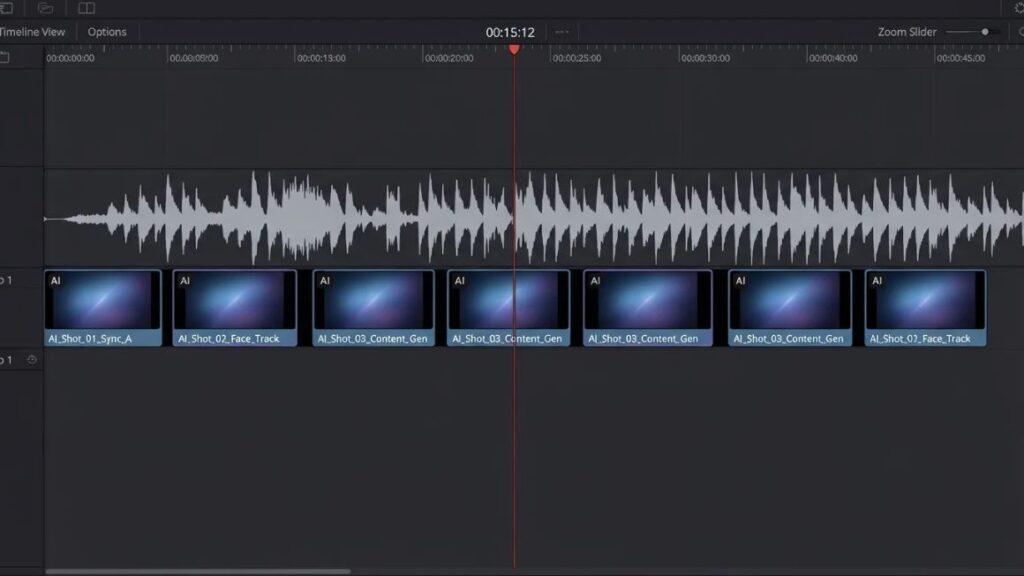
Trim, colour-grade and add titles in music video editing software such as CapCut, DaVinci Resolve or Premiere Pro. Export 16:9 for YouTube and 9:16 for Reels and Shorts.
Important Features to Look for Before Choosing a Tool
Seven things decide whether you finish a video you’re proud of.
- Automatic beat detection. Cuts should land on the beat without nudging.
- Audio-reactive animation. Visuals should respond to the music.
- Lip-sync capabilities. Vital only if a performer sings on screen.
- Character consistency. The same face and outfit should survive across scenes.
- Video resolution and export formats. Look for 1080p or higher, plus vertical and horizontal exports.
- Scene-level editing. Regenerate one weak shot, not everything.
- Commercial licensing. Confirm your plan allows monetised releases.
Common Challenges and Limitations
Every tool here shares the same four weak spots.
Inconsistent Characters and Scenes
Video models generate each clip separately, so a face or outfit can change between shots. Reference images reduce the problem. They don’t remove it.
Audio Synchronisation Problems
Beat detection is solid on steady electronic tracks and shakier on live drums, tempo changes or dense vocals. Clip generators like Runway don’t hear your song at all. Expect to fix timing in an editor.
Credit Limits and Generation Costs
Credits vanish on failed attempts, and Kling’s lip-sync costs extra. Ten retries on one shot can cost more than the shot itself.
Copyright and Commercial Usage
AI-generated music videos aren’t automatically “copyright-free”. Three questions apply. Who can use the output? Your tool’s terms decide, and free tiers are often watermarked or non-commercial. Who owns the copyright? The US Copyright Office’s January 2025 report says purely AI-generated material isn’t protected and prompts alone don’t count as authorship, though human editing and arrangement can be. Who owns the music? Using someone else’s song still needs a licence.
YouTube also asks creators to disclose realistic synthetic content. Rules vary by country, and this isn’t legal advice.
Under the US Copyright Office’s January 2025 report on AI and copyrightability, purely AI-generated material isn’t eligible for copyright, and prompts alone don’t count as human authorship. Human-edited and arranged AI video can be protected, but your tool’s commercial terms and your music licence matter just as much.
Tips for Creating Better Music Videos
Start with a clear visual story, even a simple one. One character in one evolving place beats ten random cool shots.
Match the visual mood to the music. A fast drill track wants hard cuts. A slow ballad wants long, soft shots. Use consistent character and style references, and generate shorter scenes when you need more control.
Don’t overcrowd scenes with effects. Review the final video on a phone, since that’s where most people watch, and export different aspect ratios for each platform.
Also Read: 20 Best YouTube SEO Tools in 2026
What Is the Future of AI-Powered Music Video Production?
Video should look more realistic, and character consistency is the obvious problem to fix. Tools should understand audio better, so scenes respond to lyrics and song structure, with more control over each scene. Platforms are already merging models, as Kaiber and Runway both host third-party ones. And licensing will matter more, as YouTube’s disclosure rules already hint.
Conclusion
Pick your tool by output, not hype. Ask whether you need a full song or short clips, what style fits, how much beat sync you want, and whether your plan covers commercial use. For most people the best tool isn’t the priciest.
Before you subscribe, run one small test with a free tier or a 30-second chorus, and see how much editing it needs.
If you want to use AI tools across your wider content and marketing work, the YUP AI Marketing course covers practical workflows you can apply straight away.
Frequently Asked Questions (FAQs)
What is the best AI tool for making music videos?
There’s no single winner. Freebeat and Rotor suit full songs, Neural Frames and Kaiber suit audio-reactive art, and Runway, Kling, Luma and Pika suit cinematic clips you’ll edit yourself.
Can I create a complete music video using AI?
Yes. Freebeat and Rotor build a full video from your track, and Freebeat claims up to about six minutes. Clip generators produce seconds at a time, so you assemble the rest.
Are there free tools for creating music videos?
Several offer free access. Freebeat reportedly gives sign-up credits, Runway gives 125 one-time credits, and Kling gives daily credits. If you want a free AI music video maker for a finished release, check limits first, because free plans often add watermarks or block commercial use.
Can AI automatically synchronise videos with music?
Partly. Freebeat, Kaiber and Rotor time cuts to beats, and Neural Frames reacts to audio. Clip generators don’t hear the song. Lip-sync is the least reliable part, especially on fast or layered vocals.
Can I use generated videos on YouTube and Instagram?
Usually, if your plan allows it. Free plans are often watermarked or non-commercial, so read your tool’s terms. Disclose realistic synthetic content on YouTube, and export 16:9 for YouTube and 9:16 for Reels.
Do I own the videos created using AI?
Ownership and copyright aren’t the same. Tool terms usually grant usage rights, often on paid plans. Under the US Copyright Office’s 2025 guidance, purely AI-generated material isn’t copyrightable, though your human edits may be. Ask a lawyer for high-stakes releases.
Can beginners create music videos without editing skills?
Yes. Freebeat, Rotor and Renderforest need no timeline editing. Expect two or three attempts.
Can AI generate music videos from lyrics?
Yes. Freebeat offers lyric-video formats, and Rotor has a dedicated lyric tool. You can also write lyric-inspired prompts in Runway, Kling or Luma. Check on-screen text carefully, since AI often misspells words.