

Your laptop is your office now. It sits on café tables, hotel desks, airport floors and the corner of the dining table. And it has to survive all of them. That’s why the biggest spec sheets aren’t all that matter for the best laptops for remote work and travel. Battery life, weight and reliability decide whether your day runs smoothly far more than raw speed does.
The right pick still depends on what you run. Video calls, a dozen browser tabs, Google Workspace or Microsoft Office, Canva, Adobe apps and coding tools all stress a machine differently. Your travel frequency and budget narrow things further. This laptop buying guide compares 2026 models for different kinds of remote workers. You see current specs and India pricing here. One warning before we start: advertised battery figures and real-world results rarely match. So we label which is which.
Table of Contents
What Should You Look for in a Remote-Work Laptop?
The best laptops for remote work and travel do three things. They last a full day on battery. They’re light enough to carry without thinking about it. They run your actual software without stalling. Everything else is secondary. Most spec-sheet noise belongs in that bucket.
Start with the work you actually do
A marketer living in Google Workspace, Canva and 30 browser tabs needs a very different machine from a developer running Docker, a designer in Figma or a video editor in Premiere. Same “remote worker” label. Completely different demands. Let the workload decide the specs, not the other way round. Laptops for working from home can get away with modest chips because a charger is always nearby. But once you start moving, efficiency matters more than peak speed.
Battery life matters when you’re away from a desk
Aim for a full working day on one charge. That, for most people, means 8 to 10 hours of real use. Video calls drain a battery faster than almost anything else. A bright screen with a pile of open tabs doesn’t help. Manufacturer figures are usually measured with light tasks at low brightness. Your Monday afternoon looks nothing like that.
Weight matters if you carry it every day
A laptop that feels fine for ten minutes feels very different after a week of commuting. Count the charger too, plus a mouse, a dongle and a sleeve. If you travel a few times a year, an extra half kilo barely registers. If you’re on the move most weeks, weight becomes the first spec you check.
Don’t overlook the features you use every day
You’ll spend far more time on calls and typing than you will running benchmarks. A sharp webcam and decent microphones matter when clients or interviewers are watching. A keyboard you enjoy saves real strain over a long day. A good trackpad, a screen bright enough for a sunny café, and USB-C charging so you can borrow almost any charger all make daily life easier. Modern Wi-Fi helps on hotel and co-working networks. A couple of useful ports spare you from carrying adapters. Security counts too, since you’ll often work on public networks: a fingerprint reader or face recognition and device encryption are worth having.
Also Read: Best VPNs for Remote Workers: Security, Speed, and Streaming Access Compared
How We Selected the Best Laptops
We picked laptops that balance battery, weight and everyday performance at a fair price. The goal isn’t to look for the highest benchmark scores. To shortlist the best travel laptops, we weighed value for money, battery efficiency, weight and portability, performance for common remote-work workloads, display quality, keyboard and trackpad, webcam and microphone, connectivity, build quality and warranty and service support.
A few ground rules apply. Manufacturer battery claims are labelled as claims. We prefer independent testing wherever it exists. Specifications change with configuration. So the RAM and storage you choose can shift both price and weight. Prices and availability also move quickly, especially in 2026. So treat every rupee figure here as a snapshot from mid-2026 listings and confirm it before you buy.
Also Read: How to Stay Productive While Traveling Without Losing Client Trust?
The Best Laptops for Remote Work and Travel in 2026
Pick the MacBook Air M5 if you want the safest all-round choice. Go for the ThinkPad X1 Carbon on business trips. The Zenbook A14 when every gram counts. The IdeaPad Slim 5 when budget is the main limit. These are the best laptops for remote work and travel we’d put on a 2026 shortlist, as long as the configuration matches the work you do.
| Laptop | Best for | Approx. weight | Battery | Main strength | Main drawback |
| MacBook Air M5 13-inch | Overall | About 1.23 kg | Apple claims up to 15 h web, 18 h video | Portability + efficiency | Limited ports |
| MacBook Air M5 15-inch | Larger-screen work | 1.51 kg | Same Apple claims; one independent test reached nearly 16 h | More workspace | Heavier |
| Lenovo ThinkPad X1 Carbon (Gen 14) | Business travel | Under 1 kg | Gen 13 tested at 12 to 13 h; Gen 14 figures still need verifying | Keyboard + business features | Premium price |
| ASUS Zenbook A14 | Ultra-portability | About 0.99 kg | ASUS claims up to 32 h (claim only) | Very low weight | Windows on Arm and configuration trade-offs |
| Dell XPS 13 (2026) | Premium Windows | About 1 kg | Dell claims up to 17 h; tests ranged from about 9 h to 14.5 h | Compact design | Port limitations |
| Microsoft Surface Laptop 13-inch | Windows productivity | About 1.22 kg | Listed at up to 16 h | Battery + usability | Configuration and weight vary |
| Lenovo IdeaPad Slim 5 (16GB model) | Students + early-career professionals | About 1.89 kg (16-inch) | Listings state 7 to 8 h | Value | Less premium build and features |
| Framework Laptop 13 Pro | Repairability | About 1.4 kg | 74 Wh; over 18 h in one productivity test | Upgradeability | Not the best choice for everyone |
Read the battery column as claims unless a test is mentioned. India prices are mid-2026 listings and they shift weekly. So check the current number before you commit.
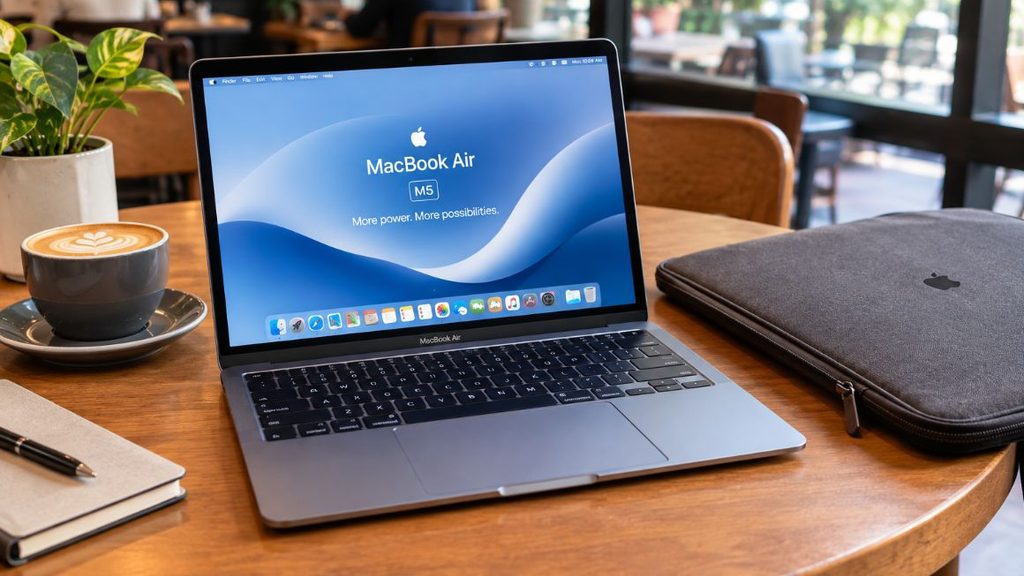
MacBook Air M5 13-inch: Best overall
The 13-inch MacBook Air is the best laptop for professionals who want one machine that does everything reasonably well and never begs for a charger at 3 p.m. Marketers, writers, consultants and students get the most from it. The reason being their work, that lives in browsers, documents, slides, Canva and video calls. All of which the M5 chip handles quietly. It weighs about 1.23 kg. Apple claims up to 15 hours of wireless web use and 18 hours of video streaming, based on January 2026 tests of preproduction units.
The base configuration now starts at 16GB of memory and 512GB of storage. So you don’t pay extra just to reach a sensible spec. The 12-megapixel Center Stage camera is a quiet upgrade for client calls. The catch is ports. You get two USB-C sockets plus a separate MagSafe charging port. That fills up fast once a monitor and a drive join the party.
In India, it launched in March 2026 at ₹1,19,900. TelecomTalk reported Flipkart prices of around ₹1,10,300 later in the year. In the US, MacRumors notes Apple raised the base price to $1,299 in June 2026. So check what the Indian store asks today.
MacBook Air M5 15-inch: Best for a larger workspace
Choose the 15-inch if you spend your day in spreadsheets, side-by-side documents or design files and a small screen slows you down. It shares the same chip and the same battery claims as the 13-inch, which means you’re paying for screen real estate, not extra speed. One independent review from Laptopmedia measured nearly 16 hours of battery life on the 15-inch model, a little ahead of Apple’s 15-hour web claim.
The trade-off is physical. It weighs 1.51 kg against roughly 1.23 kg. The India price starts at ₹1,44,900, about ₹25,000 more. If you carry your laptop daily or plug into an external monitor at your desk anyway, the 13-inch makes more sense. The 15-inch earns its place only when the bigger canvas is the thing you’d notice every single day.
Lenovo ThinkPad X1 Carbon: Best for business travel
The ThinkPad X1 Carbon remains the best laptop for business travel if your work involves client visits, long flights and a lot of typing. The Gen 14 launched in March 2026 with a redesigned frame that makes the keyboard and USB-C ports user-replaceable, a 5MP webcam with dual-array microphones. It has a weight of under 1 kg, according to Notebookcheck and Thurrott. ThinkPad keyboards are still the benchmark many writers and analysts compare everything else against.
It’s also a durable laptop in the way that matters on the road. The previous Gen 13 passed MIL-STD-810H testing. Lenovo sells multi-year on-site support for enterprise buyers. That counts when a failure on a work trip can’t wait two weeks.
The price is the sting. The Gen 14 starts at $2,139 in the US and £2,099 in the UK. India pricing needs confirming at purchase. One sensible workaround is the Gen 13: reviewers found 12 to 13 hours of light-to-medium use, and India listings have shown it from around ₹1,73,766.
ASUS Zenbook A14: Best for ultra-portability
At roughly 0.99 kg, the Zenbook A14 is a lightweight laptop you stop noticing in a bag. That is exactly the point for people who fly often. The 2026 refresh moved to Qualcomm’s Snapdragon X2 Elite chip. ASUS claims battery life of up to 32 hours on its 70Wh pack. Treat that as a ceiling, not a promise, since no independent test backs it up yet.
Everyday productivity is where it shines: documents, browser work, calls and presentations. The trade-offs are the Windows on Arm platform. That’s where you should check that your must-have apps and peripherals run well, and a confusing price spread. A first-generation Snapdragon X version was listed at ₹86,990 on Amazon India in May 2026, while the new X2 Elite model launched in India at ₹1,85,990. Make sure you know which one you’re looking at.
Dell XPS 13: Best premium Windows option
This one surprised most reviewers. Dell dropped the XPS brand in 2025 and brought it back in 2026. The new XPS 13 is a compact 13.4-inch aluminium laptop of about 1 kg priced far below older XPS models. In India, MySmartPrice lists it at ₹79,990. In the US, it starts at $699 for 8GB and $899 for 16GB, according to Tom’s Hardware.
Battery results vary by test. Tom’s Guide measured 14 hours 29 minutes of continuous web surfing at 150 nits, while MySmartPrice recorded 9 hours 5 minutes on the 52Wh battery. Both are decent for a laptop this light, though neither matches Dell’s 17-hour claim. Tom’s Guide also called the webcam its least favourite feature, which matters if you take many calls.
For a travel-friendly laptop with a premium feel at a fair price, it’s an easy shortlist entry. Pick the 16GB model, and check the port list for the exact configuration you plan to buy.
Microsoft Surface Laptop: Best for Windows productivity
The 13-inch Surface Laptop suits people who live in Microsoft 365, Teams and Edge. Go for it if you want a clean and touch-enabled Windows machine. It weighs about 1.22 kg with a 50Wh battery. Listings quote up to 16 hours. Notebookcheck said the 50Wh pack outlasted almost every rival it had tested. That is a good sign for all-day video-call work.
Be careful with configurations. Microsoft released an Intel Panther Lake version in mid-2026 from $949.99. But it has only 8GB of RAM and isn’t a Copilot+ PC, while the Snapdragon model is the one that keeps 16GB. Indian pricing is wobbly too. A price tracker showed the Snapdragon 13-inch swinging between about ₹99,990 in June and ₹1,38,990 in July 2026. Buy when the price is sensible, not when you’re in a hurry.
Lenovo IdeaPad Slim 5 or equivalent: Best value
This is the one for students, early-career professionals, freelancers and marketers just starting out. Browser-heavy work, Office or Google Workspace, Canva and video calls all run happily on a 16GB RAM and 512GB SSD configuration. That’s what makes the IdeaPad Slim 5 a sensible laptop for freelancers who don’t want to spend like a CTO. A 16-inch Core Ultra 5 125H version was listed at ₹73,990 on Flipkart in July 2026. A 14-inch Core Ultra 5 225H model sat at ₹1,01,990 on Reliance Digital.
What do you give up? Weight, mainly: the 16-inch models weigh about 1.89 kg, and listings state battery life of only 7 to 8 hours. Older Slim 5 listings also show 300-nit screens, which can struggle in bright cafés. Build and webcam quality sit a step below premium machines.
Because exact configurations change constantly, treat this as a category pick. Any 16GB/512GB Windows laptop at a similar price and weight is a fair substitute. Cheaper options below this range exist if you can accept compromises.
Framework Laptop 13 Pro: Best for long-term upgradeability
Framework’s pitch is simple: buy once, repair and upgrade for years. The 13 Pro, announced on 21 April 2026, adds a 74Wh battery, LPCAMM2 memory, a haptic trackpad and an optional touchscreen, and it weighs about 1.4 kg. One July 2026 review that ran PCMark 10’s Modern Office test at 200 nits recorded over 18 hours, a big jump for a brand that used to be criticised on battery.
It suits people who hate replacing laptops and are happy to tinker. The downsides are real, though. BestLaptop.deals called it heavier than most 13-inch rivals, said its single fan limits performance, and flagged recent price increases. A review roundup reported the higher-end configuration jumping from about $2,100 to $2,900 during the memory shortage. NanoReview also lists its charger at roughly 370 grams, against about 166 grams for the Dell XPS 13’s. Check whether Framework ships to your country before you plan around it.
Best Laptop Specs for Different Types of Remote Workers
When you compare the best laptops for remote work and travel, 16GB of RAM and a 512GB SSD is the practical starting point for most people. Creative and development work pushes that to 16 to 32GB. The right processor, display and weight depend on the software you run most.
| Work type | Typical workload | Priorities | Practical starting point |
| Marketers | Google Ads, Analytics, Canva, Sheets, browser tabs | RAM, battery, webcam | 16GB / 512GB |
| Writers & consultants | Docs, research, calls, presentations | Keyboard, battery, portability | 16GB / 512GB |
| Content creators | Canva, Photoshop, Premiere, video calls | RAM, display, CPU/GPU | 16 to 32GB |
| Designers | Figma, Adobe, creative apps | Display, RAM, colour accuracy | 16 to 32GB |
| Developers | IDEs, Docker, browsers, local tools | CPU, RAM, compatibility | 16 to 32GB |
| Freelancers/digital nomads | Mixed client work | Weight, battery, reliability | 16GB / 512GB |
| Students/early-career professionals | Office, Google Workspace, research, Canva | Value, battery, portability | 16GB / 512GB |
If you’re choosing a laptop for digital nomads, weight, battery and reliability beat raw power every time. A dead machine in another country costs far more than a slightly slower one. Freelancers moving between countries need the same documents, accounts and payments sorted.
Also Read: Best Apps for Managing Time Zones When Your Team and Clients Are Scattered Globally
A 16GB RAM and 512GB SSD configuration covers most marketers, writers, consultants, freelancers and students in 2026. Designers, developers and video creators should start at 16 to 32GB and prioritise display quality or CPU and GPU strength. The right spec depends on the software you run, not the job title on your profile.
Your software matters more than your job title
Two marketers can need completely different laptops. An SEO or content marketer who lives in a browser, Google Docs and an analytics dashboard is fine on almost any 16GB machine. A performance marketer juggling Ads Manager, analytics and heavy spreadsheets needs more memory headroom. They need a screen big enough to keep several windows open.
Then there’s the video or content marketer cutting reels in Premiere or CapCut and editing images in Photoshop. This wants 32GB, a better display and stronger graphics. A marketing analyst working in Sheets or Excel with SQL and BI tools sits somewhere in the middle. It mostly needs memory and a good keyboard. That’s the whole point: “marketer” tells you almost nothing. But “what’s open on your screen all day” tells you nearly everything.
Also Read: Digital Nomad Visas in 2026: Which Countries Actually Make It Easy
How Much Battery Life Do You Really Need?
The best laptops for remote work and travel deliver 10 hours or more of real-world battery life. So aim for that if you work away from a socket and treat manufacturer figures as a ceiling. A long battery life laptop is only useful if the number holds up with video calls, bright screens and a crowded browser.
Manufacturer battery life vs real-world work
Advertised figures are measured under gentle conditions, usually video playback or scripted browsing at low brightness. Real days include video calls, high brightness, dozens of tabs, background apps syncing in the background and sometimes an external display. Each of those pulls the number down.
The Dell XPS 13 shows the gap clearly. Dell claims up to 17 hours, Tom’s Guide measured 14 hours 29 minutes on continuous web surfing, and MySmartPrice measured 9 hours 5 minutes. Laptop battery life also depends on who’s testing and how: Apple claims 15 hours of wireless web use for the MacBook Air. Laptopmedia’s own test of the 15-inch model reached nearly 16. One review of the ThinkPad X1 Carbon Gen 13 found 12 to 13 hours of light-to-medium use, against a spec sheet that suggested far more.
Practical battery targets
These are buying targets for the situations below, not universal test results.
| Situation | Practical target |
| Mostly cafés/offices with outlets | 8 to 10 hours |
| Full workday away from a socket | 10 to 12 hours |
| Flights and long train journeys | 12+ hours |
| Frequent off-grid work | 12 to 15+ hours |
How to improve battery life while travelling
You can often add an hour or two without buying anything:
- Lower the screen brightness, since the display is usually the biggest drain.
- Turn on battery saver mode before you leave a socket, not after.
- Close apps you aren’t using, especially video call tools and syncing services.
- Download files and documents for offline access before a flight.
- Use USB-C Power Delivery chargers or power banks where your laptop supports them.
- Avoid heat. A laptop left in a hot bag or on a sunny table works harder and drains faster.
Manufacturer battery claims are measured under light, controlled tasks and rarely match a working day. The same Dell XPS 13 recorded 14 hours 29 minutes in one 2026 test and 9 hours 5 minutes in another, against a 17-hour claim. For travel, set a buying target of 10 hours or more and verify it against independent tests.
How Much Should a Travel Laptop Weigh?
Among the best laptops for remote work, the lightest sit under 1.3 kg. These suit frequent flyers. For most people, 1.3 to 1.6 kg is the best balance between comfort and capability. Laptop weight is the spec you’ll feel in your shoulder long before you feel a slower processor.
Practical laptop weight ranges
Use these as guides, and remember the charger, a mouse and any adapters add to the load. Framework’s 13 Pro charger, for example, weighs about 370 grams, while the Dell XPS 13’s weighs about 166 grams, according to NanoReview. That gap is a quarter of a small laptop.
| Weight | Best suited to |
| Under 1 kg | Extremely frequent travellers |
| 1 to 1.3 kg | Frequent travel |
| 1.3 to 1.6 kg | Best overall balance |
| 1.6 to 2 kg | Desk-heavy professionals |
| Over 2 kg | Performance-focused users |
Lightweight laptops for travel in this guide, like the Zenbook A14, ThinkPad X1 Carbon and Dell XPS 13, all sit near the 1 kg mark. Want a laptop for frequent travelers who also need decent performance? The 13-inch MacBook Air at about 1.23 kg is a hard one to beat.
13-inch vs 14-inch vs 15-inch
A 13-inch screen gives you the most portable laptop and the lightest bag. A 14-inch screen is the best balance for most professionals. These offer room for two windows without much extra weight. A 15-inch screen gives you more workspace for spreadsheets and design. But you’ll feel it in your bag.
When extra weight is worth it
Sometimes heavier is the right call. Video editing, 3D work, development with heavy local tools, large datasets, gaming and workstation workloads all benefit from stronger cooling, more ports and more powerful processors. If your work is in that group, accept the extra kilo. Put the savings into a lighter charger and a good bag.
The Features That Matter Most for Remote Work
The best laptops for remote work and travel get the daily-touch features right: webcam, keyboard, display, memory and connectivity. These shape how work feels far more than a benchmark score does.
Webcam and microphone
Clients, interviewers and teammates see your webcam for hours every week. Look for 1080p or better, good low-light performance and microphones that cancel background noise. The MacBook Air M5 has a 12-megapixel Center Stage camera. The ThinkPad X1 Carbon Gen 14 has a 5MP webcam with dual-array mics. Tom’s Guide, on the other hand, called the Dell XPS 13’s webcam its weak spot.
Keyboard and trackpad
If you write, research, code or run campaigns for hours daily, keyboard comfort matters more than almost any spec. Look for decent key travel and a layout you don’t have to relearn. A large, accurate trackpad is just as important. It’s one reason reviewers keep praising MacBooks.
Display
Brightness decides whether you can work in a sunny café or an airport lounge. The MacBook Air M5 peaks at 500 nits. The Framework 13 Pro reaches about 700. Glossy screens reflect badly near windows. Matte panels are easier on the eyes. Creative workers should also check colour accuracy. Resolution matters if you keep multiple windows open.
RAM and storage
Treat 16GB RAM and a 512GB SSD as the practical baseline. Step up to 32GB for heavy multitasking, development or creative work. Go for 1TB when you handle large media files or datasets. Cloud storage is a poor substitute on slow hotel Wi-Fi.
Connectivity
You want USB-C for charging and displays, modern Wi-Fi (the MacBook Air M5 supports Wi-Fi 7), Bluetooth, and a phone hotspot that works reliably. HDMI and USB-A are nice to have if you present or use older accessories. Don’t turn ports into a deal-breaker unless you know what you’ll plug in.
MacBook vs Windows: Which Is Better for Your Work?
Both platforms have strong options among the best laptops for remote work and travel. Choose a MacBook if you want the best battery efficiency and the least fuss. Choose Windows if you want more hardware choice, a wider price range and specific business software. Your workflow should decide it, not the logo.
Choose a MacBook if…
Pick a Mac when battery life and quiet, fanless operation matter most, or when you already use an iPhone and iPad and like how they work together. Creative work in Final Cut, Logic or Adobe apps runs well. macOS is stable for general productivity. Portability is strong across the whole Air range. Mainstream software compatibility is rarely an issue for marketing, writing and design work.
Choose Windows if…
Windows wins on choice. You get more hardware options at more prices, more ports on many models, and easier upgrades on machines like the Framework. Many business laptops are built around Windows software. Certain finance, accounting, engineering and enterprise tools only run properly there. If you need a laptop for working remotely in a company with a Windows-first IT department, staying on Windows removes a lot of friction.
Choose based on your workflow, not the brand
Think in terms of what you actually do. Marketers working in browsers, Docs and Canva are happy on either platform. Designers who use Figma and Adobe apps can go either way. Creative professionals often lean Mac. Developers should check their toolchain. Office workers in Microsoft 365 tend to find Windows easier. If you already own a phone, tablet or monitor that pairs best with one platform, count that too.
How to Buy a Remote-Work Laptop Without Overspending
The best laptops for remote work and travel aren’t always the priciest. So spend on RAM, SSD, battery, display, keyboard and webcam. Skip the top-tier processor you won’t use. Laptop prices are also rising in 2026, which makes smart choices matter more.
The reason is memory. According to Storyboard18, citing Moneycontrol in March 2026, analysts expected Indian laptop and desktop prices to rise by as much as 35% in 2026. IDC and Counterpoint both projected India’s PC shipments to fall 7 to 8%. ASUS India’s Vice President Arnold Su told Outlook Business in May 2026 that ASUS expects prices to rise by as much as 45% by Q3 2026 compared with December 2025. RAM and SSDs now cost more than CPUs. That doesn’t mean waiting will help, only that your budget needs a plan.
Don’t pay for performance you won’t use
A typical marketer, writer or student doesn’t need a top-tier processor. Browser tabs, documents, Canva and video calls run fine on mid-range chips, and extra horsepower mostly adds heat, weight and cost. Save that money for memory and battery instead.
Spend on the specifications you’ll actually notice
You’ll feel RAM, SSD capacity, battery life, display brightness, keyboard comfort and webcam quality every single day. You’ll rarely notice the difference between two similar processors. Prioritise accordingly. If the budget forces a choice, protect 16GB of RAM first.
Consider previous-generation premium laptops
Last year’s premium model often beats this year’s entry-level one. A ThinkPad X1 Carbon Gen 13 still offers a better keyboard, build and support than most budget machines. It gets cheaper when the next generation arrives. Check the warranty status and battery condition if you buy refurbished or old stock.
Don’t forget the total cost
Add a charger if one isn’t included, an adapter or dongle if ports are limited, an extended warranty, accessories like a sleeve and mouse, and a plan for repairs. Check local service support too, because a great laptop with no repair centre nearby is a risk on the road.
Laptop prices in India are climbing in 2026 because memory costs have surged. Analysts cited by Storyboard18 expected increases of up to 35%, and ASUS India expects up to 45% by the third quarter compared with December 2025. Buy for 16GB of RAM and a 512GB SSD first, and let the processor tier be the compromise.
Common Laptop-Buying Mistakes
Most bad laptop purchases come from the same eight errors. Avoid them and you’ll probably do fine.
- Buying the most powerful laptop instead of the right one.
- Choosing based only on advertised battery life.
- Buying 8GB of RAM to save money. It saves little and ages badly.
- Ignoring the software you actually use.
- Forgetting charger weight.
- Buying a large screen when portability matters more.
- Choosing a glossy display for frequent café or travel work.
- Ignoring warranty and service support.
Quick Buying Checklist
Run through this before you pay for any of the best laptops for remote work and travel on your shortlist:
- 16GB RAM minimum
- 512GB SSD minimum
- 10+ hour practical battery target
- Under 1.5 kg if you travel frequently
- Good webcam and microphone
- Comfortable keyboard
- Bright, low-reflection display
- USB-C charging
- Modern Wi-Fi
- Suitable operating system
- Compatible with your core software
- Reasonable charger size
- Reliable warranty and support
Conclusion
There’s no single laptop that suits every remote worker. The right choice depends on your workload, travel frequency, software, budget and how much you want to carry. For most young professionals, 16GB of RAM and a 512GB SSD are non-negotiable. Strong battery life and a keyboard you like using matter more than maximum processing power.
Marketers, writers and students can lean towards portability and battery life. Designers, developers and creators may need more RAM, a better display or stronger CPU and GPU performance. Frequent travellers should also think about charger weight, warranty and service support. If you’re choosing a laptop for remote workers on your team, ask what each person actually opens every day before you compare prices.
The best laptops for remote work and travel aren’t necessarily the most powerful or expensive. The right one gives you enough performance for your work while staying portable, reliable and practical for the way you travel.
Choosing the right gear is one step in building a career that travels well. Crystal Clear is YUP’s newsletter for marketers and digital professionals who want clear, practical takes on careers, tools and the way work is changing, without the noise. Subscribe to Crystal Clear and get the next guide in your inbox.
FAQs About Laptops for Remote Work and Travel
What is the best laptop for remote work and travel?
For most people, the 13-inch MacBook Air M5 is the best all-round pick among the best laptops for remote work and travel. Its light weight, strong battery claims and 16GB starting memory are why Business travellers may prefer a ThinkPad X1 Carbon, and budget buyers a 16GB IdeaPad Slim 5.
How much RAM do I need for remote work?
16GB is the practical baseline for browser-heavy work, video calls and Office or Google Workspace. Go to 32GB for development, video editing or heavy multitasking. Eight gigabytes is possible but tight, especially with Chrome, Slack and Zoom open together.
Is 16GB RAM enough in 2026?
Yes, for most marketers, writers, consultants and students. It handles dozens of tabs, Canva and video calls comfortably. Developers running containers and creators editing video should consider 32GB, particularly as memory prices make upgrading later harder.
Is a 13-inch laptop too small for remote work?
Not for most people. A 13-inch screen works well for documents, browsing and calls, and it’s the lightest to carry. If you work in spreadsheets or multiple windows all day, a 14-inch or external monitor helps.
What is the best laptop size for remote work?
A 14-inch screen is the best balance for most professionals, giving enough workspace without much extra weight. Choose 13 inches if portability matters most, and 15 inches only when you need more room and don’t mind the extra bulk.
How many hours of battery life should a travel laptop have?
Aim for 10 to 12 hours of practical use if you work away from sockets, and 12 or more for flights and long journeys. Treat manufacturer claims as a ceiling, and look for independent battery tests.
Are MacBooks good for digital nomads?
Yes. MacBook Airs combine low weight, long battery life and quiet, fanless operation, which suits café and co-working work. The limits are fewer ports and higher prices, so budget for adapters and check repair support in the countries you’ll visit.
Are ThinkPads good for frequent travel?
Yes. ThinkPad X1 Carbon models are light, have excellent keyboards, and come with business security and support options. The latest Gen 14 weighs under 1 kg, though the price is high. Older generations can be a smart compromise.
Should I buy a touchscreen laptop for travel?
Only if you’ll use it. Touchscreens help with presentations, notes and tablet-style use, but they can add weight and cost, and reduce battery life slightly. For writing, browsing and calls, a non-touch laptop is usually enough.
Should I buy a 13-inch or 14-inch laptop for travel?
Pick 13 inches if every gram counts and you mostly handle documents and calls. Pick 14 inches if you want more screen space and a more comfortable keyboard with only a small weight penalty.