

It’s 11 PM in Gurugram. Your US client just replied to the thread you sent at 9 AM their time, asking if you can hop on a call “in ten minutes.” You weren’t planning to be at your laptop right now, but here you are, squinting at a Slack message and doing time math in your head.
This is what happens when your business runs across time zones without a real system for it. And it’s not a rare situation anymore. If you’re running a marketing team, an agency, or a freelance practice out of India that serves clients in the US, UK, or Europe, you already know that knowing the current time in New York isn’t the same as actually managing the coordination problem that global work creates.
That’s where apps for managing time zones come in. Some of them just convert times. Others handle scheduling, availability and handoffs so your team doesn’t have to guess. This guide walks through the tools worth using in 2026. Learn how to pick the right one for your setup and how to build a workflow around IST that doesn’t leave someone checking Slack at midnight every week.
Table of Contents
Why Time Zone Chaos Costs More Than One Missed Meeting
A missed meeting is the visible symptom. The real cost shows up in delayed decisions, client trust that erodes slowly and a team that’s perpetually tired from working outside their normal hours. None of that shows up neatly on a dashboard. That is exactly why it gets ignored until it’s a pattern nobody can undo easily.
The Real Cost for Indian Agencies Serving Global Clients
Most Indian marketing and content agencies working with US or European clients run into the same handful of problems. A call gets missed because someone forgot the client’s region just shifted into daylight saving time. A handoff between the India team and the US team loses a day because nobody documented where things stood. A client gets a slow response because their 9 AM lands at 7:30 PM IST. That’s right when the India-based team has already logged off.
None of these are one-off accidents. They’re what happens by default when a team depends on memory instead of a system. And the awkward meeting times pile up too. Someone on the India side ends up joining calls at 9 or 10 PM more often than they should, and eventually that turns into quiet resentment even if nobody says it out loud.
The IT-BPM sector in India is projected to cross $315 billion in FY2026 revenue. The country now hosts more than 2,100 Global Capability Centers employing about 2.36 million professionals, according to Wisemonk’s 2026 research. India hosts over 1,700 Global Capability Centers generating $64.6 billion in revenue and employing 1.9 million professionals. A huge share of that work depends on smooth coordination across the US, Europe and India. When that coordination breaks down even slightly, it shows up as slower project cycles and clients who start asking pointed questions about turnaround time.
Also Read: Building a Secure Digital Marketing Workflow for Distributed Teams
The Hidden Problem Is Coordination, Not Time Conversion
Here’s the thing most people get wrong. Knowing that it’s 9 AM in New York when it’s 6:30 PM in Mumbai doesn’t tell you anything useful on its own. What you actually need to know is whether that person is working right now, whether they’re free for a call and whether a message you send will sit unread for twelve hours.
That’s coordination. Time conversion is step one. Availability, working hours, and meeting overlap are the parts that actually determine whether your team functions well across regions. A converter tells you the number. A proper workflow tells you what to do with it.
Also Read: How Digital Marketing Works in 2026
What to Look For in an App for Managing Time Zones?
Before picking a tool, know what actually separates a useful one from a novelty world clock. Not every team needs all of these features. Knowing the list keeps you from choosing based on a flashy interface alone.
- Time-zone accuracy, including handling for half hour and 45 minute offsets like India (UTC+5:30) or Nepal (UTC+5:45)
- Daylight Saving Time handling. So the tool adjusts automatically without you tracking it manually
- Working-hours detection, showing whether someone is inside or outside their workday
- Team availability views, ideally at a glance rather than clicking into each person
- Calendar integration with Google Calendar, Outlook, or both
- Meeting scheduling that finds overlap automatically
- Recurring meeting support that flags when a series needs to move due to DST
- Slack or Teams integration for teams that live inside chat all day
- Async workflow support, not just real-time scheduling
- Mobile availability, since a lot of quick checks happen on a phone
- Privacy and data handling, especially for teams under client NDAs
- Free plan and pricing that fits a small agency’s budget, not just enterprise buyers
- Ease of setup, because a tool nobody configures properly is worse than no tool
Best Apps for Managing Time Zones at a Glance
Here’s the shortlist before the detailed breakdown. Use this to skim and then jump to the sections that match what you actually need.
| App | Best for | Type | Time-zone conversion | Scheduling | Team availability | Calendar integration | DST handling |
| World Time Buddy | Quick visual comparison | Converter | Yes | No | Limited | No | Automatic |
| Every Time Zone | Simple global overlap view | Converter | Yes | No | No | No | Automatic |
| Timeanddate | Detailed conversion and DST info | Converter | Yes | Basic | No | No | Automatic, detailed |
| Timezone.io | Team local-time dashboard | Team visibility | Yes | No | Yes | No | Automatic |
| Spacetime | Team awareness with Slack sync | Team visibility | Yes | Basic | Yes | Google Calendar | Automatic |
| Timezone Butler | Slack-based timezone bot | Team visibility | Yes | No | Yes | No | Automatic |
| Calendly | Client booking links | Scheduler | Yes | Yes | Limited | Yes | Automatic |
| Cal.com | Flexible/open-source scheduling | Scheduler | Yes | Yes | Yes | Yes | Automatic |
| Reclaim | AI calendar optimization | AI scheduler | Yes | Yes | Yes (team plans) | Google, limited Outlook | Automatic |
| Motion | AI task and calendar planning | AI scheduler | Yes | Yes | Yes | Google, Outlook | Automatic |
This table is a starting point, not a verdict. Some of these tools solve completely different problems, so read the category descriptions below before you assume “highest-rated” means “right for you.”
World Clock and Time Zone Converter Apps
These time zone converter apps are the entry point for most people. They don’t manage your calendar or send invites. They just answer the question “what time is it there” quickly and clearly, which is still genuinely useful when you’re juggling three or four regions a day.
World Time Buddy
World Time Buddy shows multiple time zones side by side on a sliding horizontal timeline. So you can drag across the day and instantly see the corresponding hour in every other city you’ve added. It’s built specifically for people scheduling meetings across regions, not just checking a single clock.
The best use case is a fast visual check before you send a meeting invite. It handles DST automatically and lets you save a custom set of cities for repeat use.
Its limitation is that it doesn’t do anything beyond conversion. There’s no availability tracking, no calendar sync, and no way to know if the person you’re checking is actually online.
Every Time Zone
Every Time Zone gives you a similar horizontal comparison. But it’s built for quick visual scanning rather than deep customization. You see everyone’s daytime and nighttime hours color-coded on one screen. That makes it obvious at a glance when a proposed meeting time lands at 2 AM for someone.
This is the tool people bookmark and never think about again because it just works for the one job it does. The limitation is the same as World Time Buddy: it’s a converter, not a coordination system.
Timeanddate
Timeanddate goes further than a simple converter. It includes a meeting planner that factors in working hours, plus detailed DST information for every country, including the exact date and time each region’s clocks change. If you need to double-check whether a specific country still observes Daylight Saving Time this year, this is usually the fastest place to confirm it.
Best use case: verifying DST rules for a country you don’t deal with often, or planning a meeting across five or more regions where working-hour visibility matters.
Timezone.io
Timezone.io was built by Dan Farrelly while he worked at Buffer, specifically to solve the problem of a distributed team losing track of who’s where. Timezone.io is an effective tool to keep track of your team, letting you easily schedule meetings with your remote team members. It shows a simple dashboard with every team member’s local time and current status, which works well for a small agency team spread across two or three regions.
The best use case here is a lightweight, always-visible team dashboard rather than a one-off conversion tool.
Spacetime
Spacetime is designed specifically for remote teams and syncs with Google Calendar, showing time, location and even weather for each team member. Spacetime allows users to see the time, location and weather for every member of the team at a glance. It’s available on the web, desktop, and within Slack.
It’s a solid pick for teams that live in Slack and want timezone context without switching apps. The tradeoff is that it’s more of an awareness tool than a full scheduler, so you’ll likely still need Calendly or Cal.com for actual booking.
Timezone Butler
Timezone Butler lives entirely inside Slack and lets team members set their local time zone once, after which anyone can quickly check what time it is for a colleague without leaving the chat window. It’s less about a dashboard and more about answering the “what time is it for you right now” question inline, in the same place your team already talks.
Best use case: fully Slack-native teams that don’t want to open a separate app just to check a colleague’s hours.
Scheduling Apps for Global Teams and Clients
Once you move past “what time is it there” into “when can we actually meet,” you need a proper meeting scheduler for global teams, not just a converter.
Calendly
Calendly is still the default choice for client-facing booking links. You share one link, the other person picks a slot from your real availability. The invite adjusts automatically to their local time zone. As of 2026, Calendly’s pricing runs Free for a single event type, Standard at roughly $10 per seat per month, and Teams at around $16 per seat per month, with rouw to Build a Time Zone Workflond-robin distribution and CRM routing unlocked at that tier. Calendly’s Standard plan runs $10 per seat per month billed annually with unlimited event types and up to six calendar connections. The Teams plan at $16 per seat per month adds round-robin scheduling and Salesforce integration.
Calendly automatically converts booking times to each invitee’s local time zone, which removes the most common source of missed calls between India-based agencies and US or European clients. Its Standard plan costs around $10 per seat monthly, while Teams-level round-robin routing sits around $16 per seat. For client booking specifically, it’s still the most recognized option in 2026.
Where Calendly gets expensive is at scale. A ten-person team on the Teams plan runs close to $160 a month, and Enterprise pricing jumps sharply from there. Standard is usually enough for a small YUP-sized team just booking client calls.
Cal.com
Cal.com does the same core job as Calendly but takes an open-source approach, which appeals to teams that want more control or a self-hosted option. Pricing in 2026 sits around $12 to $15 per user per month for the Teams tier, with Organizations plans scaling up from there for larger setups. Cal.com has a generous free plan for individuals, with paid plans starting around $12 per user per month on annual billing for Teams and roughly $28 per user per month for Organizations.
The self-hosted option matters if your agency handles sensitive client data and wants scheduling infrastructure it fully controls rather than depending on a third party’s servers.
Doodle and Rallly
Sometimes you’re not booking a one-on-one call, you’re trying to find a slot that works for six people across four time zones. That’s where polling tools beat appointment schedulers. Doodle lets everyone mark their availability against a shared grid, and the organizer picks the time with the most overlap. Rallly does something similar as a simpler, more privacy-focused alternative.
Group polling works better than a booking link whenever more than two people need to align, especially for recurring planning sessions like a quarterly content calendar review with clients across regions.
Reclaim and SkedPal
Reclaim and SkedPal both function as an AI scheduling assistant, automatically slotting tasks, habits, and focus time into your calendar around your existing meetings, rather than requiring you to block time manually. Reclaim was acquired by Dropbox in August 2024 and continues operating as a standalone product inside that portfolio. Its 2026 pricing runs a usable free tier, Starter at roughly $10 per user per month, and Business at around $15 per user per month with team coordination features. Reclaim.ai is an AI-powered calendar and scheduling platform built primarily around Google Calendar, using artificial intelligence to automatically schedule tasks, habits, meetings, and focus time based on priorities, deadlines, and availability.
SkedPal takes a similarly automated approach to time blocking but has stayed a smaller, more niche tool, with plans starting around $14.95 a month. SkedPal is task management software that automatically schedules tasks and events, combining a to-do list and calendar in one application with automated time blocking, task triaging, and calendar integration. Both are worth a look if your bigger problem is protecting focus time across a chaotic, multi-region schedule rather than just booking external meetings.
Motion
Motion has expanded well beyond scheduling since 2025. It is pivoting into what it now calls an “AI-powered SuperApp for work” that includes docs, sheets and meeting notetakers alongside its original calendar automation. Pricing in 2026 starts around $29 a month billed annually for individuals, or roughly $19 per seat per month for team plans, with a Business tier scaling higher. Motion auto-schedules tasks on the calendar using AI that analyzes deadlines, priorities, and available time slots. It then continuously re-optimizes when plans change. But it’s also true that user sentiment has turned mixed in 2026 over pricing increases and feature bloat from the SuperApp expansion.
If you want a focused timezone and scheduling tool, Motion’s broader ambitions might feel like more than you need. If your team already wants an all-in-one workspace, it’s worth evaluating on that basis instead.
Collaboration Apps That Make Time Zones Easier to Manage
None of these are dedicated timezone tools. But they’re often what actually determines whether a distributed team functions well. That is because they shape how much real-time coordination you need in the first place.
Slack
Slack shows each teammate’s local time next to their name. This lets anyone schedule a message to arrive during the recipient’s working hours instead of pinging them at 2 AM. That single feature does more to reduce timezone friction than most dedicated apps, because it changes behavior rather than just displaying information.
The bigger shift is cultural: using Slack to reduce unnecessary real-time communication, so a question doesn’t require an instant reply just because it popped up on someone’s screen.
Microsoft Teams
Teams handles distributed communication similarly, with calendar integration that shows availability across time zones directly inside a scheduling assistant. This removes the need for a separate scheduling layer entirely for companies already running on Microsoft 365. The calendar, chat and video call all sit in one connected system.
Notion
Notion isn’t a scheduling tool at all, but it solves a real timezone problem: documentation. When a task hands off from the India team to a US-based teammate at the end of the Indian workday, a clear Notion page with status, blockers, and next steps means the US side doesn’t have to wait for a call to pick up the thread.
This is one of the more underrated distributed team collaboration tools for exactly that reason. A well-maintained decision log in Notion can eliminate an entire category of “quick sync” calls that only exist because nobody wrote anything down.
Loom
Loom lets someone record a quick video walkthrough instead of scheduling a live call, which matters enormously when a five-minute conversation would otherwise require finding a slot that works across a nine or ten-hour time difference. A recorded explanation of a design decision or a campaign update can be watched whenever the other person’s day actually starts, without either side losing sleep over it.
This is exactly the kind of async communication tools for remote teams category that reduces the number of live meetings a global setup actually needs.
Also Read: Project Management Software: Choose the Best Tool for Your Team
Do You Need a Dedicated Time Zone App?
Not always. Sometimes the calendar you already use handles the core problem well enough, and adding another tool just adds another login to manage.
Google Calendar
Google Calendar supports a secondary time zone displayed alongside your primary one. You can set a specific time zone for an individual event when scheduling across regions. It also includes a basic world clock in the sidebar. For a small team that mostly deals with two or three regions consistently, this built-in functionality often covers 80% of what a dedicated app would offer.
Outlook Calendar
Outlook offers similar multi-time-zone support, letting Microsoft-based teams schedule across locations without a third-party tool. If your organization already standardizes on Outlook and Teams, adding a separate timezone app mostly duplicates functionality you already have access to.
The key point here. Not every team needs another dedicated app if the calendar it already runs on handles the core requirement of showing multiple time zones and letting you set event-specific zones.
Daylight Saving Time and Global Scheduling
DST is where most timezone workflows quietly break, because the gap between two regions doesn’t stay fixed all year.
Why India Creates a Different Time-Zone Challenge
India does not observe Daylight Saving Time at all. It stays at a fixed UTC+5:30 offset year-round. That makes India a stable reference point. But it also means the gap between IST and any DST-observing country shifts twice a year, even though nothing changed on the India side.
India vs US: Why the Meeting Time Can Change
In 2026, the US begins Daylight Saving Time on March 8 and ends it on November 1. In the United States, DST in 2026 starts at 2:00 AM on Sunday, March 8, and ends at 2:00 AM on Sunday, November 1. That means a meeting that lands at 7 PM IST when a US client is on Eastern Standard Time will land at 6 PM IST once the US shifts into Eastern Daylight Time in March, even though the India side hasn’t changed anything at all.
This trips up a lot of teams who set up a recurring meeting once and never revisit it. A “9 AM their time, evening our time” meeting isn’t a fixed formula. It moves depending on the calendar.
India vs UK and Europe
Europe and the UK follow a different DST schedule than the US. That creates a second layer of complexity if you’re juggling clients on both sides of the Atlantic.
In 2026, the EU and UK begin DST on March 29 and end it on October 25, three weeks later than the US in spring and about a week earlier in fall. In 2026, the US springs forward March 8 and falls back on November 1. The EU and UK change March 29 and October 25 at 1am UTC, which produces two mismatch windows every year: three weeks in spring, from March 8 to 29, and one week in fall, from October 25 to November 1, when transatlantic time differences shrink by an hour.
That mismatch window is exactly when a “usual” meeting time silently shifts. A recurring 6 PM IST call with a London client might become 5 PM IST for those specific weeks, and nobody notices until someone shows up an hour off.
Read More: 16 Best Social Media Scheduling Tools in 2026
How Time Zone Apps Handle DST
Good timezone apps handle this automatically by converting based on the actual date, not a fixed offset. That’s the difference between selecting “New York” as a city versus manually typing “UTC-5,”. The former adjusts for DST and the latter doesn’t. Every tool covered in this guide, from World Time Buddy to Calendly, handles this correctly by default as long as you select cities or regions rather than raw offsets.
Why EST/PST Can Cause Confusion
Abbreviations like EST and PST are the most common source of scheduling errors, because people treat them as fixed when they’re not. EST specifically refers to Eastern Standard Time, which only applies part of the year. The same region runs on EDT during DST. That is a full hour ahead. Prefer location-based identifiers like “New York” or “America/New_York” over abbreviations whenever you’re setting up a recurring meeting. The software will handle the seasonal adjustment for you.
How to Build a Time Zone Workflow That Actually Works From India?
Tools help, but they don’t replace an actual system. Here’s a workflow that holds up whether your team is three people or thirty.
Set Core Hours Around IST Overlap With the US and Europe
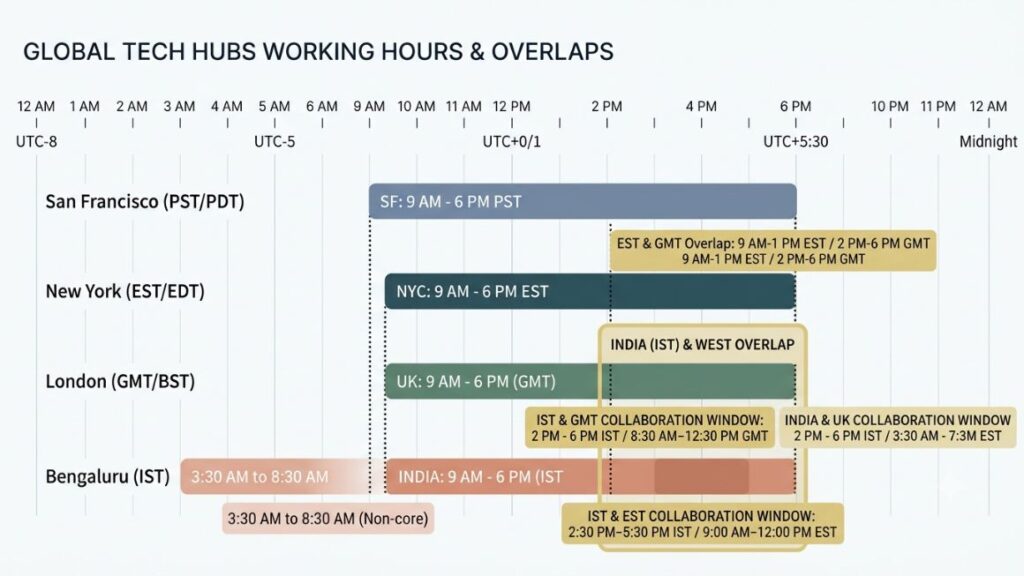
Core hours for distributed teams are the specific window everyone commits to being available, rather than expecting full-day overlap that simply doesn’t exist across a nine to twelve-hour gap. For an India-US setup, that overlap often lands somewhere between 6 PM and 9 PM IST, which covers US morning hours. For India-Europe work, the overlap is friendlier, often somewhere between 12 PM and 4 PM IST.
Don’t assume one schedule works for every US or European city you deal with. A client in California and a client in New York are three hours apart from each other, so your “US overlap window” needs to account for whichever coast you’re actually serving.
Define Working Hours for Every Team Member
Make each person’s actual working hours visible in whatever tool your team uses, whether that’s a shared calendar block, a Slack status or a Timezone.io-style dashboard. Working hours and time zone are two different pieces of information. Someone can be in IST and still work a shifted schedule to cover more US overlap. So the tool needs to reflect that choice rather than just their geographic location.
Create Meeting-Free Hours
Protect a block of deep-work time that no one is allowed to book over. Ideally, do it during the part of the day when your team does its most demanding creative or strategic work. This also naturally cuts down on the late-night meeting habit. A protected morning block forces more scheduling pressure onto hours that actually overlap with clients.
Use Async Communication by Default
Make documentation, scheduled messages and recorded video updates the default. Treat a live call as something you request only when async genuinely won’t work. This single mindset shift does more for a distributed team than any app on this list. That is because it removes the assumption that every question needs an instant answer.
Use the Follow-the-Sun Model for Client Handoffs
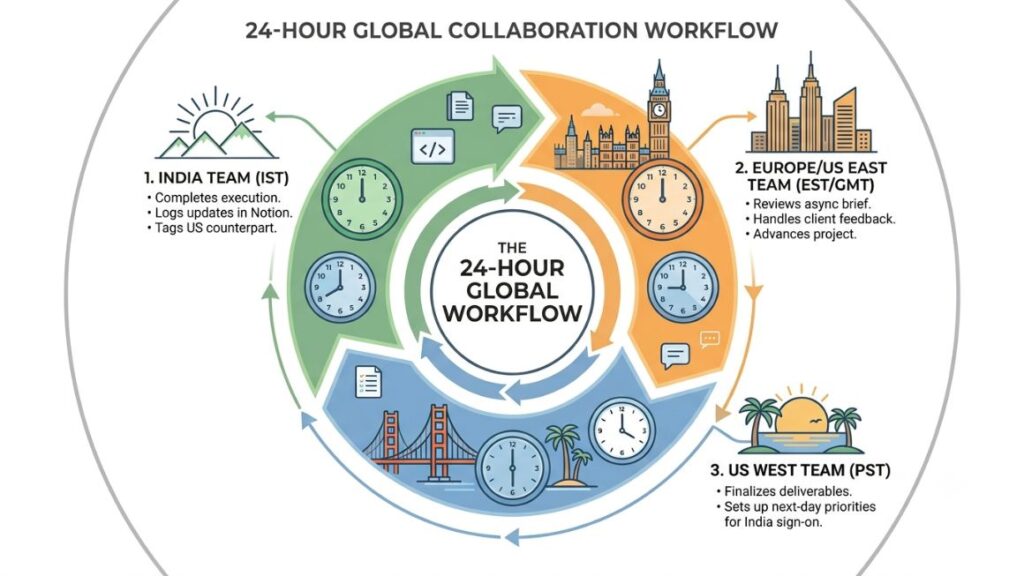
A follow-the-sun workflow passes work from one region to the next as each team’s day ends. So a project keeps moving even though no single person is working around the clock. For an India-based agency, this typically means documenting exactly where a task stands before signing off, including what’s done, what’s blocked and what the next person needs to pick up.
- Write a two-line status update before ending your day: what’s done, what’s next.
- Flag any blocker explicitly, don’t assume the next person will notice it in the file.
- Tag the specific person picking up the work, not just the general channel.
- Set a rough expectation for when you’ll be back online to answer questions.
The goal isn’t requiring everyone online at once. It’s making sure the baton actually gets passed instead of dropped.
Rotate Unavoidable Late-Night Meetings
Some meetings genuinely can’t move. That’s especially the case with clients on the US West Coast where the overlap with IST is thin no matter how you slice it. When that happens, rotate who takes the inconvenient slot instead of defaulting to the same person every time. It sounds small, but it’s the difference between a team that trusts the process and one where someone quietly starts resenting every Tuesday night call.
Recheck Recurring Meetings When DST Changes
Put a recurring calendar reminder of your own, roughly two weeks before each DST transition, to check whether your standing client meetings need to shift. This is a five-minute task that prevents the exact confusion described earlier in the India-US and India-Europe sections.
Read More:
Common Time Zone Management Mistakes
Assuming Time Conversion Means Availability
Knowing the time somewhere doesn’t tell you if that person is actually free. A converter answers one question; a scheduler or shared availability view answers the one that actually matters.
Ignoring Daylight Saving Time
Setting a meeting once and never revisiting it is the single most common mistake on this list. The gap between your time zone and theirs isn’t fixed if either side observes DST.
Scheduling Everything Around One Person’s Time Zone
If every call defaults to what’s convenient for the client or the most senior person on the call, someone else absorbs all the inconvenience permanently. Rotate it.
Using EST/PST Without Considering Seasonal Changes
Abbreviations feel precise but aren’t. Use location-based time zones in your tools instead, and let the software calculate the seasonal offset.
Scheduling Meetings Instead of Using Async Communication
Not every update needs a live call. A recorded Loom video or a documented Notion update often works just as well and doesn’t require finding overlap at all.
Having No Documented Handoff Process
Without a written status update, a follow-the-sun handoff turns into a guessing game every single day, which defeats the entire purpose of having a distributed team in the first place.
Failing to Define Team Working Hours
If nobody knows when their teammates are actually online, every message becomes a gamble on response time. Make working hours visible, not assumed.
Treating a Time Zone App as a Complete Workflow
An app converts times and shows availability. It doesn’t create core hours, write handoff documentation, or decide when a meeting genuinely needs to happen live. That part is still on your team.
Which Time Zone App Fits Your Workflow?
Rather than ranking these tools against each other, match them to what you’re actually trying to solve.
| If you need… | Relevant tools |
| Visual timezone comparison | World Time Buddy, Every Time Zone |
| Detailed timezone and DST information | Timeanddate |
| Team timezone visibility | Timezone.io, Spacetime |
| Slack-based timezone management | Timezone Butler |
| Client appointment booking | Calendly, Cal.com |
| Group meeting coordination | Doodle, Rallly |
| AI calendar optimization | Reclaim, SkedPal, Motion |
| Async video communication | Loom |
| Team communication | Slack, Microsoft Teams |
| Documentation and handoffs | Notion |
| Basic timezone management without another app | Google Calendar, Outlook |
Conclusion
The apps for managing time zones on this list solve different pieces of the same problem. A converter tells you the time. A scheduler finds the overlap. A collaboration tool reduces how much live coordination you need in the first place. None of them replace the other two.
What actually fixes time zone chaos isn’t picking the “best” app off a comparison table. It’s combining the right tool for each job with clear working-hour policies, a documented handoff process and a habit of rechecking recurring meetings when DST shifts twice a year. Get that combination right, and the 3 AM client call stops being a recurring problem and starts being the rare exception it should be.
If you’re building out your team’s marketing operations and want a more structured approach to workflows like this one, YUP’s newsletter, Crystal Clear, breaks down practical systems like this every week for marketers running distributed teams and global client work.
Frequently Asked Questions About Managing Time Zones
What are the best apps for managing time zones?
The best pick depends on the job. World Time Buddy and Every Time Zone are strong for quick visual conversion, Calendly and Cal.com handle client-facing booking, and Timezone.io works well for keeping a small distributed team’s local hours visible at a glance.
What are the best time zone converter apps for remote teams?
World Time Buddy, Every Time Zone and Timeanddate all handle conversion well. They adjust automatically for Daylight Saving Time. For teams that also want to see who’s currently online, Timezone.io and Spacetime add that layer on top of basic conversion.
Which app is best for scheduling meetings across time zones?
Calendly is the most widely used option for client booking links. Cal.com offers similar functionality with more customization and a self-hosted option. Both convert booking times automatically to each person’s local time zone.
How can I manage a team across multiple time zones?
Set core overlap hours and make everyone’s working hours visible somewhere your whole team can see. Then default to async communication for anything that doesn’t strictly need a live call and document handoffs clearly when work passes between regions.
Does Google Calendar automatically adjust for time zones?
Yes. Google Calendar adjusts event times automatically based on each attendee’s calendar settings and handles Daylight Saving Time transitions without any manual input, as long as you’ve set a location-based time zone rather than a fixed offset.
How do time zone apps handle Daylight Saving Time?
Reliable timezone apps use location-based time zones, such as “America/New_York,” rather than fixed offsets like “UTC-5.” This lets the software automatically apply the correct seasonal adjustment on the exact date each region’s DST rules change.
What is the best time zone app for Indian freelancers working with US clients?
Calendly works well for booking calls, since it converts your availability into the client’s local time automatically. Pair it with World Time Buddy or Every Time Zone for a quick visual check before you commit to a specific slot, especially during the weeks when US and Indian working hours barely overlap.
How do you find overlapping working hours across time zones?
World Time Buddy’s sliding timeline is the fastest way to see this visually. For an ongoing team setup, a shared dashboard through Timezone.io or Spacetime keeps the overlap visible without needing to check a converter every time.
What are core hours for distributed teams?
Core hours are the specific block of time every team member commits to being available and responsive, even when their full workday doesn’t otherwise overlap with the rest of the team. They’re meant to guarantee some live coordination window without requiring everyone to work identical hours.
What is a follow-the-sun workflow?
It’s a handoff model where work passes from one region to the next as each team’s day ends, so progress continues without requiring anyone to work outside their normal hours. It depends heavily on clear documentation at each handoff point.
How can teams avoid scheduling meetings outside working hours?
Set core hours that reflect genuine overlap, rotate any unavoidable inconvenient slots instead of defaulting to the same person, and lean on async tools like Loom or Notion for updates that don’t require a live call at all.
Do I need a dedicated time-zone app if I already use Google Calendar?
Not necessarily. Google Calendar and Outlook both support multiple time zones and event-specific zone settings, which covers most needs for a small team dealing with two or three regions. A dedicated app becomes more useful once you’re managing five or more time zones or need team-wide availability visibility beyond what a calendar shows.