
AI screen recording has moved far beyond simple “capture your screen and save it” workflows. What’s actually happening now is a shift in how recordings are processed after they’re made. That’s where AI Screen Recording Tools come in. They don’t just record, they clean, structure, and reshape raw footage so it’s usable without hours of manual editing.
This blog breaks down that shift in a practical way. It looks at why traditional recorders are slowly losing ground, what features actually matter in real workflows, and how different tools fit different kinds of users, from creators to teams working remotely. There’s also a straight comparison of popular tools and how they behave in day-to-day use, not just on paper.
The idea is simple: help make sense of what’s useful, what’s hype, and what actually saves time when working with AI Screen Recording Tools in real situations.
Table of Contents
Introduction:
Why AI Screen Recording Tools Are Replacing Traditional Recorders
Screen recording used to be pretty straightforward. Open a tool, hit record, save the file, and maybe trim a bit if something went wrong. That was about it.
But that version of screen recording doesn’t really match how work happens anymore.
Most recordings today aren’t just “recordings.” They’re explanations. Product walkthroughs. Quick training clips. Sales demos sent at odd hours. Internal updates that replace meetings altogether. And once video starts carrying that much weight, the old workflow begins to feel a bit slow… sometimes unnecessarily so.
A common pattern shows up across teams and creators. The recording itself isn’t the hard part anymore. It’s everything after it, cleaning it up, cutting pauses, fixing audio, adding captions, pulling out the useful bits. That’s where most of the time disappears.
This is where AI-driven screen recording tools started becoming useful, quietly at first, then almost everywhere.
Instead of treating video as something you manually fix afterward, these tools start shaping it while or after it’s recorded. They clean up audio without asking, generate captions in the background, and even break long recordings into smaller, more understandable sections. Not perfectly every time, but good enough that you stop starting from scratch.
The workflow changes in a simple way:
record – auto-clean – share – move on
And that shift matters more than it looks on paper.
Different groups feel it in different ways:
- Content creators get more consistency without burning hours in editing software
- Educators can turn raw lessons into structured material without reworking everything
- SaaS teams rely less on live explanations and more on clear recorded demos
- Remote teams reduce back-and-forth by just sending a video instead of scheduling calls
It’s not really about replacing creativity or control. It’s more about removing the repetitive parts that slow everything down.
And once that friction is gone, video stops feeling like a “production task” and starts feeling more like a normal way to communicate.
What Are AI Screen Recording Tools?
At the simplest level, these are still screen recorders. They capture what’s happening on a screen, along with audio, sometimes webcam, sometimes system sound.
But what they produce afterward is where things start to feel different.
Instead of just giving a raw video file, these tools try to make sense of what was recorded. Not in a dramatic way, just practical structuring, so the video becomes easier to use, reuse, and share.
One of the first layers is transcription. Spoken words get converted into text, usually in real time or right after recording. This alone changes how people interact with the video. Suddenly, it’s not just something you watch, it’s something you can scan.
Then there’s language processing that helps group ideas together. This is what allows a tool to say, “this part feels like a topic shift” or “this section is a summary moment.” It’s not always perfect, but it’s useful enough that you don’t have to manually figure it out.
Visual tracking also plays a role. The system notices screen changes, cursor movement, pauses in action, and builds a rough structure around it. That’s how long recordings often get split into chapters without anyone doing it manually.
Compared to older screen recorders, the contrast is pretty clear.
Traditional tools just capture:
- everything as it happens
- no context, no structure
- Editing is entirely manual
AI-assisted tools tend to:
- break content into readable sections
- turn speech into editable text
- Highlighting important moments automatically
- reduces the need for timeline-based editing
The important part isn’t that everything becomes “automatic.” It doesn’t.
It’s that the messy parts get reduced enough that editing stops feeling like a separate job.
And that’s usually where people start noticing the difference, not in features, but in time saved and fewer repeated steps.
Key AI Features to Look for in Screen Recording Tools
Choosing a screen recording tool sounds simple until you actually start comparing them. Most of them offer similar lists of features, but the experience can still feel completely different depending on how well those features actually work together.
A better way to approach it is to focus less on feature count and more on how much friction the tool removes from your workflow.
AI Transcription & Auto Captions
This has quietly become the baseline expectation. If a tool can’t turn speech into accurate text, it already feels limited.
Good transcription doesn’t just repeat words; it formats them in a way that’s usable. Clean captions, readable structure, and decent accuracy even with casual speech. It’s especially useful when recordings are shared with people who don’t want to watch the full video.
AI Video Summarization & Highlights
Long recordings are common, but rewatching them rarely happens.
So summarization ends up being more valuable than it sounds. Instead of watching 20–30 minutes again, you get the key parts pulled out. Not always perfect, but usually enough to understand what happened without sitting through everything.
AI Noise Removal & Audio Enhancement
Audio issues are more common than people admit, including background noise, keyboard clicks, and uneven volume.
Good tools clean this up quietly. You don’t always notice it working, which is kind of the point. The recording just sounds clearer when you’re done.
Text-Based Video Editing
This is one of those features that changes how people think about editing entirely.
Instead of scrubbing through timelines, you edit the transcript. Remove a sentence, and the video updates. Adjust a line, and the corresponding section shifts.
It feels less like “video editing” and more like cleaning up a document. That’s usually when non-editors start using these tools comfortably.
Smart Scene Detection & Auto Chapters
Long videos can get tiring fast if they’re not structured.
Auto chapters help break recordings into smaller sections based on topic shifts or visual changes. It’s not always perfectly accurate, but it’s usually close enough that viewers don’t feel lost.
AI Search Inside Videos
This becomes useful once you have a library of recordings.
Instead of guessing which video contains what, you just search for a keyword and jump directly to the moment it was spoken. Saves a surprising amount of time in day-to-day use.
AI Effects, Zooms & Enhancements
Small visual improvements make a big difference in clarity.
Auto zooms, cursor focus, and subtle highlights help guide attention without needing manual editing. It keeps viewers focused on what matters without overthinking post-production.
Collaboration & Sharing Features
Most recordings don’t stay with one person anymore. They get shared across teams, clients, or audiences.
So things like instant links, cloud access, and simple feedback loops matter more than they first appear. If sharing feels clunky, the tool usually ends up being used less, no matter how good the recording is.
15 Best AI Screen Recording Tools in 2026
Loom
Best AI Screen Recorder for Async Communication
Key Features
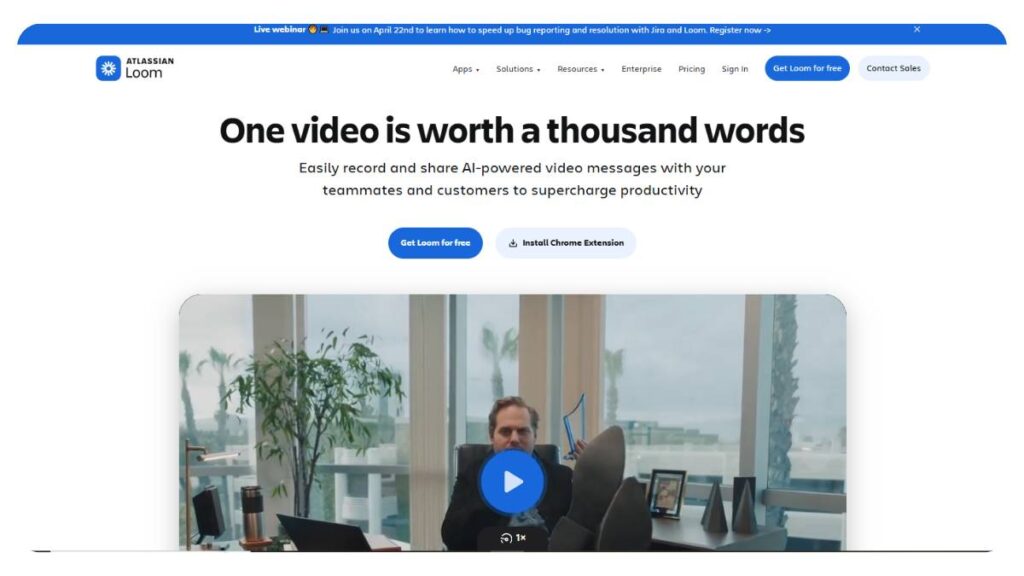
Loom is still the “just record and send it” tool. That hasn’t changed. What has changed is the layer on top of it; AI now quietly cleans up the rough edges. It trims filler-heavy sections, generates quick summaries, and structures recordings into bite-sized chapters.
Nothing feels complicated here. You hit record, speak naturally, stop, and share. The tool handles the rest in the background.
Best For
Teams that don’t want production overhead, quick updates, product explanations, feedback, or internal walkthroughs. The kind of stuff where speed matters more than polish.
Pros
- Very fast from recording to sharing
- AI summaries make long videos easier to scan
- Minimal learning curve
- Works well in everyday team communication
Cons
- Not built for deep editing
- Can feel limited for creators who want full control
- Advanced features sit behind paid plans
Descript
Best AI Tool for Text-Based Video Editing
Key Features
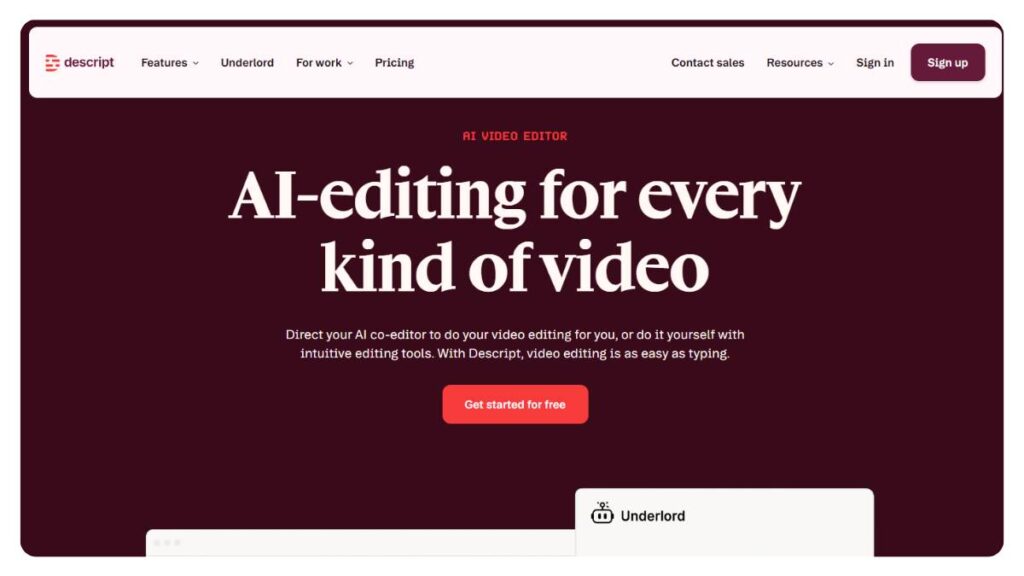
Descript feels different the moment you use it. Instead of scrubbing timelines, you’re basically editing a transcript. Remove a sentence, and the video updates automatically. It sounds simple, but it changes how you think about editing.
It also handles transcription, overdub voice fixes, and layered editing when things get more complex.
Best For
People working with spoken content, tutorials, podcasts, walkthroughs, or anything where talking is the main structure.
Pros
- Editing feels fast once you get used to it
- Strong transcription accuracy
- Useful voice correction tools
- Combines multiple content workflows in one place
Cons
- Takes a bit of time to get comfortable
- Not ideal for very basic recordings
- Can feel heavy for quick edits
ScreenApp
Best AI Screen Recorder for Search & Insights
Key Features
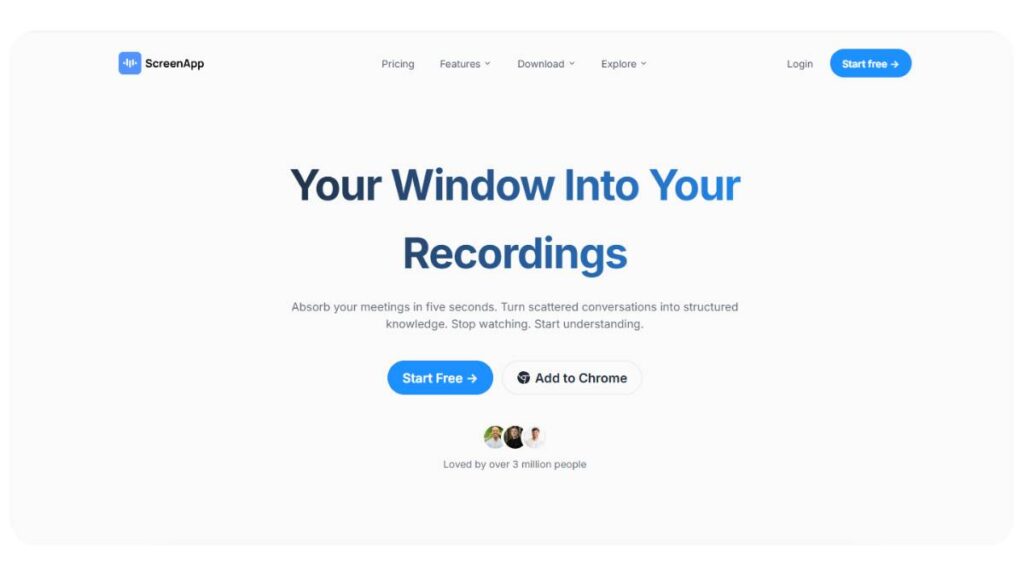
ScreenApp solves a very real problem: what happens when you have too many recordings and can’t find anything anymore. It indexes everything, so you can search inside videos like you would search a document.
It also generates summaries and highlights, which help when you don’t want to rewatch entire recordings.
Best For
Teams dealing with long meetings, research recordings, or knowledge-heavy content libraries.
Pros
- Makes video searchable, which is genuinely useful
- Auto summaries reduce review time
- Works well for long recordings
- Good for documentation-heavy teams
Cons
- Editing tools are fairly basic
- Depends heavily on transcription quality
- Interface feels more functional than polished
Camtasia
Best AI Screen Recorder for Professional Editing
Key Features
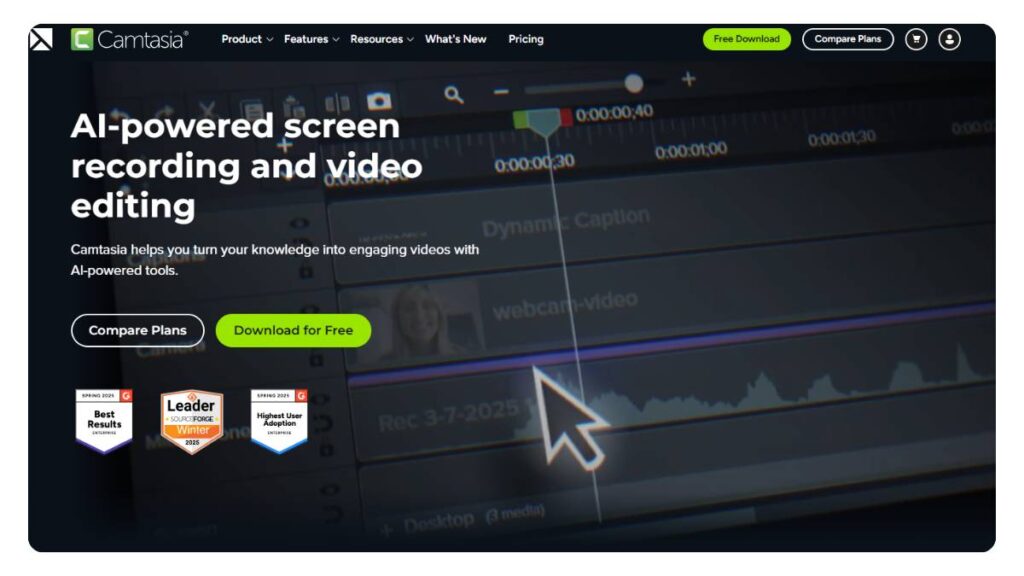
Camtasia sits closer to a full video editor than a simple screen recorder. You get timelines, effects, transitions, and now AI-assisted tools that help with captions, trimming, and cleanup.
It’s not trying to be fast; it’s trying to be complete.
Best For
Structured content like training videos, tutorials, and YouTube-style educational content where quality matters.
Pros
- Full control over editing
- Reliable for long, complex projects
- Strong effects and annotation tools
- Stable performance overall
Cons
- Not beginner-friendly
- Feels slower compared to lightweight tools
- Requires time to learn properly
OBS Studio
Best Free AI Screen Recording Setup
Key Features
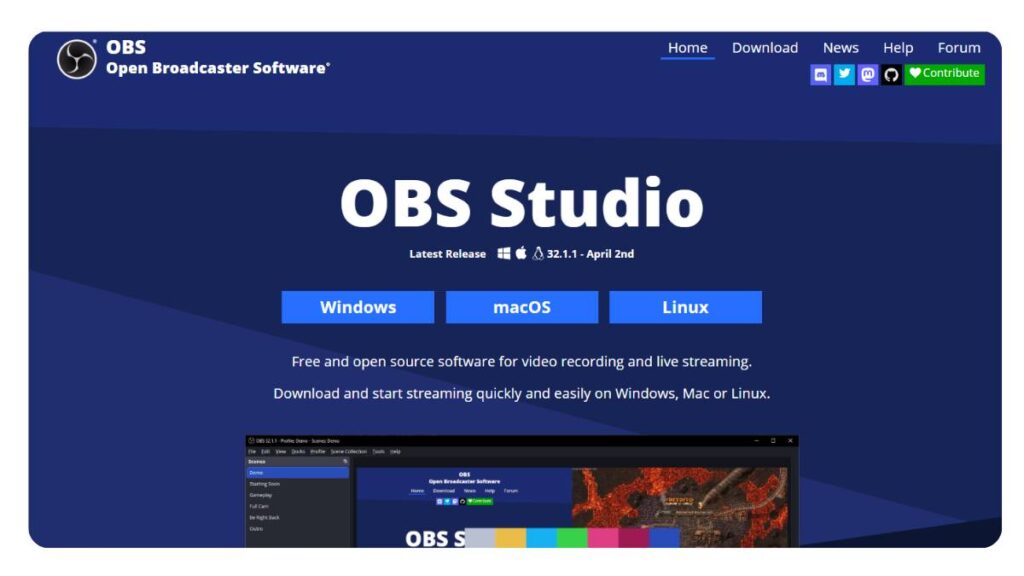
OBS on its own is powerful but manual. The interesting part now is how much AI support can be added through plugins, noise suppression, scene automation, and audio improvements.
Once set up properly, it becomes a very flexible recording system.
Best For
Streamers, advanced users, or anyone who wants control without paying for software.
Pros
- Free and extremely flexible
- High-performance recording
- AI plugins improve usability
- No restrictions or branding
Cons
- Setup takes effort
- Not beginner-friendly at all
- Requires tweaking to get right
Movavi Screen Recorder
Best for Simple AI Editing
Key Features
Movavi stays on the simpler side. You record, clean up audio if needed, add captions, and export. The AI features are light but useful, mainly noise reduction and auto-captioning.
It doesn’t try to overcomplicate things.
Best For
Beginners or anyone who just needs clean recordings without editing complexity.
Pros
- Very easy to use
- Clean interface
- Helpful audio improvements
- Quick workflow
Cons
- Limited advanced editing
- Not meant for professional production
- Basic feature depth
ScreenPal
Best for Collaboration & Education
Key Features
ScreenPal is built around sharing and learning. Recordings are easy to distribute, and AI transcription makes them more accessible. Collaboration features let others interact with the content rather than just watch it.
Best For
Teachers, trainers, and teams working in structured learning or onboarding environments.
Pros
- Strong for collaborative use
- Good transcription support
- Simple sharing flow
- Works well in education settings
Cons
- Limited creative editing
- Not designed for high-end production
- The interface is fairly basic
Snagit
Best AI Screenshot + Screen Recording Combo
Key Features
Snagit is less about video storytelling and more about capturing and explaining things quickly. Screenshots, short recordings, annotations, and text extraction all sit in one place.
It’s especially useful when documentation is the goal.
Best For
Support teams, documentation writers, and internal knowledge sharing.
Pros
- Excellent for documentation work
- Strong screenshot tools
- Fast annotation and editing
- Very practical workflow
Cons
- Not built for storytelling videos
- Limited editing depth
- More utility than creativity
Vidyard
Best AI Screen Recorder for Sales & Marketing
Key Features
Vidyard focuses on how people actually interact with your videos. You don’t just record,you track engagement, understand viewer behavior, and personalize outreach.
AI helps highlight where attention drops or spikes.
Best For
Sales outreach, marketing teams, and personalized video messaging.
Pros
- Strong viewer analytics
- Useful for conversion-focused videos
- Easy sharing for clients and leads
- Built for business use cases
Cons
- Not for creative editing
- Narrow focus (sales-heavy)
- Pricing can be restrictive
Kommodo
Best Free AI Screen Recording Tool
Key Features
Kommodo keeps things light. Record quickly, search recordings later, and move on. The AI layer mainly helps with organization and retrieval.
Best For
Users who want something simple, free, and fast.
Pros
- Lightweight and quick
- Easy search features
- Beginner-friendly
- No complex setup
Cons
- Limited editing tools
- Basic overall feature set
- Not for advanced workflows
Puppydog.io
Best AI Tool for Personalized Video Creation
Key Features
This tool leans more toward automated personalized video generation than traditional screen recording. AI scripting helps create variations of the same message at scale.
Best For
Marketing outreach and personalized communication campaigns.
Pros
- Strong personalization capabilities
- Saves time on repetitive videos
- Useful for outreach workflows
- Scales messaging easily
Cons
- Not a full-screen recorder
- Limited editing flexibility
- Niche use case
Screen Studio
Best AI Screen Recorder for Cinematic Videos
Key Features
Screen Studio makes screen recordings look polished without much effort. Zoom effects, cursor emphasis, and smooth motion are handled automatically.
It’s more about presentation than editing.
Best For
Product demos, landing pages, and visually polished walkthroughs.
Pros
- Very clean visual output
- Automatic zoom and motion effects
- Minimal editing needed
- Great for product storytelling
Cons
- Mac-focused
- Limited deep editing control
- Not built for complex workflows
Tella
Best Cloud-Based AI Screen Recorder
Key Features
Tella runs in the browser, which removes installation friction. Recording, editing, and branding all happen in one place with light AI assistance.
Best For
Remote teams and cloud-first workflows.
Pros
- No installation needed
- Easy branding and editing tools
- Works well for teams
- Simple workflow
Cons
- Needs a stable internet
- Limited offline use
- Not for heavy editing
ScreenFlow
Best AI Screen Recorder for Mac Users
Key Features
ScreenFlow combines traditional editing depth with AI-assisted tools like captions and trimming. It’s more structured and professional, especially for Mac users.
Best For
Mac-based educators and creators who want full editing control.
Pros
- Strong editing capabilities
- Good Mac optimization
- High-quality exports
- Reliable for long content
Cons
- Mac only
- Learning curve for beginners
- Slower than lightweight tools
Clipchamp
Best AI Screen Recorder for Quick Editing
Key Features
Clipchamp focuses on speed. It integrates well with Microsoft tools and offers basic AI-assisted editing like trimming and enhancements for fast turnaround.
Best For
Quick internal videos, presentations, and short content creation.
Pros
- Fast and simple workflow
- Good Microsoft integration
- Beginner-friendly
- Quick exports
Cons
- Limited advanced features
- Not for professional editing
- Basic AI capability compared to specialized tools
Enroll Now: AI Marketing Course
Comparison Table:
At some point, comparing tools one by one stops being enough. Most of them start blending into similar feature lists on paper. That’s usually where a simple comparison table helps cut through the noise.
The real difference between these tools isn’t just what they offer, but how they behave in actual use, speed, ease, editing flow, and how quickly you can go from recording to sharing.
| Tool Name | Key AI Features | Best For | Free vs Paid | Platform |
| Loom | Auto chapters, summaries, filler word removal | Async team communication | Freemium | Web, Windows, Mac |
| Descript | Text-based editing, transcription, overdub | Content creators, podcasters | Freemium | Windows, Mac |
| ScreenApp | AI search, highlights, summaries | Meetings, research | Paid + Free plan | Web |
| Camtasia | Auto captions, smart trimming, effects | Professional tutorials | Paid | Windows, Mac |
| OBS Studio | AI plugins, noise suppression, scene control | Advanced users, streamers | Free | Windows, Mac, Linux |
| Movavi Screen Recorder | Noise cleanup, auto captions | Beginners | Paid | Windows, Mac |
| ScreenPal | Transcription, collaboration tools | Education, training | Freemium | Web, Windows, Mac |
| Snagit | OCR text extraction, blur tools, templates | Documentation | Paid | Windows, Mac |
| Vidyard | Viewer analytics, AI messaging insights | Sales, marketing | Freemium | Web |
| Kommodo | AI search, unlimited recording | Lightweight users | Free/Freemium | Web |
| Puppydog.io | AI scripting, personalized videos | Outreach campaigns | Paid | Web |
| Screen Studio | Auto zoom, cinematic recording | Creators, product demos | Paid | Mac |
| Tella | Cloud editing, overlays, branding | Quick web-based recording | Freemium | Web |
| ScreenFlow | Timeline editing, AI enhancements | Mac professionals | Paid | Mac |
| Clipchamp | AI editing, quick exports | Fast everyday editing | Freemium | Web, Windows |
The pattern is pretty clear when you step back. Some tools lean heavily into simplicity, others into depth, and a few try to sit in the middle. The “best” one usually depends less on features and more on how often the tool gets out of your way.
Best AI Screen Recording Tools by Use Case
This is where selection becomes much easier. Instead of asking “which tool is best overall,” it helps to flip the question: What are you actually trying to do with screen recordings?
Different workflows need different strengths. A tool that works perfectly for YouTube might feel unnecessary for internal team updates, and vice versa.
Best AI Screen Recorder for YouTube Videos
For structured tutorials, walkthroughs, or educational content, tools that balance editing control with automation tend to work best.
Camtasia, Screen Studio, and ScreenFlow usually fit here. They offer enough polish for the final output without forcing overly complex workflows.
Best AI Screen Recorder for Online Courses
Course content needs clarity, structure, and reusability more than anything else.
ScreenPal, Descript, and Tella work well in this space because they help turn raw recordings into organized lessons without heavy editing effort.
Best AI Screen Recorder for Business & Sales
In sales and client communication, speed matters more than perfection.
Loom, Vidyard, and Puppydog.io stand out because they make it easy to record quickly, personalize messages, and share them instantly without extra steps.
Best Free AI Screen Recording Tools
For users who want functionality without upfront cost, the free ecosystem is surprisingly capable.
OBS Studio, Kommando, and Loom (free plan) are common picks here. They may require a bit more setup or come with limitations, but they cover most basic needs well.
Best AI Screen Recorder for Mac / Windows
Platform compatibility still plays a role, especially for professionals tied to specific workflows.
On Mac, ScreenFlow and Screen Studio are often preferred for smoother performance and a native feel.
On Windows, Camtasia and Movavi tend to offer more stability for long-form editing and recording.
AI Screen Recording Tools vs Traditional Screen Recorders
There’s a noticeable gap between how screen recording used to work and how it works now.
Traditional screen recorders are still reliable, but they operate in a very manual world. You record everything first, then you fix everything later. That means trimming pauses, cleaning audio, adding captions, and restructuring content step by step.
AI screen recording tools change that sequence slightly, but the impact is big.
Instead of starting with raw footage, you often start with something already partially structured. Captions are already there. Sections are already broken up. Sometimes, even summaries are waiting before you touch anything.
The difference shows up in three practical areas:
Editing effort
Traditional tools require full manual editing. AI tools reduce that to small refinements instead of full rebuilds.
Time spent
What used to take hours often gets reduced to minutes of review and light adjustments.
Final output quality
AI tools don’t always produce perfect results, but they consistently remove repetitive friction that slows down production.
The trade-off is control versus speed. Traditional tools give full control but demand more effort. AI tools give speed but occasionally need correction.
Most teams don’t really choose one or the other anymore. They end up somewhere in between, depending on the type of content they’re producing.
How to Choose the Best AI Screen Recording Tool
Choosing an AI screen recording tool sounds simple on the surface, but once you actually start testing a few, the differences become a bit more subtle. Most of them can record a screen. Most of them can add captions. Some can even summarize content. But the real question is, how well does it fit into the way work actually happens day to day?
A good way to approach this is to slow it down and think in steps instead of features.
Start with the actual use case. This sounds obvious, but it gets skipped often. A tool built for product demos behaves very differently from one meant for teaching or internal updates. If the goal is education, structure and clarity matter more. If it’s sales or outreach, speed and personalization usually take priority. For content creation, editing flexibility becomes more important than anything else.
Then comes AI functionality. Not all “AI features” are equal in practice. Some tools do transcription well but struggle with summarization. Others generate summaries but miss accuracy in captions. It’s usually better to check what the tool does reliably instead of how many features it lists.
Ease of use matters more than it seems at first. A tool might look powerful, but if recording and sharing feel like a process every time, it slowly gets avoided. The ones that stick are usually the ones that feel almost invisible in workflow, record, process, share, and done.
Pricing also needs a bit of context. It’s not just about the monthly cost, but how often the tool is actually used. A higher-priced tool that removes hours of editing each week can end up being cheaper in practice than a free one that adds friction.
And finally, testing. Most tools offer free versions or trials for a reason. Real usage always reveals small details that comparison lists don’t show, like how captions behave in long recordings or how clean the final export actually feels.
A simple way to evaluate:
- Does it reduce editing time or just shift it somewhere else
- Does it make recordings easier to reuse later
- Does it feel smooth enough to use consistently
- Does it fit the current workflow without forcing changes
The right tool usually becomes obvious after a few real recordings, not from feature lists.
Pros and Cons of AI Screen Recording Tools
AI screen recording tools solve a very real problem: too much time spent fixing and structuring recordings. But like most tools that rely on automation, they come with a mix of advantages and trade-offs that show up depending on how they’re used.
On the positive side, the biggest improvement is speed. Editing workflows that used to take a long time now get compressed significantly. Cleaning up pauses, generating captions, and breaking videos into sections happen without manual effort. That alone changes how often people are willing to record and share content.
Accessibility also improves in a practical way. Captions and transcripts aren’t just add-ons anymore; they become default outputs. That makes recordings easier to consume, especially in work environments where people don’t always watch full videos.
Engagement tends to improve as well, not because the content itself changes, but because it becomes easier to follow. Structured videos with summaries and chapters naturally feel more usable, especially for longer recordings.
But it’s not all smooth.
There’s usually a learning curve, especially with tools that combine editing and AI in deeper ways. The interface might be simple at first glance, but getting consistent output sometimes takes a bit of adjustment.
Some features are also locked behind paid plans. This isn’t unusual, but it can become a limitation if the workflow depends heavily on advanced features like transcription accuracy or long-form processing.
And then there’s AI accuracy. It’s good most of the time, but not perfect. Background noise, accents, or fast switching between topics can sometimes lead to small errors. Usually fixable, but still something to be aware of.
A simple way to think about it:
- The upside is speed, structure, and less manual work
- The downside is occasional cleanup and feature limitations
Most users don’t fully replace traditional workflows; they blend both depending on the level of polish needed.
Future of AI Screen Recording Software
Screen recording is slowly moving from a “capture tool” to something closer to an intelligent content system. What’s changing is not just how videos are recorded, but what happens while they’re being created.
One of the biggest shifts coming in is real-time editing. Instead of fixing mistakes after recording, tools are starting to adjust things as the recording happens, cleaning audio, removing filler pauses, and structuring content in the background. It’s not perfect yet, but it’s heading in that direction.
Voice cloning and auto-narration are also becoming more practical. Instead of re-recording entire sections, users will likely be able to adjust tone, clarity, or even replace voice segments without redoing the full recording. That changes how revisions work entirely.
Interactive video is another area that’s quietly growing. Instead of passive recordings, videos are starting to behave more like guided experiences. Viewers may be able to jump between sections, interact with layers of information, or follow different paths inside the same recording.
And then there’s integration with broader AI systems. Screen recording tools are gradually becoming part of larger workflows, connected with documentation systems, support tools, content platforms, and automation layers. The recording is no longer the end product; it becomes input for something bigger.
What’s interesting here is the direction, not just the features.
Screen recording is shifting from:
capture – edit – export
to something closer to:
capture – structure – reuse – repurpose
That change might sound small, but it affects how teams communicate, how content is produced, and how information is shared internally.
And over time, the tools that handle this transition smoothly are likely to become less like “software you open” and more like systems that quietly run in the background of everyday work.
Conclusion:
There’s no clean “winner” here, even though most lists try to force one. In real use, these tools are split based on habits more than features.
Some people just need something quick. Record, send, done. No overthinking. That’s usually where lighter tools make sense. They don’t try to do too much, and that’s kind of the point.
Then there’s the group building actual content, tutorials, walkthroughs, and product explainers. Here, editing starts to matter. Not in a fancy way, just in a “can this be cleaned up without wasting half a day” way. Transcripts, trimming, captions… those things start saving real time.
And teams, especially remote ones, care about something else entirely. Clarity. A short recording that explains things properly often replaces a whole meeting. The less friction in creating and sharing that, the better.
If it helps to simplify it:
- quick updates – light, no-friction recorders
- structured content – editing-friendly tools
- team communication – sharing-first tools
Most workflows don’t stick to one tool anyway. That’s normal. Different tasks, different moods, different deadlines.
The tools that actually stay in use are usually the ones that don’t interrupt the work. They just sit in the background and do their job quietly.
FAQs: AI Screen Recording Tools
What is the best AI screen recording tool?
There isn’t a single best tool that fits every situation. It depends on what’s being done with the recordings. Some tools are better for quick sharing, others for editing or structured content. Common picks like Loom, Descript, and Camtasia stand out because they handle different workflows without making things overly complicated.
Are AI screen recorders free?
Some are free, but only at a basic level. Free versions usually cover recording and simple exports, while the AI features, like transcription or smart editing, often sit behind paid plans. It’s enough to try things out, but long-term use usually pushes toward a subscription once the workflow becomes serious.
Which AI screen recorder is best for YouTube?
For YouTube-style content, tools like Camtasia, Screen Studio, and ScreenFlow tend to come up a lot. Not because they’re trendy, but because they give enough control to clean up recordings properly. Tutorials especially benefit from structured editing and smoother visuals, which these tools handle better than basic recorders.
Do AI screen recording tools include transcription?
Most modern ones do. It’s become a standard feature at this point. The recording gets turned into text, which then helps with captions, editing, or just finding parts of the video later. Accuracy isn’t always perfect, especially with background noise, but it’s usually good enough for everyday use.
Can AI remove filler words automatically?
Yes, and it’s one of those features that sounds small but saves time quickly. Words like “um” or “uh” get detected and cleaned up in the background. It’s not flawless; sometimes a few slip through, but overall, it makes recordings sound more focused without manual editing.
What is the difference between Loom and Descript?
Loom is built for speed. Record something, send it, move on. It’s used a lot for quick explanations or updates. Descript works differently; it turns video into text first. So editing feels more like working in a document. One is about fast communication, the other is about deeper editing control.
Are AI screen recorders good for online teaching?
They actually fit online teaching pretty well. Lessons can be recorded once, cleaned up automatically, and shared in a structured way. Captions help with clarity, and summaries make revision easier for students. It removes a lot of the repetitive editing that usually comes with creating course material.
Which AI tool is best for video editing + recording?
Tools like Camtasia, Descript, and ScreenFlow are usually used when both recording and editing are needed in one place. They’re not the simplest, but they reduce the need to switch between apps. That alone makes workflows smoother, especially for longer or more detailed content.
Do AI screen recorders work offline?
Some basic recording works offline, but most AI features don’t. Things like transcription, summaries, and smart editing usually need an internet connection. Offline mode is fine for capturing video, but the real value of these tools shows up once the processing kicks in online.
Is OBS Studio an AI tool?
Not really. OBS Studio is more of a traditional screen recorder. It doesn’t come with built-in AI features. That said, people sometimes add plugins to improve audio or automate parts of the workflow. But out of the box, it’s still a manual recording tool rather than an AI-based one.
What features make an AI screen recording tool better than a traditional recorder?
Traditional recorders just capture what’s on screen. That’s it. AI tools shift the work that usually happens after recording. Things like auto captions, filler-word cleanup, basic summaries, and even rough structure detection. The real advantage isn’t “more features,” it’s less time fixing things afterward. That’s what actually changes the workflow in practice.
Which AI screen recording tool is best for beginners?
Beginners usually don’t need complexity at all, even if tools advertise it. What matters more is how quickly something can be recorded and sent without getting stuck in settings. Tools like Loom or Clipchamp tend to feel easier because they don’t force editing decisions upfront. If it feels heavy in the first 10 minutes, it’s probably not beginner-friendly.
Can AI screen recording tools automatically create video summaries?
Yes, and this is one of those features that sounds more advanced than it feels in real use. The tool listens, picks up structure, and tries to condense key parts into a short recap. It works best for clear speech and structured talk. When things get messy or off-track, summaries can feel a bit off, too, so there’s still some human cleanup needed.
Do AI screen recorders support live editing during recording?
Not really in the way people imagine. Live editing still has limits. Most of the “AI magic” kicks in after the recording ends. During recording, it’s mostly captured with maybe light enhancements in the background. Real editing, trimming, structuring… that still happens after. It’s improving, but not something to rely on mid-recording yet.
Which AI screen recording tools are best for business teams and remote work?
For teams, the priority is usually speed and clarity, not production quality. Nobody wants to sit through long meetings when a 2–3 minute recording would do. Tools that make sharing instant and viewing simple tend to win here. Loom and Vidyard come up often because they reduce back-and-forth and keep communication more direct.
Can AI screen recording tools improve video quality automatically?
To a point, yes. They clean up audio, reduce background noise, sometimes stabilize framing, or enhance clarity. But it’s not a full “upgrade” button. If the original recording is poor, AI can only do so much. Where it really helps is making decent recordings feel more polished without extra editing work.
Are AI screen recording tools safe for confidential business recordings?
Generally, established platforms take security seriously with encryption and access controls. But safety isn’t just about the tool; it’s also about how it’s used. Who has access, where files are stored, and how links are shared; those small details matter more than people think. It’s usually secure, but still worth double-checking settings.
Which AI screen recorder offers the best text-based editing features?
Text-based editing works best when the tool is built around transcription first, not added later. The idea is simple: edit the transcript, and the video follows. Descript is often associated with this approach because it treats video almost like a document. It’s not instant or perfect, but once it clicks, editing becomes faster.
Do AI screen recording tools work on both Windows and Mac?
Most newer tools do, especially browser-based ones. That’s become the standard now. Desktop apps still exist, and sometimes they perform slightly better on one system over another, but compatibility isn’t a major issue anymore. The bigger difference usually comes down to features, not operating system support.
How do AI screen recording tools help improve content marketing performance?
The biggest shift is consistency. When recording and editing take less effort, more content actually gets published. That alone changes performance over time. Add captions, summaries, and easier repurposing, and one recording can turn into multiple pieces of content. It’s less about “marketing hacks” and more about removing friction from production.