

Business cards get dismissed a lot, but they still show up in the exact moments where impressions matter. The problem isn’t whether to use them…it’s getting one that doesn’t feel rushed or generic. That’s where an AI Business Card Generator starts to help, not by doing everything perfectly, but by removing a lot of the small friction points.
This blog breaks down how these tools actually work in practice, handling layout, spacing, and structure so you’re not stuck fixing tiny details for hours. It also looks at different tools, where they’re useful (and where they’re not), and what features are worth paying attention to. There’s a bit on print vs digital too, plus some practical ways to make sure the final card feels intentional…not just “good enough.”
Table of Contents
Introduction
Business cards get written off as outdated all the time. Funny thing is, they still show up in the moments that matter. Conferences, quick meetings, chance introductions… there’s always that small window where someone asks, “Do you have a card?” And in that moment, what you hand over says more than you think.
The problem isn’t the idea of business cards. It’s the execution. Most people either overcomplicate the design or settle for something generic that doesn’t really reflect anything. Fonts don’t match, spacing feels off, and colors don’t quite land. It happens more often than anyone admits.
That’s where AI business card generators quietly change the game. Instead of starting from a blank screen, or worse, a cluttered template, you’re essentially guiding the outcome. You add your details, maybe hint at a style, and the layout starts to take shape. Not perfectly every time, but surprisingly close. Close enough that you’re refining instead of struggling.
What’s interesting isn’t just the speed. It’s how these tools handle the small decisions people usually get stuck on: alignment, hierarchy, contrast. The stuff that makes a design feel “right” without being obvious. And once those pieces fall into place, the card stops looking like something you made in a rush… and starts feeling intentional.
Why Use an AI Business Card Generator?
There’s always that hesitation; do you really need another tool for something this simple? Fair question. But once you’ve tried doing it manually a few times, the difference becomes obvious.
Time and cost efficiency:
Designing from scratch sounds manageable until it isn’t. Small tweaks turn into hours. Hiring someone fixes that, but not everyone wants to spend on a single card design. These tools sit somewhere in between: fast, affordable, and “good enough” more often than expected.
No design skills required:
Most people don’t struggle with ideas. They struggle with execution. Knowing what looks good is one thing; actually building it is another. Here, the heavy lifting, spacing, font pairing, and layout balance are handled in the background. You just guide it.
Better consistency (without overthinking it):
One card is easy. Ten cards for a team? That’s where things start to drift. Colors change slightly, fonts get swapped, layouts shift. These tools help keep everything aligned without having to double-check every detail.
Built for how people actually share details today:
Printed cards still matter, but they’re not the whole story anymore. QR codes, clickable links, quick saves to contacts; it’s all part of the same interaction now. A good card doesn’t just sit in someone’s wallet; it connects somewhere.
At some point, it stops being about “designing a card” and starts being about making sure people remember you after that first interaction. Subtle difference, but it matters.
Key Features to Look for in AI Business Card Generators
Not every tool gets this right. Some look impressive up front but fall apart when you actually try to use them. A few things tend to separate the useful ones from the frustrating ones:
Prompt‑based or guided design creation:
The easier it is to describe what you want, even loosely, the better the outcome. Tools that can translate simple inputs into usable designs save a lot of back-and-forth.
Enough variety (but not chaos):
Too few templates feel limiting. Too many feel overwhelming. The good ones sit in that middle ground where options feel curated, not random.
Real customization, not surface-level edits:
Changing a color is easy. Making sure that color actually works with your layout? That’s different. Look for tools that let you adjust things without breaking the design.
Print-ready output that doesn’t need fixing later:
This gets overlooked. A design might look great on screen, then come out misaligned or blurry in print. Proper file formats, correct dimensions, clean exports; it all matters more than people expect.
Digital sharing built in (not added as an afterthought):
QR codes, quick links, maybe even lightweight digital cards. These shouldn’t feel like extras; they’re part of how cards are used now.
Support for teams or bulk creation:
For businesses, this is a time-saver. One format, multiple names, consistent branding. No need to recreate the same design over and over.
None of these features is groundbreaking on its own. But together, they make the difference between a tool you try once… and one you actually keep using.
12 Best AI Business Card Generators
On paper, a business card is a small thing. In practice, it’s one of those details people quietly judge. If it looks rushed or generic, it shows. If it feels intentional, even simple, it sticks.
The tricky part is getting there without wasting hours adjusting tiny things that shouldn’t be that hard. That’s where these tools come in. Not perfect, not magic… but they do remove a lot of the friction. Some lean toward speed, others toward control. A few try to balance both.
There isn’t a single “right” pick here. It really depends on how much control you want and how much time you’re willing to spend getting the details right.
1. Fotor AI Business Card Generator
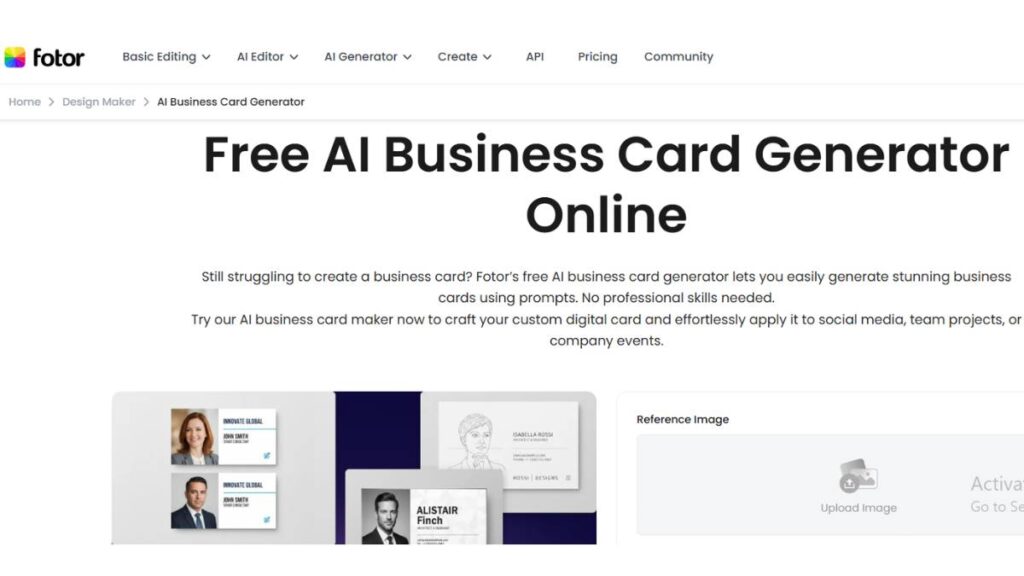
Fotor is easy to get into. That’s probably its biggest strength. You open it, start typing, and things just… move. No setup friction, no long onboarding. Being free doesn’t hurt either.
Customization & Features:
You enter your details, maybe hint at a style, and it gives you a few directions. From there, it’s light editing: fonts, icons, color tweaks. It doesn’t go very deep, but for most use cases, it doesn’t need to. It’s the kind of tool where you don’t overthink every choice.
Best For:
Quick use, early-stage projects, or anyone testing ideas without wanting to commit too much time.
2. Pixelcut AI Business Card Maker
Pixelcut is fast. Not “a bit faster,” but noticeably faster. You put in your info, and you’re looking at options almost immediately. That changes how you work; you spend less time waiting, more time picking.
Customization & Features:
Editing stays on the surface level: logo placement, text alignment, basic color shifts. Nothing too advanced, but enough to get a clean result. Downloads are quick, and you don’t have to jump through steps to make files usable for print or digital.
Best For:
Time-sensitive situations. Events, quick rollouts, or when “good and ready” matters more than “perfect.”
3. Mew.Design AI Business Card Generator
Mew. Design sits in that middle ground where things feel guided but not locked in. You get a solid starting layout, but there’s still room to adjust without breaking everything.
Customization & Features:
Fonts, spacing, colors; it’s all editable, and changes don’t throw the design off balance. That’s more important than it sounds. The templates feel current, not outdated or overly generic. Small refinements are easy to make, which keeps the process moving.
Best For:
People who want some control, but not the burden of building everything from scratch.
4. ImagineArt AI Business Card Generator
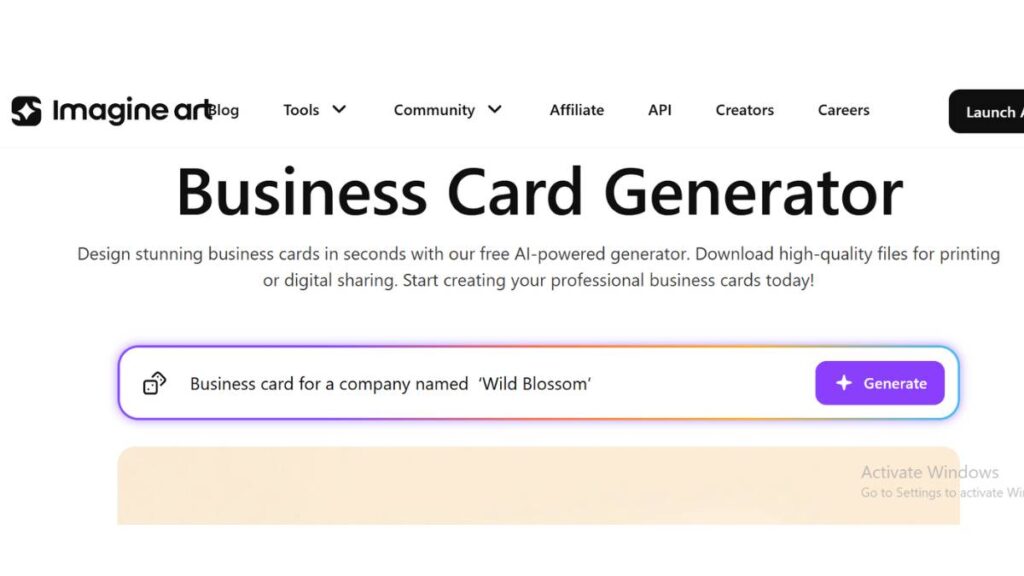
ImagineArt keeps things tight. No overload of options, no endless variations to scroll through. Just a quick path to something usable.
Customization & Features:
You can swap fonts, tweak colors, and adjust icons; basic tools, handled well. The limited choices actually help. Less second-guessing, fewer distractions. Decisions get made faster, which is usually the bigger win.
Best For:
Anyone who prefers a simpler process and doesn’t want to get stuck comparing tiny differences.
5. Visme AI Business Card Generator
Visme leans a bit more toward design quality. Not in a complicated way, just more attention to how things look and feel overall. It’s noticeable, especially when consistency matters.
Customization & Features:
There are style presets: minimal, bold, and modern; and they actually influence the outcome in a meaningful way. You can still tweak everything, but you’re not starting from zero. It’s also easier to keep multiple cards aligned under the same brand without constant adjustments.
Best For:
Teams or businesses that care about maintaining a consistent look across multiple designs.
6. VEED AI Business Card Generator
VEED starts from a different place. Instead of templates first, it leans on description; what you want the card to feel like. That shift changes how the designs come out.
Customization & Features:
You describe the vibe: clean, bold, understated, and it builds from there. After that, editing is more detailed than expected. Spacing, hierarchy, alignment… all adjustable without too much friction. It gives control without making things overly technical.
Best For:
People who know what they want visually but don’t want to spend time constructing it piece by piece.
7. Venngage AI Business Card Generator
Venngage is steady. It doesn’t try to impress with flashy features or trends. It just works, and that reliability matters more than it gets credit for.
Customization & Features:
Templates are clean, adaptable, and easy to adjust. Colors and fonts stay consistent, and logos fit naturally into layouts. The export quality holds up well, especially for print, which avoids that common “looked better on screen” problem.
Best For:
Businesses that need consistency and don’t want to keep fixing the same issues across designs.
8. Canva
Canva is familiar to most people at this point. It’s flexible, maybe a bit too flexible sometimes, but that’s also its strength. The AI features just help smooth out decisions.
Customization & Features:
There’s a massive library of templates, which can feel like a lot. The AI suggestions help narrow things down: font pairings, layout tweaks, spacing adjustments. You still have full control if you want it, from graphics to brand elements.
Best For:
Users who like having options and don’t mind spending a bit of time exploring.
9. Adobe Express
Adobe Express leans toward polish. Designs tend to come out refined without needing much work. It’s subtle, but noticeable when compared side by side.
Customization & Features:
Templates are strong, and editing feels precise. Features like background removal or quick style changes are useful, especially when dealing with logos or images. It fits well into a broader design workflow, too, if that’s part of the setup.
Best For:
Professionals who want a clean, finished look without spending too much time tweaking details.
10. Design.com
Design.com offers a lot of variety. Sometimes that’s exactly what’s needed, especially if standard layouts start to feel repetitive.
Customization & Features:
The system helps keep things balanced even when experimenting with different shapes or styles. You can push the design a bit without it falling apart visually. That flexibility is useful, especially in creative fields.
Best For:
People who want something slightly different without sacrificing structure.
11. BrandCrowd
BrandCrowd is consistent. Not overly bold, not overly minimal; it sits somewhere in between. That balance makes it dependable.
Customization & Features:
Colors, fonts, layout… all adjustable in a way that doesn’t disrupt the design. Templates cover a wide range of industries, and they don’t feel too generic. Changes hold up well, which saves time in the long run.
Best For:
Small teams or businesses that need repeatable, consistent results across multiple cards.
12. HiHello
HiHello shifts the focus toward digital use. It’s less about handing someone a physical card and more about sharing details in a smarter, more flexible way.
Customization & Features:
Cards can include links, QR codes, and interactive elements. Layouts are designed for screens, which makes them easier to use and read. It fits naturally into how networking works now; less paper, more instant access.
Best For:
Professionals who rely more on digital connections than on in-person exchanges, or want both.
Enroll Now: Advanced Generative AI for Marketing
How AI Business Card Generators Work
At a glance, it feels almost too simple; enter a few details, get a finished design. But there’s a bit more happening behind the scenes. Not complicated, just a smarter way of handling the small decisions that usually slow things down.
Choose or Enter Your Details
This is where everything starts, and honestly, it’s the part most people rush through. Name, title, phone number, email… standard stuff. But the way it’s entered matters more than expected.
Clear hierarchy helps. For example, deciding what should stand out, your name or your brand, changes how the entire card feels. Some people try to fit everything in, including secondary numbers, long addresses, and extra links. That’s where things start getting crowded.
A cleaner input usually leads to a cleaner output. Not always, but most of the time.
Prompt or Template Selection
This step is where direction comes in. Either you pick a template that feels close to what you want, or you describe the style: minimal, bold, modern, something more creative.
The interesting part is how small changes in direction shift the outcome.
A “minimal” card isn’t just less content; it changes spacing, font weight, and even alignment choices. Same details, different feel.
Templates are quicker if you already know what works. Prompts (or descriptions) are better when you’re still figuring it out.
Customization
This is where most of the real work happens. Not heavy work, but important tweaks.
Colors, fonts, spacing, icon placement; it all starts to come together here. And this is usually where people either improve the design… or accidentally make it worse.
A few things tend to help:
- Keeping font choices limited. Two is usually enough.
- Making sure contrast is clear; light text on light backgrounds rarely works.
- Giving elements space. Crowded cards feel rushed, even if the design itself is good.
The goal isn’t to redesign everything. Just refine what’s already there.
Export & Sharing
Once the design feels right, it’s time to take it out of the editor and actually use it.
For print, this means checking basics: dimensions, margins, and resolution. It’s easy to overlook, and it shows up later when the card doesn’t quite align or looks slightly off.
For digital use, things shift a bit. QR codes, clickable links, sometimes even small interactive elements. The card becomes less of a static object and more of a gateway to your profile, portfolio, or contact details.
Different format, same goal: make it easy for someone to remember and reach you.
Print vs. Digital Business Cards
There’s still a bit of debate here; print or digital? In reality, it’s not really an either/or situation anymore. Both have their place, just used differently.
Printed cards still carry weight. There’s something about handing over a physical card that feels direct. It’s immediate, personal, and in certain settings, events, and meetings; it just works better. But print comes with its own set of requirements.
- Proper bleed and margins to avoid awkward cuts
- High resolution (usually 300 DPI) so text stays sharp
- Correct file formats, typically print-ready PDFs
Miss any of these, and the final result can feel off, even if the design looked perfect on screen.
Digital cards, on the other hand, are built for convenience.
No printing, no reordering, no running out. Just share and go.
- QR codes that instantly open contact details
- NFC-enabled cards for quick taps
- Links to portfolios, social profiles, or booking pages
They’re especially useful in remote interactions or fast-moving environments where pulling out a physical card doesn’t make sense.
The smarter approach? Use both. A printed card for in-person moments, and a digital version that extends that interaction beyond the first exchange.
Tips for Better AI‑Generated Business Cards
Getting a decent card is easy now. Getting one that actually stands out; that takes a bit more thought. Not complicated, just intentional.
Be clear with your input
Vague details lead to generic results. The more specific the information (and even the tone), the better the starting point.
Decide how your brand feels early
Clean and minimal? Bold and expressive? Trying to mix everything usually leads to a confused design. Pick a direction and stick with it.
Don’t overload the card
It’s tempting to include everything: multiple numbers, long taglines, extra links. But a crowded card loses impact. Prioritize what matters.
Check print details before finalizing
A design that looks good on screen can fail in print if the specs aren’t right. Always double-check dimensions, margins, and resolution.
Use both formats when possible
A physical card gets attention in person. A digital version keeps the connection going afterward. Together, they work better than either one alone.
Step back before finalizing
Sometimes the best tweak is no tweak. If the design already feels balanced, changing it further can actually make it worse.
At the end of the day, a business card isn’t just contact information. It’s a quick signal of how seriously you take your brand. Small details, yes, but they tend to stick.
Conclusion
Business cards may feel like a small thing, but they punch well above their weight. A good card isn’t just contact info; it’s a little snapshot of your brand, a way to stick in someone’s mind, and a subtle signal that you care about the details. AI business card generators make this whole process easier. They help cut down the trial-and-error, offer multiple starting points, and let you play around until something looks right.
There’s also freedom here. Some tools get you a card fast, others let you fine-tune every corner, and a few focus on digital interactivity. Trying a couple of different options often leads to surprising results; you might stumble on a style you hadn’t considered. At the end of the day, the “right” card is one that feels like your brand, communicates professionalism, and actually works for whoever’s holding it.
Whether it ends up in someone’s hand at a conference or as a link in an email signature, giving a bit of attention to the design pays off. Small, yes, but it carries a bigger message than its size might suggest.
FAQs:
1. Can I use AI business cards for printing?
Yes, most platforms give you files that are ready to print; usually, PDF or PNG in high resolution. It’s important to double-check things like bleed and margins, because a tiny misalignment can make a card look sloppy once printed. When set up right, the digital design translates cleanly into paper.
2. Are there free options available?
Definitely. Several platforms let you start for free. They might not have every feature unlocked, but they’re enough to create a professional-looking card. Free plans are perfect if you just need a few cards or want to experiment before committing to paid features.
3. What information should I include on my business card?
Keep it straightforward: name, job title, company, phone, email, website. Extra stuff like social handles or a QR code can be handy, but overcrowding makes it harder to read. Think about what someone would actually need if they wanted to contact you quickly.
4. How secure is digital sharing?
Generally safe. Most digital cards use secure links or QR codes, and some even let you control who can see them. Still, it’s smart to be mindful of what personal info you’re sharing, especially if the card ends up online.
5. Can AI generators create custom shapes for business cards?
Some of them can. Beyond standard sizes, a few allow rounded corners or completely custom dimensions. Unusual shapes can help you stand out, but it’s worth confirming that your printer can handle them without trouble.
6. Do AI business cards support multiple languages?
Yes. Many tools let you enter text in different languages and adjust fonts to keep everything readable. This comes in handy for international networking or bilingual brands.
7. How do I ensure my AI-generated card is unique?
Avoid just clicking “generate” and calling it done. Use brand-specific colors, tweak fonts, and move elements around. Even small changes can prevent your card from looking like everyone else’s template.
8. Can I integrate my logo automatically in AI designs?
Most platforms let you upload a logo, which is then incorporated into the card. Usually, you can move it around or resize it to make sure it fits naturally with the rest of the layout.
9. What file formats do AI business card generators provide?
Commonly, you’ll get PDFs for printing and PNG or JPG for digital use. Some offer SVG for vector files, which are handy if you want to tweak the design in other software. Each format serves a slightly different purpose.
10. Can I edit my card after the AI generates it?
Yes. These tools treat the first version as a starting point. You can adjust text, spacing, colors, and fonts. This way, the card doesn’t feel generic; it becomes something tailored to your brand.
11. How long does it take to create a card using AI?
Usually, a few minutes to half an hour. If you stick to presets, it’s fast. If you tinker with colors, fonts, or layout, it takes longer, but still way quicker than starting from scratch.
12. Are there AI tools for bulk business card creation?
Some platforms allow batch generation, which is great for teams. It keeps the branding consistent while letting you churn out multiple cards quickly; handy for new hires or events.
13. Can AI generate matching social media banners or branding?
Yes, some platforms do more than just cards. They can suggest banners or other visuals to keep your branding consistent. It saves time and keeps everything looking like it belongs together.
14. What design styles do AI business card generators offer?
They range from minimal and professional to bold and creative. Some give presets, while others let you fully customize layouts. Choosing a style that fits your brand voice is key to making a card that actually feels right.
15. Can AI tools suggest color schemes based on my brand?
Yes. Many tools look at your logo or brand colors and recommend palettes that work together. This keeps everything cohesive without the need for guesswork or manual color testing.
16. Do AI-generated business cards work for corporate teams?
Absolutely. Team accounts, shared templates, and bulk options are common. They help ensure all employees’ cards are on-brand and save a ton of back-and-forth.
17. Are there AI tools that allow interactive/digital cards with clickable links?
Yes, especially for digital-first cards. You can add links, QR codes, and other interactive elements. This is useful for networking online, email signatures, or sending cards without printing.
18. How do AI business card generators handle font licensing?
Most platforms stick to fonts that are cleared for commercial use. Some premium fonts might be restricted, so it’s good to double-check if your design uses a paid or licensed font.
19. Can AI create both standard and non-standard card sizes?
Yes. Many let you pick common sizes or define your own. Unique sizes can make a card stand out, but double-check that your printer can handle it.
20. Is there a way to preview my business card in 3D or mockup form?
Some platforms offer a 3D preview or mockup so you can see how the card will look in hand or on a desk. It’s not essential, but it can help you catch layout issues before printing.