

Picking the right AI Presentation Maker isn’t just about speed; it changes how the whole process feels. What used to take hours can now start in minutes, though the real work still sits in refining things afterward. This guide looks at how these tools actually behave in practice, not just what they promise. It covers the best options, where they hold up, where they fall short, and what they’re genuinely useful for. There’s also a simple breakdown of how to use them properly, plus a few practical ways to get better results. Not everything is perfect, but used well, they do save time where it counts.
Table of Contents
What Is an AI Presentation Maker?
An AI presentation maker is essentially a shortcut, but not the lazy kind. More like a smarter starting point.
Instead of opening a blank slide and wondering what goes where, you begin with an idea. Maybe a rough topic, maybe a messy set of notes. The tool takes that input and turns it into something structured: slides, headings, flow, and even basic design.
That’s the real shift here.
Traditional tools like PowerPoint or Google Slides expect you to build everything manually. Every slide, every layout, every decision. With AI tools, that burden is lighter. You’re not building from scratch; you’re shaping something that already exists.
They can work with:
- A quick prompt (“pitch deck for a fitness app”)
- Documents like PDFs or reports
- Links to blog posts or research
- Raw bullet points that barely look like a plan
And somehow, out of that, you get a usable draft.
Not perfect. But usable.
The difference shows up in how people approach presentations now. Less time thinking about formatting, more time thinking about the message itself. That’s usually the part that matters anyway.
Use cases tend to be pretty practical:
- Founders pulling together a last-minute pitch
- Marketers turning campaign data into slides
- Students organizing scattered notes
- Teams are converting long reports into something readable
It’s less about automation as a concept and more about removing the parts that slow things down for no good reason.
How Does an AI Presentation Maker Work?
On the surface, it feels simple. You give input, you get slides.
Underneath, there’s a bit more going on.
First, the tool tries to understand what you’ve given it. Whether it’s a prompt, a document, or just a block of text, it breaks things down: main ideas, supporting points, patterns in the content. Not perfectly, but usually well enough.
Then comes structure.
Instead of throwing everything onto slides randomly, it organizes the content into a flow. Something that resembles how a presentation should actually move: introduction, key points, supporting details, wrap-up. The kind of structure most people intend to create but don’t always get right on the first try.
After that, design kicks in.
The tool decides how many slides make sense, what belongs on each one, and how everything should look. Layouts, spacing, and visual hierarchy are all handled in the background. It’s based on patterns that tend to work, not necessarily creativity in the pure sense.
That’s worth keeping in mind.
Most tools also plug into platforms people already use. PowerPoint, Google Slides; so instead of starting over, you can generate inside those environments and tweak from there.
What makes these tools genuinely useful is the flexibility of input. There’s no strict format required. A half-formed idea can still turn into something structured.
And that combination, content + structure + design happening together, is what saves time. Normally, those are three separate steps.
Here, they’re bundled into one.
Why Use an AI Presentation Maker?
Presentations aren’t hard because they’re complex. They’re hard because they’re time-consuming in small, annoying ways.
Formatting slides, fixing alignment, rewriting headings, and rearranging flow. It all adds up.
That’s where these tools help.
The obvious benefit is speed. A first draft can come together in minutes instead of hours. It won’t be perfect, and it shouldn’t be expected to be, but it gets you past the slowest part that is starting.
Another thing that stands out is accessibility.
Not everyone is comfortable with design, and honestly, most people don’t need to be. These tools handle spacing, layout, and visual balance well enough that the end result looks clean without much effort.
There’s also a thinking advantage here.
When ideas are scattered, and they usually are, it helps to see them structured. Even if the output needs editing, it gives direction. A rough path to follow.
Some benefits show up pretty consistently:
- Faster turnaround, especially under deadlines
- More consistent slide design
- Less time spent adjusting layouts
- An easier way to turn raw content into something presentable
And the use cases are straightforward.
Business teams use them to convert reports into presentations without rewriting everything. Sales teams build decks faster, sometimes tailored for specific clients. Founders can sketch out pitch decks without getting stuck on structure for too long.
Students and educators get similar value from turning notes into slides, summarizing topics, and preparing lectures. Nothing flashy, just practical.
Even internal updates, weekly reports, and performance summaries become easier to put together.
It doesn’t remove effort entirely. It just removes the parts that feel unnecessarily repetitive.
Key Features to Look for in an AI Presentation Maker
Not all AI presentation tools feel the same in practice. Some are quick but basic. Others look great but take more effort to tweak. The difference usually comes down to a few key features.
Fast & Free AI Presentation Generator
Speed is usually the first thing people notice, and the first thing they judge.
A good tool should give you something usable within a minute or two. Not just fast output, but something that doesn’t immediately need fixing. That’s where some tools fall short. They generate quickly, but the result feels rough, so you end up spending more time editing than expected.
Free plans are common, though they come with trade-offs. Limited exports, fewer templates, and sometimes restricted usage. Still, for simple presentations, they often do the job well enough.
Multiple Input Options (Text, PDF, URL, Docs)
Flexibility matters more than it seems at first.
A tool that only accepts one type of input becomes limiting pretty quickly. Real workflows aren’t that neat. Sometimes it’s a document, sometimes just notes, sometimes a link you want to reuse.
The better tools handle all of that:
- Raw text or bullet points
- Uploaded PDFs or documents
- Links to existing content
This makes repurposing content much easier. Instead of rewriting, you’re reshaping.
AI-Generated Presentation Outlines
This is where a lot of the real value sits.
Anyone can split content into slides. But creating a logical flow, that’s harder. Good tools don’t just divide information, they organize it in a way that makes sense.
You’ll still want to adjust things, of course. But having a starting structure changes how quickly you move.
Easy Customization & Editing
No generated presentation is final. It shouldn’t be treated that way.
Editing needs to feel natural. Moving slides around, changing text, adjusting layouts; it should all be simple. If the tool makes customization difficult, it quickly becomes frustrating.
The best ones stay flexible. They give you a base, then let you take control without resistance.
Supports Multimedia (Images, Videos, Icons)
Slides are visual by nature. Plain text doesn’t hold attention for long.
Good tools support images, icons, and sometimes even videos. Some go a step further and suggest visuals based on the content, which can save time when you’re building quickly.
It’s not always perfect, but it helps.
Instant Download & Export Options
Once the presentation is ready, getting it out should be straightforward.
Export options like PPT or PDF are standard, but compatibility matters. Being able to open and edit the file in PowerPoint or Google Slides without issues makes a difference.
For teams, sharing features matters too. Quick links, collaboration options; small things, but useful in real workflows.
At the end of it, the “best” tool isn’t universal. It depends on how you work, what you need, and how much control you want after the initial draft.
Best AI Presentation Makers
Quick Comparison
| Tool | Free Plan | Export Formats | Best For | Pricing |
| GenPPT | Trial only (3 days) | PPT, PDF, Google Slides | Research-driven content decks | From ~$9/mo (exact price varies) |
| Gamma | 400 one-time credits | Web, PDF, PPT (Plus+) | Interactive & storytelling decks | Free / Plus $8/mo / Pro $15/mo (annual) |
| Beautiful.ai | No (14-day trial) | PPT, PDF | Design consistency for teams | Pro $12/mo / Team $40/user/mo (annual) |
| Plus AI | No (7-day trial) | PPT, Google Slides | Google/PowerPoint integration | $10–$20/mo (annual) |
| Canva AI | Yes | PPT, PDF, PNG, JPG, MP4 | Visual & marketing decks | Free / Pro $12.99/mo or $120/yr |
| SlidesAI | Yes (12/year) | Google Slides | Text-to-Google Slides conversion | Free / Pro $8.33/mo (annual) |
| Decktopus AI | No (free trial only) | PPT, PDF | Quick guided business decks | Pro $14.99/mo / Business $34.99/user/mo (annual) |
| Presentations.AI | Yes (200 credits/mo) | PPT (paid), PDF | Enterprise brand compliance | Free / Pro ~$198/yr |
| Slidesgo | Yes | PPT, PDF, Google Slides | Template-based design | Free / Premium ~$5.99/mo |
| Microsoft Copilot | No (M365 add-on) | PPT | Microsoft 365 ecosystem | ~$20/mo (individual) / ~$30/user/mo (enterprise) |
| Gemini in Slides | Limited | Google Slides, PDF, PPT | Google Workspace ecosystem | Free (limited) / Workspace subscription |
| Adobe Express | Yes | PPT, PDF, PNG, JPG, MP4 | Brand-consistent decks in the Adobe ecosystem | Free / Premium from $9.99/mo |
AI presentation tools have matured considerably. Most tools on the market can now generate a 10-slide deck from a text prompt in under 90 seconds, a task that once took professionals two to four hours manually. But raw speed is no longer the differentiator. The real question is: how much manual cleanup is required after the AI finishes?
1. GenPPT: Best for Research-Driven Content Decks
Free plan: No; 3-day free trial only
Pricing: Starts at approximately $9/month (exact tiers vary; verify on genppt.com before purchasing)
Export formats: PPT, PDF, Google Slides
Best for: Research-backed, content-first presentations
GenPPT stands out for the depth of its AI-generated content. Unlike tools that produce surface-level filler, GenPPT uses Gemini 2.5 Pro and Claude Sonnet to research your topic before generating slides, pulling in current data, statistics, and structured arguments rather than generic bullet points. A 10-slide deck is typically completed in under 60 seconds.
Editing happens through a chat-based interface rather than drag-and-drop, which keeps things efficient for content changes but limits precise visual control. With only 15 available templates, decks can start to look similar across different projects. File import is not supported; only text-to-PPT conversion.
Where it works best:
- Analysts, consultants, and researchers who need substance-first output
- Professionals who want to generate a polished first draft quickly
- Anyone who values content quality over advanced design customization
Limitations to know:
- No drag-and-drop editor; all edits go through text prompts
- Only 15 templates, limited visual variety across multiple projects
- No file import (PDF, Word, Excel); text input only
- Exact pricing should be confirmed on the official site, as it changes frequently
- PDF export has been reported as unreliable in testing
2. Gamma: Best for Interactive Presentations
Free plan:
Yes, 400 one-time AI credits (approx. 10–15 presentations); credits do not refresh monthly
Pricing: Plus at $8/month (annual); Pro at $15/month (annual); Ultra and Teams plans also available
Export formats: Web, PDF, PPT (Plus plan and above), Google Slides.
Best for: Interactive, web-native presentations and storytelling decks
Gamma, with over 70 million users, is the most widely used dedicated AI presentation platform in 2026. Its strength lies in a fluid, web-native format that feels closer to a modern website than a traditional slide deck; content scrolls, expands, and links naturally, making it well-suited for digital sharing and stakeholder walkthroughs.
The Gamma Agent can research topics from the web, restyle entire decks, and refine content through natural language; all without restarting from scratch. Generation time is under 60 seconds for a standard deck.
One important caveat: exporting to PowerPoint can produce formatting inconsistencies. Fonts may substitute, layouts can shift, and interactive elements do not transfer. If your workflow requires clean PowerPoint compatibility, this is a meaningful limitation.
Regarding the free plan: the 400 credits are one-time only and do not refresh each month. Credits do roll over up to a cap of 2,000 per account, and you can earn additional credits by referring friends (200 credits per referral). Once credits are exhausted, a paid plan is required to continue using AI features.
Where it works best:
- Founders, educators, and content creators sharing presentations digitally
- Teams that want a polished design without manual formatting work
- Users who present via a shared link rather than a PowerPoint file
Limitations to know:
- Free credits are one-time and do not refresh; a paid plan is needed for ongoing use
- PowerPoint export can have formatting issues; test before committing
- Free plan presentations display a “Made with Gamma” badge
- AI-generated data should be fact-checked; inaccuracies have been reported in testing
- Each paid subscription is per user; team costs multiply per seat
3. Beautiful.ai: Best for Design Automation
Free plan: No; 14-day free trial only (credit card required); no permanent free tier
Pricing: Pro at $12/month (annual); Team at $40/user/month (annual) or $50/user/month (monthly).
Export formats: PPT, PDF
Best for: Brand-consistent team presentations.
Note: Students with a verified .edu email can access a free annual Pro subscription
Beautiful.ai’s core technology is its Smart Slides system; layouts automatically adjust as you add or remove content. Drop in a new bullet point, and the slide rebalances itself. Remove a section, and nothing breaks. For teams that create multiple presentations and need consistent visual standards, this automated design enforcement solves a real problem.
The output quality is reliably polished from the first generation. Spacing, alignment, and visual hierarchy stay intact without manual correction. The trade-off is control: you work within a structured system, and breaking outside of it is intentionally difficult.
Where it works best:
- Sales and marketing teams are creating client-facing decks at volume
- Organizations that need brand-compliant slides across multiple team members
- Students (free Pro plan available with .edu email)
Limitations to know:
- No free plan; paid subscription required after the 14-day trial
- A credit card is required to start the trial
- Design freedom is intentionally constrained by the Smart Slides system
- Premium pricing compared to many alternatives
4. Plus AI: Best for Google Slides and PowerPoint Integration
Free plan: No; 7-day free trial (credit card required to start)
Pricing: Starter at $10/month (annual); Pro at $20/month (annual)
Export formats: PPT, Google Slides (works natively inside both).
Best for: Teams already working in Google Slides or PowerPoint
Plus AI is an add-on, not a standalone app. It installs directly into Google Slides and PowerPoint, which means you generate, edit, and collaborate inside the tools you already use; no platform switching, no import/export friction. For teams with established Google Workspace or Microsoft 365 workflows, this integration alone justifies the tool.
The Live Snapshots feature lets you embed real-time data from dashboards or other sources, keeping metrics current without manual updates; useful for regularly updated business decks. Output quality is solid: structured, clear drafts that need light refinement but not heavy rework.
Where it works best:
- Teams with existing Google Workspace or Microsoft 365 workflows
- Collaborative presentations with multiple editors
- Sales and operations teams with live data needs
Limitations to know:
- A credit card is required to start the 7-day free trial
- Not a standalone product; requires an existing Google or Microsoft account
- Less visually creative than design-focused tools like Gamma or Canva
5. Canva AI: Best for Visual Presentations
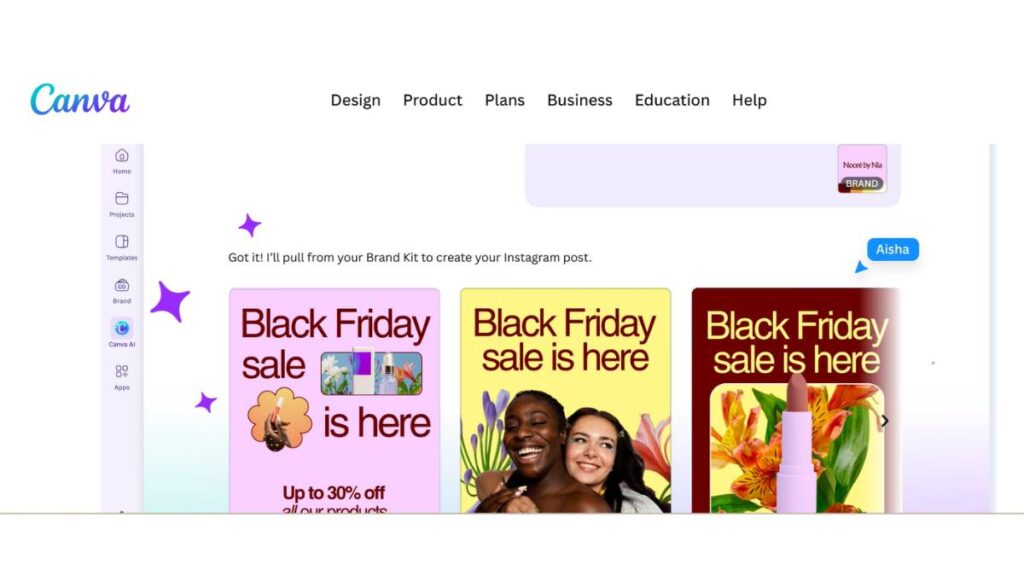
Free plan: Yes; generous free tier with core AI features; 30-day Pro trial available
Pricing: Free; Pro at $12.99/month (monthly billing) or $120/year (~$10/month, annual billing).
Export formats: PPT, PDF, PNG, JPG, MP4 (video)
Best for: Visual-heavy presentations, marketing, and social decks
Canva’s competitive advantage is the breadth of assets available at the point of creation. When you generate a presentation with Canva AI, you have immediate access to thousands of professionally designed templates, a massive stock photo and illustration library, icons, brand kits, and video assets; all within the same workspace. This makes it faster to build visually engaging decks than with most specialist tools.
The AI content generation is functional but secondary. It structures slides and suggests layouts, but the output often requires messaging adjustments. Where Canva genuinely excels is visual polish: presentations look more marketing-ready out of the box than the typical AI-generated deck. The free tier is genuinely useful and not artificially restricted for basic presentation work.
Where it works best:
- Marketing teams, social media managers, and brand-led creators
- Anyone who needs visually rich output without a professional designer
- Users already in the Canva ecosystem for other design work
Limitations to know:
- AI content generation requires more editing than specialist tools like GenPPT or Gamma
- Prompt input limited to 100 characters; less context than competitor tools
- Google Slides compatibility is limited; PowerPoint exports generally work well
- Pro pricing varies: $12.99/month billed monthly vs. ~$10/month billed annually; a meaningful difference for budget-conscious users
6. SlidesAI: Best for Text-to-Presentation Conversion
Free plan: Yes; 12 presentations per year (1 per month); 2,500 character input limit per presentation
Pricing: Free (Basic); Pro at $8.33/month billed at $100/year; Premium at $16.67/month billed at $200/year
Export formats: Google Slides (native); no standalone PowerPoint export
Best for: Converting written content to slides inside Google Slides
SlidesAI does one thing and does it well: it converts text into structured Google Slides presentations without leaving the Google Workspace environment. You paste content: a report, an article, a set of notes; select your presentation type, define the target audience and writing tone, and the tool generates a complete deck inside Google Slides.
The level of input customization is notably stronger than most competitors. Being able to specify audience type (students, angel investors, executives) and writing style (authoritative, persuasive, conversational) produces noticeably more tailored output than tools that only accept a topic prompt.
There are three tiers: Basic (free, 12 presentations/year), Pro ($100/year, 120 presentations/year, document upload), and Premium ($200/year, unlimited presentations, 12,000 character input). Design output is basic but functional across all tiers.
Where it works best:
- Educators and professionals converting reports or articles into presentations
- Teams are already working entirely within Google Workspace
- Anyone who needs structured slides from existing written content quickly
Limitations to know:
- Free plan allows only 12 presentations per year (1 per month), not 3 per month as sometimes reported
- Only outputs to Google Slides; no standalone PowerPoint creation
- Design quality is below dedicated tools like Gamma or Beautiful.ai
- Free plan’s 2,500-character input limit is restrictive for long-form content
7. Decktopus AI: Best for Quick Guided Business Decks
Free plan: No; free trial available; no permanent free tier
Pricing: Pro at $14.99/month ($179.99/year); Business at $34.99/user/month ($419.99/year); Enterprise at custom pricing
Export formats: PPT, PDF
Best for: Solopreneurs and small teams needing structured, guided deck creation
Decktopus takes a guided approach: you answer a few short questions about your audience and purpose, and the AI generates a complete deck, including speaker notes, quickly and without a learning curve. This makes it one of the more beginner-friendly tools in this comparison.
The Pro plan includes 9,000 AI credits per year (enough for approximately 300 presentations), with credits refilling annually. The Business plan scales up to 12,000 credits per year per user, and adds custom domain connection, slide analytics, webhooks, and team collaboration features.
One important correction from some earlier sources: Decktopus does not use a pay-per-presentation pricing model. It is a standard subscription service. Content depth from the AI is functional but limited; the tool does not perform web research before generating, so output tends toward generic summaries rather than data-backed arguments.
Where it works best:
- Solopreneurs and small business owners who need business decks quickly
- Users with no design experience who want guided output
- Teams needing collaboration and analytics features (Business plan)
Limitations to know:
- No free plan; subscription required after trial
- Pro plan at $14.99/month (annual) is competitively priced, but annual-only
- Content is AI-generated without a research step; fact-check before presenting
- Limited design customization compared to tools like Beautiful.ai
8. Presentations.AI: Best for Enterprise Use
Free plan: Yes; approximately 200 AI credits per month on the free Starter plan; PPT export requires a paid plan.
Pricing: Free (Starter); Pro at $198/year.
Export formats: PDF (free plan); PPT export on paid plan only.
Best for: Enterprise teams requiring brand compliance and volume output
Presentations.AI is built for enterprise use cases where consistency matters more than creativity. Its focus is brand alignment at scale: shared templates, locked slide elements, and collaborative workflows that allow large teams to produce presentations without breaking visual standards.
The free plan includes approximately 200 monthly credits; enough for roughly 40 slides per month, which refreshes each month. This is a genuinely usable free tier for light users. However, the key limitation is that PowerPoint export is locked behind the paid plan. Free users can only export to PDF, which limits real-world utility in most professional workflows.
Where it works best:
- Enterprise and consulting teams with strict brand compliance requirements
- High-volume presentation workflows with multiple contributors
- Professionals who need corporate-grade, text-structured output
Limitations to know:
- PowerPoint export locked behind paid plan ($198/year)
- Free plan credits (~200/month) refresh monthly; not one-time as sometimes reported
- Slower generation time compared to tools like Gamma or GenPPT
- Output tends to be text-heavy with limited visual variety
9. Slidesgo: Best Free Templates with AI Support
Free plan: Yes; large free template library with basic AI features
Pricing: Free; Premium at approximately $5.99/month (annual; verify on slidesgo.com as pricing varies by region)
Export formats: PPT, PDF, Google Slides
Best for: Template-based design with AI content support
Slidesgo’s primary value has always been its template library, and that remains the case in 2026. With thousands of professionally designed templates across styles, minimal, creative, educational, and corporate, it offers more visual variety than almost any tool in this comparison. Both PowerPoint and Google Slides formats are supported natively.
The AI features are supplementary rather than central. The tool generates basic content outlines and can produce AI images, but the output tends to be generic and requires significant editing to feel specific to your topic. Think of Slidesgo as a strong starting point for design, with AI as a helpful but limited content layer on top.
Where it works best:
- Users who want a professionally designed visual starting point
- Students and educators who need varied, attractive templates
- Anyone comfortable writing their own content, but wanting strong design
Limitations to know:
- AI content generation is basic; output typically needs heavy editing
- Premium templates require a paid subscription
- Not suitable as a primary AI content generator
- Premium pricing varies by region; confirm on the official site before purchasing
10. Microsoft Copilot in PowerPoint: Best for Office Users
Free plan: No; requires an active Microsoft 365 subscription plus a separate Copilot add-on license
Pricing: Copilot Pro at approximately $20/month (individual); Microsoft 365 Copilot at approximately $30/user/month (enterprise, annual commitment).
Export formats: PPT (native PowerPoint format).
Best for: Microsoft 365 users wanting AI inside their existing PowerPoint workflow
Copilot in PowerPoint enhances rather than replaces PowerPoint. You stay inside the familiar interface, and Copilot handles generation, summarization, and editing through the native command panel. For organizations already using Microsoft 365, there is no new tool to learn, no export step, and no compatibility concern.
Copilot is particularly strong when fed a well-structured Word document; it extracts key points, organizes them into slides, and produces a first draft quickly. Where it is weaker is visual creativity: output uses existing PowerPoint templates and standard layouts, not dynamic auto-adjusting designs.
Where it works best:
- Organizations already using Microsoft 365 Business or Enterprise plans
- Professionals creating formal reports, board decks, or client presentations
- Teams that need AI assistance without leaving the PowerPoint environment
Limitations to know:
- Copilot is a separate add-on license; not included in any base Microsoft 365 plan
- Visual output uses standard PowerPoint layouts, not AI-driven design automation
- Less effective for creative or visually distinctive presentations
- Enterprise pricing ($30/user/month) makes it expensive for small teams
11. Gemini in Google Slides: Best for Google Workspace Users
Free plan: Limited; basic Google account includes some Gemini access; full features and enterprise-grade data handling require a paid Workspace subscription
Pricing: Limited free; Google Workspace plans from $6/user/month
Export formats: Google Slides (native); PDF; PPT via Google’s built-in export
Best for: Google Workspace users wanting AI assistance inside Google Slides
Important limitation: Gemini in Google Slides can generate individual slides, but cannot generate a full presentation from scratch in a single prompt
Gemini in Google Slides brings AI assistance into an existing environment without requiring a platform change. For teams whose work already lives in Google Docs, Drive, and Sheets, the integration is smooth: you can pull content from Docs, get slide suggestions, and structure presentations without context-switching.
The functionality at the free tier is limited. Full AI capabilities, including richer generation features and enterprise-grade data handling, require a Google Workspace subscription. The key functional limitation to understand is that Gemini currently works best for refining individual slides or generating content suggestions, rather than generating complete decks from a single prompt. This puts it behind dedicated tools like Gamma or GenPPT for full-deck creation.
Where it works best:
- Teams are already embedded in the Google Workspace ecosystem
- Users who want AI assistance integrated into their existing Google Slides workflow
- Professionals who need slide-by-slide content suggestions rather than full-deck generation
Limitations to know:
- Cannot generate a full presentation from scratch in a single prompt (as of late 2025)
- Full AI features require a paid Google Workspace subscription
- Less capable for full-deck generation than dedicated tools like Gamma or GenPPT
- Output is functional but not visually distinctive
12. Prezi AI: Best for Dynamic and Animated Presentations
Free plan: Yes; free for public presentations only; private presentations require a paid plan
Pricing: Free (public only); Plus at approximately $15/month; Premium at approximately $25/month (verify current pricing on prezi.com as it varies by billing cycle and region).
Export formats: Web (shareable link), PDF only; no PowerPoint export.
Best for: Dynamic, non-linear, story-driven presentations
Prezi takes a structurally different approach to presentations. Rather than a linear sequence of static slides, it uses a zoom-based canvas where content moves, expands, and shifts focus. The format creates a sense of spatial narrative that can be genuinely more engaging than a standard deck, particularly for educators, keynote speakers, and trainers who want to hold audience attention over longer presentations.
The AI component handles outline generation and initial structure, but the real differentiator is the format itself. Prezi accepts a wider range of input types than most tools; PDF, PPT, and DOCX files can all be uploaded and transformed into a Prezi presentation.
The critical limitation to understand before committing: Prezi does not export to PowerPoint. Output is PDF or web only. If your stakeholders need an editable PowerPoint file, Prezi will not work for that use case.
Where it works best:
- Educators, trainers, and keynote speakers who want engaging visual flow
- Presentations where storytelling and audience retention matter more than format
- Anyone presenting digitally to an online audience via a shared link
Limitations to know:
- No PowerPoint export; web and PDF only
- The Zoom-based format can feel unconventional for traditional business meetings
- Free plan presentations are public; privacy requires a paid plan
- Pricing varies by billing cycle and region; confirm on prezi.com before purchasing
13. Adobe Express: Best for Brand-Consistent Decks in the Adobe Ecosystem
Free plan: Yes; free tier with core features; Premium adds templates, assets, and generative credits
Pricing: Free; Premium from approximately $9.99/month (verify current tiers on adobe.com)
Export formats: PPT, PDF, PNG, JPG, MP4
Best for: Teams that want AI-generated decks tied into Adobe’s font, asset, and brand tools
Adobe Express approaches presentations as one part of a broader design platform rather than a standalone deck tool. Its AI presentation maker turns a topic or outline into a structured slide deck, then pairs it with Adobe Fonts, Adobe Stock assets, and brand kit controls, so a presentation can stay visually consistent with a team’s other content.
The generative features are powered by Adobe Firefly, which is trained on licensed content, making generated imagery commercially safer to use, a genuine consideration for client-facing and brand work. Because the same platform also produces social graphics, video, and other formats, teams already creating content in Express can keep everything on-brand without switching tools. The trade-off is that Express is a general design platform first; users who need deep, presentation-specific features like live data embedding or advanced slide logic may find dedicated tools more specialized.
Where it works best:
- Marketing and brand teams who want decks consistent with their other visual content
- Users already working in the Adobe ecosystem for design, social, or video
- Anyone who needs commercially safer AI-generated visuals for client-facing decks
Limitations to know:
- A general design platform, not a presentation-specialist tool; fewer deck-specific advanced features
- Strongest value comes when already using Adobe Fonts, Stock, or other Express content
- Some templates and generative features require a paid plan

Enroll Now: AI Marketing Course
How to Choose the Right Tool
| If your priority is… | Consider… |
| Content quality and research depth | GenPPT |
| Visual design with minimal effort | Beautiful.ai or Gamma |
| Google Slides integration | SlidesAI or Plus AI |
| PowerPoint integration | Plus AI or Microsoft Copilot |
| Free, visual-first output | Canva AI |
| Enterprise brand compliance | Presentations.AI or Beautiful.ai |
| Dynamic storytelling format | Prezi AI |
| Template-based design inspiration | Slidesgo |
| Google Workspace ecosystem | Gemini in Google Slides |
| Team collaboration with analytics | Decktopus AI (Business plan) |
| Adobe ecosystem + brand consistency | Adobe Express |
A Note on Pricing Accuracy
Pricing for SaaS tools changes frequently, and several tools in this comparison, particularly GenPPT, Prezi, and Slidesgo Premium, do not publish fixed prices prominently on their homepages or adjust them by region. The figures in this guide reflect what was verifiable from official product pages and help documentation at the time of writing (March 2026). Always confirm current pricing on the tool’s official pricing page before purchasing.
Treat any AI-generated presentation as a structured first draft, not a finished product. Regardless of which tool you use, reviewing content for accuracy, refining the messaging for your specific audience, and applying any brand customization will consistently produce better results than presenting the raw output.
How to Use an AI Presentation Maker
Most of these tools follow a similar pattern. Once the first one is figured out, the rest feel familiar pretty quickly. Still, the way they’re used makes a bigger difference than the tool itself.
Step 1: Input Text, Topic, or Upload Content
Everything starts here, and honestly, this is where most of the quality is decided.
A vague topic usually leads to vague slides. Not wrong, just… generic. On the other hand, even a slightly structured input, some headings, and a few bullet points, gives the tool something to work with.
It doesn’t have to be perfect. Just clear enough.
Uploading documents or pasting notes works well too, especially when the content already exists. Though if the source is messy, expect the output to carry some of that mess forward. It happens.
Step 2: Generate AI Presentation Outline
Once the input is processed, the tool builds a draft. This is usually where people rush through, but it’s probably the part that deserves a second look.
The structure might look fine at first glance. But sometimes the flow feels slightly off. A section placed too early, a point repeated later, things like that.
A quick pass here saves time later. Rearranging a few slides now is easier than fixing everything after design is added.
Think of it less like a finished product and more like a rough layout that needs shaping.
Step 3: Customize Slides & Design
This is where things start to feel more real.
The generated slides are usually usable, but rarely ready. Wording might be a bit stiff. Some slides feel crowded, others too thin. Small adjustments make a noticeable difference.
Shorter sentences tend to work better on slides. Clearer points. Less filler.
Design-wise, it doesn’t take much; spacing, alignment, maybe a better visual choice, to make the whole thing feel more intentional. Not over-designed, just… put together properly.
Sometimes removing a slide does more than adding one. Worth keeping in mind.
Step 4: Download or Share Presentation
Once everything feels right, exporting is straightforward.
Most tools offer PPT or PDF downloads, and some allow direct sharing. If further edits are expected, exporting to something like PowerPoint or Google Slides usually makes sense.
For teams, sharing links instead of files tends to keep things smoother. Fewer versions floating around, fewer small mistakes creeping in.
Nothing complicated here. Just a final step, but still worth checking once before sending it out.
Tips to Get Better Results with AI Presentation Makers
The tools themselves are only part of it. How they’re used changes the outcome quite a bit.
Clear input helps, but not in an over-engineered way. Just enough structure to guide things. A topic with a few supporting points often works better than a long, unstructured paragraph.
Breaking content into sections also helps. Feeding everything at once can work, but it often leads to uneven slides; some are overloaded, some barely there.
Editing matters more than expected. The first output is usually decent, not final. Tightening the wording, removing repetition, adjusting the flow; it all adds up quietly.
A few patterns tend to work better over time:
- Specific prompts usually lead to sharper slides
- Shorter content blocks translate better into slide format
- Too much input at once can dilute the structure
- Replacing default visuals improves the overall feel more than expected
One small thing that’s easy to miss: these tools don’t have to be used alone. Generating structure in one place and refining design in another often gives better results than forcing everything through a single tool.
And then there’s the obvious part, though it still gets skipped sometimes.
Not everything generated is correct or even relevant. A quick review, just to check if things actually make sense, goes a long way.
Limitations of AI Presentation Makers
For all the speed and convenience, there are a few trade-offs that show up pretty quickly once these tools are used beyond basic tasks.
The biggest one is content quality. A lot of outputs feel… safe. Not wrong, but not particularly sharp either. Messaging can come across as generic, especially when the input isn’t detailed enough. That’s fine for internal decks, less so for anything high-stakes.
Design can also feel repetitive. Many tools rely on a fixed set of templates, so after a while, presentations start to look familiar. Same layouts, similar visual patterns. It’s subtle, but noticeable, especially if multiple decks are created for the same brand or audience.
Another limitation is how dependent everything is on input quality. Clear input usually leads to usable slides. Vague input leads to vague results. There’s no real way around that. The tool doesn’t “fix” unclear thinking; it reflects it.
Free plans come with their own constraints. Limited exports, restricted features, sometimes even watermarks. Enough to get started, but not always enough to finish properly.
A few common friction points tend to come up:
- Content can lack depth or nuance
- Templates may feel overused after a while
- File uploads sometimes have size or format limits
- Outputs often need manual refinement before they’re usable
None of these is a deal-breaker. But they do shift the role of these tools; they’re more of a starting point than a complete solution.
AI Presentation Maker vs Traditional Tools
The difference between AI-driven tools and traditional presentation software isn’t just about speed. It’s more about how the work gets done.
With traditional tools, everything starts from scratch. Structure, content, design; it all has to be built manually. That takes time, but it also gives full control. Every slide can be shaped exactly the way it needs to be.
AI tools flip that process. Instead of building, the focus shifts to editing. A draft appears first, then gets refined. Faster, yes, but also a bit less precise in the early stages.
Time is usually where the gap is most obvious. What might take hours manually can be reduced to minutes with AI. But that saved time often moves into editing rather than disappearing completely.
Design is another area where the difference shows. Traditional tools allow complete freedom, which can be useful or overwhelming. AI tools tend to stay within boundaries. Cleaner layouts, but less room to experiment.
There are situations where each approach makes more sense.
AI tools tend to work better when:
- Speed matters more than perfection
- A rough draft is needed quickly
- Structure isn’t fully clear yet
Traditional tools still hold their ground when:
- The presentation needs a very specific look or tone
- Branding guidelines are strict
- The stakes are high, and details matter
In practice, it’s rarely one or the other. Many workflows end up combining both: generate first, refine later. That balance tends to work best.
Are AI-Generated Presentations Copyright-Free?
This part gets overlooked more often than it should.
In most cases, the slides generated are safe to use. The text content is typically considered original output, especially when based on user input. But that doesn’t automatically apply to everything inside the presentation.
Templates, images, icons; those are a different story. Many platforms pull from stock libraries or pre-designed assets, and those come with their own usage rules. Some are free for commercial use, others aren’t. It depends on the platform and the plan being used.
Ownership can feel a bit unclear as well. Generally, users can use and modify what they generate. But full ownership rights can vary slightly between platforms, especially for paid vs free tiers.
A few things worth keeping in mind:
- Always check the licensing terms of the platform being used
- Be cautious with images or visuals pulled from external libraries
- Avoid assuming everything is automatically copyright-free
For most everyday use cases, this isn’t a major issue. But for client work, commercial presentations, or anything public-facing, it’s worth double-checking.
Conclusion:
There isn’t a single tool that works for everything. That becomes pretty clear once a few different ones are tested side by side.
Some are better for speed. Others lean into design. A few focus more on collaboration or integration with existing workflows. The “best” option usually depends less on features and more on how the tool fits into the way work already happens.
For quick, no-fuss presentations, simpler tools tend to do the job without much effort. For more visual or client-facing decks, design-focused platforms make a noticeable difference. And when teams are involved, integration, Google Slides, and PowerPoint; starts to matter more than anything else.
A rough way to think about it:
- Best free tool: something lightweight that removes the blank page problem
- Best for business: tools that guide structure and keep things consistent
- Best for students: fast, simple generators that don’t require much setup
- Best for design: platforms with strong templates and visual flexibility
The key is not to expect too much from the first output. These tools are good at getting started. The real quality usually comes from what happens after: editing, refining, shaping the message.
Used that way, they save time without cutting corners. And that’s where they actually become useful.
FAQs:
1. How to make presentations using AI?
It usually begins with a rough idea; topic, notes, sometimes a messy document. Feed that in, and a basic slide structure comes out. Not perfect, but workable. The real value shows up after that, when the flow is adjusted, weak slides trimmed, and visuals cleaned up. That last step matters more than people expect.
2. What AI makes presentations automatically?
Quite a few tools can generate full presentations from a prompt or file. They handle structure, text, and even some design choices. On paper, it feels automatic. In reality, most outputs still need shaping. The first draft gets you moving fast, but rarely lands exactly where it should without some editing.
3. Can I customize AI-generated presentations?
Yes, and that’s kind of the whole point. The generated slides are just a starting layer. Text can be rewritten, layouts shifted, and themes adjusted. Some tools allow more control than others, especially for branding. But in most cases, there’s enough flexibility to make the presentation feel less… templated.
4. Can I add my own images and videos?
That’s where things usually improve. Default visuals tend to do the job, but they rarely stand out. Adding custom images or relevant videos makes the slides feel more intentional, less generic. Most tools support uploads or embeds, so swapping visuals isn’t difficult. Just takes a bit of extra attention.
5. How many presentations can I generate?
It depends on the plan. Free versions often come with limits: daily usage, credits, something along those lines. Paid plans open things up quite a bit. For occasional use, limits aren’t a big issue. But once presentations become frequent, those caps start to feel restrictive pretty quickly.
6. Are AI presentation tools free to use?
Some are, at least partially. Free plans usually give access to basic features, enough to test things properly. But there’s often a trade-off; limited exports, fewer templates, sometimes watermarks. Paid plans remove those restrictions. So yes, free works… just not always for complete, polished outputs.
7. Are AI-generated slides accurate?
They can be, but it’s not something to assume. The quality depends a lot on what goes in. Clear input helps. Still, small inaccuracies or vague statements can slip through. It’s not always obvious at first glance, either. A quick review, especially for important slides, saves trouble later.
8. What are the limitations of file uploads and link inputs?
Uploads and links are convenient, but not always clean. Large files can hit limits, and complex documents don’t always translate well into slides. Links sometimes pull partial or irrelevant content. The structure might look fine, but the details can be off. Usually needs a bit of cleanup afterward.
9. Which is the best free AI presentation maker?
There isn’t a single clear answer. Some tools are faster, others focus more on design. For simple presentations, lightweight tools tend to work better without much setup. If visuals matter more, template-heavy platforms might be a better fit. It really depends on what’s needed in that moment.
10. Can AI create PowerPoint presentations automatically?
Yes, that’s fairly common now. A topic or document goes in, and slides come out in PPT format or something close to it. The structure is usually there, along with basic content. Still, most presentations need a bit of polishing once they’re opened in PowerPoint.
11. Do AI presentation makers work with Google Slides?
Many of them do, either through direct integration or export options. That makes it easier to continue editing or collaborating inside Google Slides. The experience varies depending on the tool, but the general workflow stays simple: generate first, refine later within the familiar setup.
12. Can I edit slides after generating them with AI?
Yes, and realistically, that step can’t be skipped. Generated slides are rarely final. Text, layout, visuals; everything can be adjusted. Some people edit inside the tool itself, others prefer exporting and refining elsewhere. Either way, editing is where the presentation actually comes together.
13. Are AI presentation makers suitable for students?
They work well for students, especially when time is tight. Structure comes quickly, which helps when ideas aren’t fully organized yet. That said, reviewing the content still matters. Slides might look complete, but small inaccuracies or weak explanations can slip in if left unchecked.
15. How accurate is AI-generated presentation content?
It varies more than expected. For general topics, the content is usually fine, just a bit surface-level. For technical or detailed subjects, gaps start to show. Sometimes it’s subtle. Sometimes not. A quick pass to check facts and clarity goes a long way before presenting it anywhere important.
16. Do AI presentation makers support team collaboration?
Many of them do. Shared editing, comments, version tracking; it’s all there in most modern tools. This makes team workflows smoother, especially when multiple people are involved. Some platforms handle collaboration better than others, particularly those already connected to existing workspace tools.
17. Can I use AI presentation makers for pitch decks?
They can help get a pitch deck started, especially when the structure isn’t fully clear yet. Key sections come together quickly. But pitch decks need sharper messaging and tighter storytelling. That usually requires a bit more manual refinement to make the content feel convincing, not just complete.
18. What file formats do AI presentation tools support?
Most tools support standard formats like PPT and PDF. Some also offer Google Slides or shareable links. The exact options depend on the platform, but compatibility isn’t usually an issue. Exporting into common formats makes it easier to edit, present, or share without running into friction.
19. Are AI presentation makers safe to use with confidential data?
That depends on the platform. Some tools store or process uploaded content, which can be a concern for sensitive information. It’s not always obvious how data is handled either. For anything confidential, it’s safer to double-check policies or avoid uploading that data altogether.
20. Do AI presentation tools require an internet connection?
Most of them do. Since they run in the cloud, an active connection is needed for generating and editing slides. Once exported, files can be worked on offline. But the core functionality, creating and updating presentations, usually depends on staying connected.